A deal records an agreement on one of your listings: a sale or a rental, with the final price, the client, the agent and a status. When a deal is completed, the listing is marked Sold or Rented and counts in your revenue on the dashboard.
Agents see and manage their own deals. Agency admins see every deal in the agency. Deals have no commission field.
Note: deals are for listings. Units in a project are reserved and sold from the project: see Holds and sales. Completed unit sales still count on the dashboard.
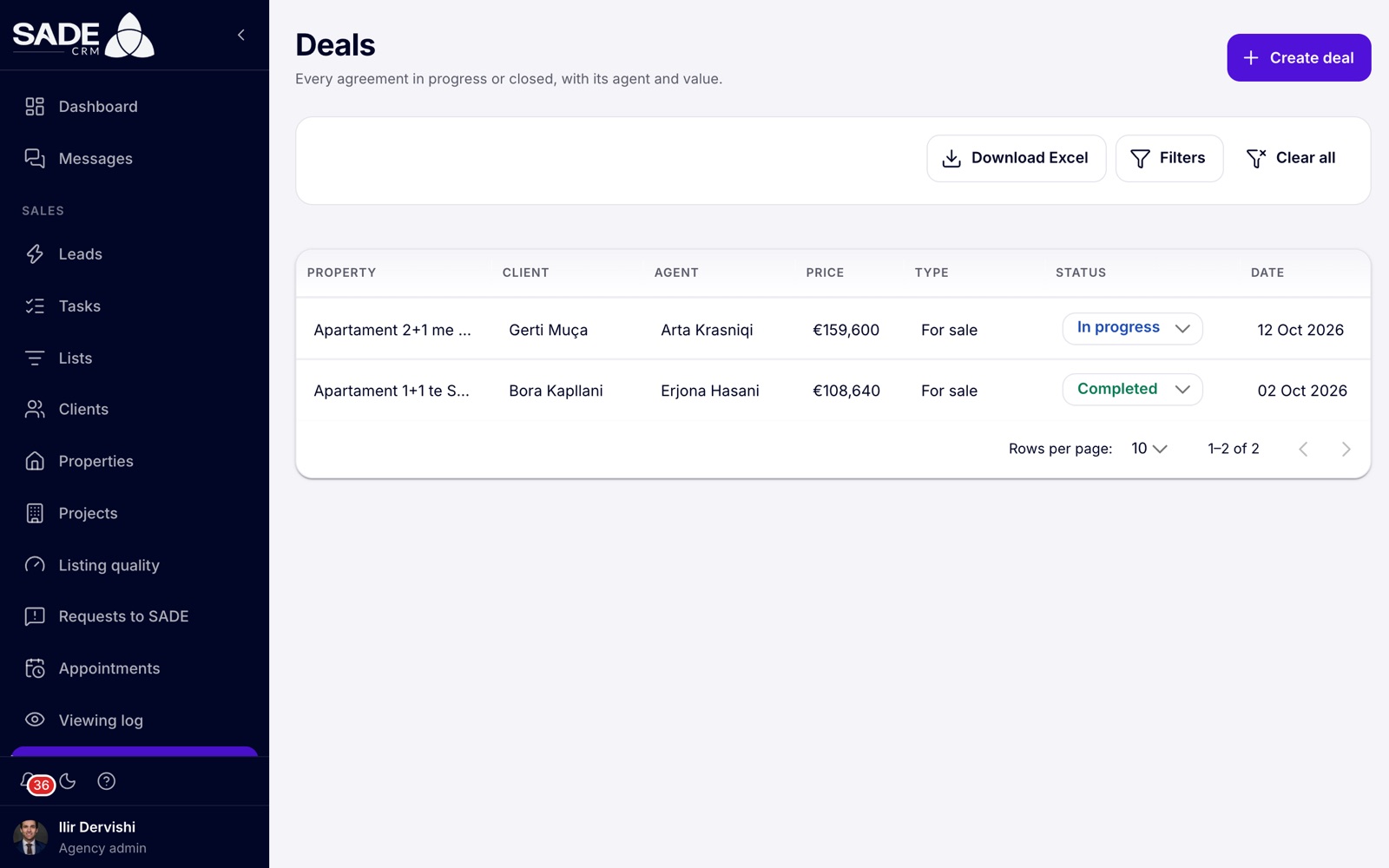
The Deals list. The status of each deal can be changed from its row.
The deals list
Open Deals in the Sales part of the menu.
- Each row shows the Status, Property, Client, Agent, Price (in the deal’s own currency), Type (For sale or For rent), Date and End date.
- Click Filters to filter by Agent (admins only), Client, Property and Deal date. Clear all removes the filters.
- Each row has buttons to view the deal, delete it and Download PDF.
- Choose 5, 10, 20 or 50 rows per page.
Click a deal to open Deal details: the price, currency, deal date, the agent, client and property, who created it and when, and the note.
Deals can’t be edited once they are saved. Only the status changes. If a price or a date is wrong on a deal that isn’t completed, set it to Cancelled and create a new one: a cancelled deal doesn’t block a new deal on the listing.
Creating a deal
- Click Create deal.
- Type in Search property and pick the listing. The other fields open once a property is chosen. An agent finds only the listings assigned to them.
- Pick the client in Search client. The listing’s owner is left out of the results.
- Check the Final price and Currency. Both are filled in from the listing.
- Choose the Deal date.
- For a listing for rent, choose the Contract end date.
- Write the Notes.
- Choose the Status.
- Click Create deal. The CRM says “Deal created”.
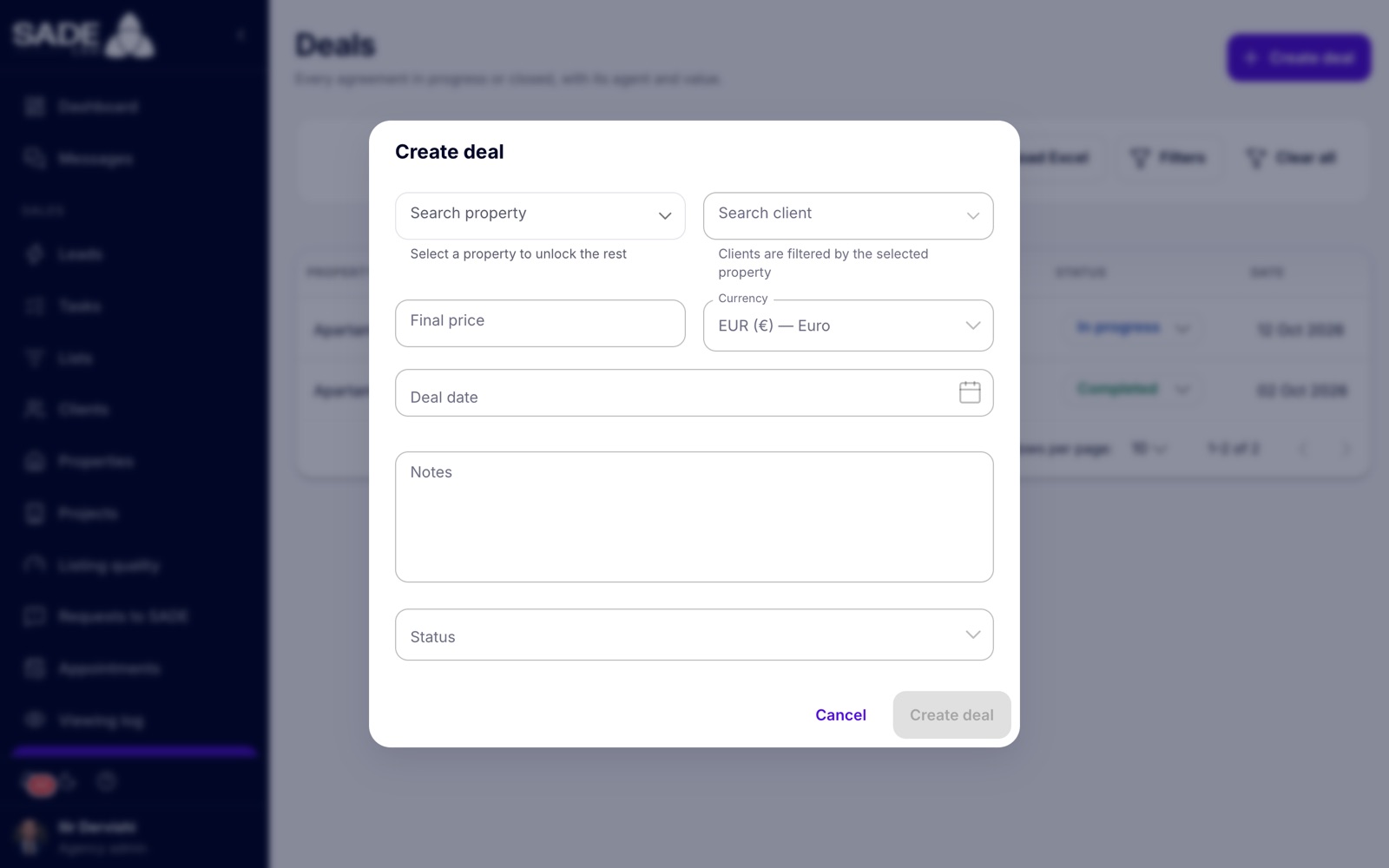
The Create deal dialog. The other fields open once a property is chosen.
| Field | What to enter |
|---|---|
| Search property | The listing that was sold or rented. Required. |
| Search client | The buyer or tenant. Required. |
| Final price | The agreed price or rent. Required. |
| Currency | The currency of the final price. Required. |
| Deal date | The day of the agreement. Required. On the web it can’t be before today. |
| Contract end date | Only for rentals, and required there. It must be after the deal date. |
| Notes | Required. The terms, the deposit, anything worth keeping. |
| Status | Required. Pending, Approved, Completed, Cancelled or Rejected. You can move it to In progress later. |
Creating a deal from a viewing
When you set a viewing to Completed on the calendar, the CRM asks “Was the appointment successful?”. Click Create deal. The Deals page opens with the form filled in from the viewing: the property, the client, the price, the currency, and today as the deal date. Add the notes and the status, then save.
Rules
- One open deal per listing. A listing can have only one deal that is Pending, In progress, Approved or Completed. A second one is refused with “This property already has an open or completed deal.” Cancelled and rejected deals don’t count.
- The deal belongs to the listing’s agent. When an agent creates a deal, it is theirs. When an admin creates one, it goes to the listing’s assigned agent, and Created by records the admin. If the listing has no agent, the CRM asks you to assign one first.
- Creating a deal, and every later status change, marks that client’s viewings of the listing as Completed.
- Every agency admin gets a notification when a deal is created or its status changes.
Statuses
| Status | What it means |
|---|---|
| Pending | The deal is agreed in principle and waiting. |
| In progress | The paperwork is under way. |
| Approved | The deal has been approved. |
| Rejected | The deal was turned down. |
| Cancelled | The deal fell through. |
| Completed | The sale or rental is done. |
The phone app and the agent profiles call a completed deal Closed.
To change the status, pick a new one in the Status column of the deal’s row. It saves at once: “Status updated”.
Important: on the web there is no confirmation step, even for Completed. Check the row before you choose.
When a deal is completed
Setting a deal to Completed, when you create it or later:
- marks the listing Sold (a listing for sale) or Rented (a listing for rent);
- cancels the listing’s other viewings still to come (Pending, Confirmed or Rescheduled), for any client. Their status becomes Cancelled, and they stay in the Viewing log with their outcome and the client’s confirmation. Viewings that are already Completed, Cancelled or No show are left as they are;
- adds the deal to Completed deals and Total revenue on the dashboard.
After that, an agent can’t change the deal’s status or delete it. Its row is locked for them.
An agency admin can still change a completed deal’s status. If they move it to another status, the listing goes back to Published.
Download Excel
Download Excel at the top of the list downloads the deals as a spreadsheet. It follows the filters you have set, so filter first to export one agent or one month. An agent’s file holds only their own deals.
The file is in Albanian when your agency’s CRM language is Albanian, and in English otherwise. In English it has the columns Id, Title, Amount, Status, Agent, Client and DealDate, and a TOTAL row at the bottom. In Albanian the sheet is called “Marrëveshjet”, with the columns Id, Titulli, Shuma, Statusi, Agjenti, Klienti and Data e marrëveshjes, and a TOTALI row.
Important: the TOTAL row adds up the amounts as plain numbers, whatever their currency. If your deals are in more than one currency, filter by one currency’s deals or total them yourself.
Download PDF
Download PDF on a row gives a one-page deal report, in Albanian when your agency’s CRM language is Albanian and in English otherwise: the agency’s logo and name, the property with its main photo, the final price (or agreed rent), the dates and status, the client and the agent with their contact details, and the notes. An agent can download only their own deals’ reports.
Deleting a deal
Click the bin on a deal’s row and confirm with “Delete this deal?”. Deleting can’t be undone.
| Who | What they can delete |
|---|---|
| Agent | Their own deals, unless the deal is Completed. |
| Agency admin | Any deal in the agency, unless the deal is Completed. |
Nobody can delete a completed deal.
Deleting a deal doesn’t touch the viewings. The client’s viewings of the listing stay on the calendar and in the Viewing log, with their outcome, their feedback and the client’s confirmation.
Tip: if the deal fell through, set its status to Cancelled rather than deleting it, so the deal itself stays on record too.
On the phone app
Agents and admins find deals under More → Deals. The phone has filter chips (All, In progress, Closed, Lost), New deal, Change status, Share PDF report and Delete deal. Before a deal is closed or deleted, the phone asks you to confirm. Closing one says, for a sale, “The property will be marked Sold, and its other viewings still to come will be cancelled. They stay in the viewing log.” Deleting one says “The client’s viewings of this property stay in the viewing log.” The phone has no Excel export and no filters by agent, client or date.
Example
Elton Hoxha agrees to buy “Apartament 2+1 në Bllok”, Arta Krasniqi’s listing, for €120,000 with the parking space included. Ilir Dervishi clicks Create deal, picks the listing and Elton, and changes the Final price, filled in from the asking price of €125,000, to €120,000. He sets today as the deal date, writes “Includes parking space”, leaves the status on Pending and clicks Create deal. The deal is Arta’s; Ilir is shown as Created by.
When the notary signs, Arta sets the deal to Completed in the list. The listing is marked Sold. Besnik Leka had a Pending viewing of the same flat booked for Saturday with another client; it becomes Cancelled, and stays in the Viewing log. The dashboard’s Completed deals goes up by one and Total revenue by €120,000.
At the end of the month Ilir clicks Filters, chooses Arta and this month’s dates, and clicks Download Excel for the monthly meeting. All her deals are in euros, so the total row is right.
Arta’s other buyer, for a flat in Komuna e Parisit, walked away before signing. She sets that deal to Cancelled rather than deleting it, so the deal stays on record next to the viewings and the client’s confirmation in the Viewing log.
Something unclear or missing? Write to [email protected] or call +355 69 808 0118.