If your listings already live somewhere else, such as another CRM, your website or a spreadsheet, you don’t have to type them in again. Imports & feeds brings them into SADE CRM from a spreadsheet, or reads your other software’s feed on a schedule and keeps your listings in step with it. It also gives you feed addresses that other portals can read your listings from.
The page is for agency admins. Open Settings at the bottom of the menu; it is under Property setup. Imported listings work like the ones you type in: they appear in Properties, get enquiries, viewings and deals, and count towards your plan’s listing limit.
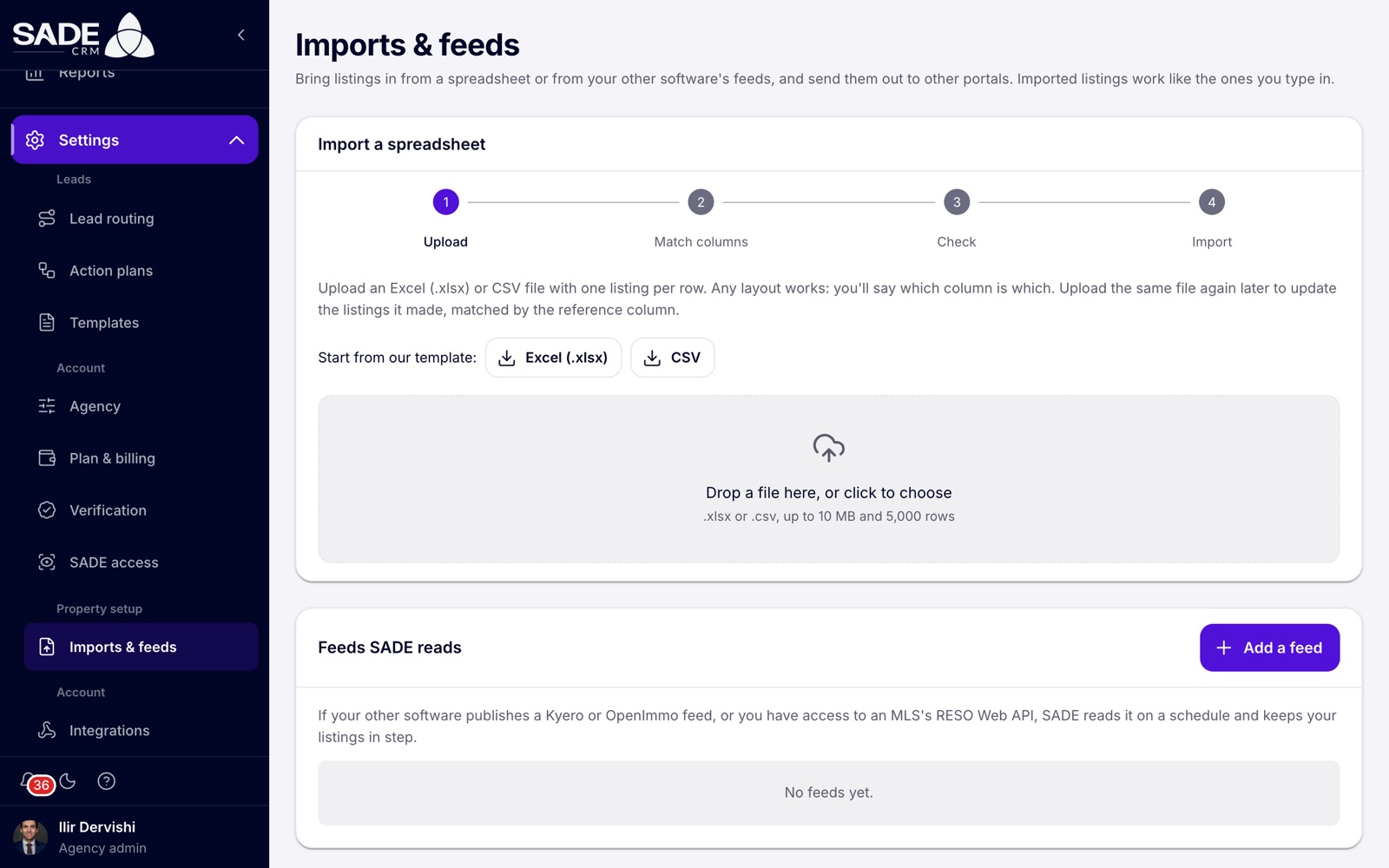
The page has four cards: Import a spreadsheet, Feeds SADE reads, Import history, and Your feeds for other portals.
What happens to imported listings
- New listings of a verified agency are published straight away. They do not wait in SADE’s review queue, and they appear on the marketplace at once. SADE’s moderators look at them afterwards, and can block one.
- New listings of an agency that isn’t verified yet are Pending. They wait for SADE’s review before they are published, like listings you add by hand.
- Their availability is set to immediate, the price type to total, and the exact location is hidden: the marketplace shows a shaded area.
- They are assigned to the agent named in the row or feed, or to the default agent you choose.
- Photos are downloaded in the background and appear on the listings over the next minutes.
- Every published listing that is still in the file or feed is confirmed again, so it stays on the marketplace for another period (60 days for sale, 30 for rent). An expired one comes back.
- Where your country requires a property code and a listing has none, it gets the No property code flag. See Flags.
Each new listing counts towards your plan’s listing limit. Once the limit is reached, the remaining new rows fail with “The plan’s listing limit is reached; upgrade the plan to import more.” Updates to listings you already have still go through.
There is no notification or email after an import. You see the result on screen and in Import history.
Import a spreadsheet
The spreadsheet import takes an Excel (.xlsx) or CSV file with one listing per row. Any layout works: you tell SADE which column is which.
Upload
- If you are starting a new file, click Excel (.xlsx) or CSV next to “Start from our template:”. The template has the column headers (in Albanian for an Albanian-language agency, otherwise in English), the required ones shaded yellow, and one example row.
- Drop your file on the box, or click it to choose one. Files can be up to 10 MB and 5,000 rows. Old .xls files can’t be read: save them as .xlsx or .csv first.
Match columns
SADE shows the first rows of your file as it read them, and under each column which field it will fill, or “not used”.
Below, Which column is which has one drop-down per field. SADE guesses from your headers, in English, Albanian and many other words (“ref”, “asking price”, “town”, “sqm”, “beds”). If every column you used last time is in the new file, it suggests last time’s choices. Each column can be used once. Pick Not in the file for anything your file doesn’t have.
Click Check the rows. It stays greyed out until every required field has a column.
The fields
Fields marked * are required.
| Field | What it takes |
|---|---|
| Reference | Your own id for the listing, up to 200 characters. Without it, every upload creates new listings instead of updating them. |
| Title | Optional. If it is empty, SADE writes one, such as “2-bedroom apartment for sale in Tirana”. |
| Description | Up to 20,000 characters. Formatting is removed. |
| Price * | More than zero. Written as people type it: 120000, 120.000, 120,000 or € 120.000. |
| Currency | A code such as EUR or ALL, or a sign or word such as €, $, lek or euro. If there is no column, SADE uses a sign in the price cell, or your agency’s currency. |
| Sale/Rent * | Words such as sale, for sale, shitje, or rent, to let, me qira. |
| Property type * | Matched to SADE’s types by name in many languages: apartment or flat, villa or house, studio, office, shop, land or plot. A cell that contains one of them, like “Apartament 2+1”, also matches. |
| City * | A city of your agency’s country. Accents and capitals don’t matter, and only the part before a comma counts (“Tiranë, Shqipëri” works). |
| Neighbourhood | Up to 120 characters. |
| Address | Up to 300 characters. If empty, the neighbourhood or the city is used. |
| Postcode | Up to 20 characters. |
| Latitude, Longitude | Decimal numbers, with a point or a comma. |
| Bedrooms, Bathrooms | 0 to 50. |
| Area (m²) | 1 to 1,000,000. “85 m²” works. |
| Year built | From 1800 to ten years from now. |
| Agent email | The email of one of your agents or admins. If it doesn’t match anyone, the row is not an error: the listing goes to the default agent. |
| Photos | Web addresses (http or https), separated by spaces, line breaks, “;” or “|”. Up to 40, cover photo first. |
| Amenities | Names separated by commas, “;”, “|” or line breaks. SADE recognises common ones such as parking, elevator, balcony, heating, air conditioning, furnished, sea view, garden, security and storage. Others are left out without an error. |
| Status | Empty means active. Active words (active, available, published), sold words (sold, rented, let) or withdrawn words (withdrawn, inactive, archived, off market). |
You can also match columns for the property code (for example 8150/7/419+1-6 in Albania), an area in square feet, and the energy class used in your country.
Check
Nothing is saved yet. SADE shows four figures: Rows, New listings, Updates and Rows with problems. Rows with problems are listed with their row number as you see it in Excel, the reference and the problem, for example City "Tirna" isn't one SADE knows in Albania. Problems are written in Albanian when your agency’s CRM language is Albanian, and in English otherwise; problems with a property code are always in English. These rows will be skipped and the rest imported.
Under the figures, SADE may add:
- “3 rows are listings deleted in the CRM; they won’t be brought back.” See Deleted listings stay deleted.
- “Your agency isn’t verified yet, so new listings wait for SADE’s review before they are published, like listings you add by hand.”
Two choices before you import:
- Rows without an agent go to: The agency’s first admin (the default), or one of your agents. A row with an agent email goes to that agent.
- Withdraw listings missing from this file: tick it when the file is your full list. Listings from earlier spreadsheets whose reference isn’t in this file are set to Withdrawn, which takes them off the marketplace. It needs a Reference column. A row that has a problem still counts as present, so a typo doesn’t take a listing down. Only listings that are Published, or Pending from an earlier import, are withdrawn; sold, rented, blocked and rejected listings stay as they are.
Click Import 12 listings (the number is new listings plus updates) and keep the page open. It takes about a second for every 300 rows.
Note: the check does not test your plan’s listing limit, or whether another agency holds a property code. Those rows can still fail at import, so the import can report more problems than the check.
Import
The result shows New, Updated, Unchanged, Withdrawn and Problems, and the problem rows. A note says that photos are fetched in the background, and whether the new listings are published or wait for SADE’s review. Click Import another file to start again.
Updating listings by uploading again
Upload the same file again later, with your changes, and SADE updates the listings it made, matched by Reference:
- Only the fields that have a value in the row change. An empty cell keeps what the listing has.
- A listing whose row is the same as before is not touched and counts as Unchanged.
- The assigned agent changes only when the row names another of your agents.
- An empty Photos cell keeps the photos. Photos your agents added by hand in the CRM stay, after the imported ones.
The uploaded file is kept for 30 minutes between steps. After that, upload it again.
Statuses on a new upload
The file’s Status column changes a listing’s status only while the listing is as the file or SADE’s approval left it: Published, or the status the last upload gave it.
- A sold word makes it Sold or Rented, and a withdrawn word makes it Withdrawn.
- An empty status or an active word keeps a Published or Pending listing as it is. A listing the file had withdrawn comes back, as a new listing would: published if your agency is verified, otherwise Pending for SADE’s review.
- A status decided in the CRM or by SADE stays, whatever the file says: a listing sold or rented through a deal, or Blocked or Rejected by SADE. Its other fields are still updated from the row.
Deleted listings stay deleted
A listing you delete in the CRM is never brought back by an import. Later uploads leave its row out, even if the file still has it, and count it under Unchanged. The import’s details name it, for example “1 listing was deleted in the CRM, so it wasn’t brought back (reference TL-007).”
To list the home again, add it by hand in Properties.
Feeds SADE reads
If your other software publishes a Kyero or OpenImmo feed, or you have access to an MLS’s RESO Web API, SADE reads it on a schedule and keeps your listings in step.
Adding a feed
- Under Feeds SADE reads, click Add a feed.
- Fill in the dialog:
| Field | What to enter |
|---|---|
| Kind | Kyero feed (Kyero v3 XML, read in full each time), OpenImmo feed (OpenImmo 1.2) or RESO Web API. It can’t be changed later. |
| Name | Required, up to 100 characters. For example “Our website”. |
| Feed address | For Kyero and OpenImmo: the full address of the XML file, starting with https://. |
| Server address | For RESO: the server’s base address, usually ending in /odata. |
| RESO credentials | For RESO: Token address, Client id, Client secret, and optionally Scope and Resource. You get them from the MLS. They are stored encrypted and never shown again. |
| Read every | From 15 minutes to a week. One hour to start with. |
| Listings without an agent go to | The agency’s first admin, or an agent. A listing whose agent email matches one of yours goes to that agent. |
| Withdraw listings the feed no longer has | On to start with. After a full read, listings missing from the feed are set to Withdrawn, if they are Published or still Pending from the feed. |
| Read on schedule | On to start with. Off: the feed is kept, but read only when you press Read now. |
- Click Add feed. SADE reads it within 15 minutes, or at once if you click Read now.
Each feed’s row
The row shows the feed’s name and kind, how the last read went (Last read worked, Last read failed, Reading… or Not read yet), how often it is read, when it was last read and how many published listings it has. If the last read failed, the reason shows in red, for example “The feed answered 404 Not Found.”
- Read now reads it at once, even when it is paused. For RESO, choose What changed (listings changed since the last read) or Everything (all listings, and withdraw what the server no longer has).
- The switch pauses the feed or turns it back on.
- The pencil edits it; the bin deletes it.
- History shows that feed’s reads.
When you delete a feed, SADE stops reading it and its history is deleted. Its listings stay in the CRM as ordinary listings, unless you tick Also withdraw its listings: then those that are Published, or still Pending from the feed, become Withdrawn.
Note: nobody is notified when a scheduled read fails. Look at the feeds’ rows now and then.
What a feed does to your listings
Feeds follow the same rules as spreadsheets: new listings are published if your agency is verified and wait for SADE’s review if not, updates change only what the feed gives, statuses decided in the CRM or by SADE stay, deleted listings are not brought back, and photos are fetched in the background. A listing the feed withdrew comes back when the feed lists it again. Listings missing from the feed are withdrawn only after a full, successful read, and only when Withdraw listings the feed no longer has is on. Nothing is withdrawn when:
- the read failed;
- the read was partial: an OpenImmo feed that sends only changes, or a regular RESO read;
- the feed had no listings with an id;
- the listing’s entry had a problem.
Feeds can be up to 200 MB, and must be on the public internet.
Import history
Import history lists every import, spreadsheets and feeds, newest first. Click Refresh to update it.
| Column | What it shows |
|---|---|
| When | When it ran. Hover for the exact time. |
| From | The file name or the feed name, and its kind. |
| Status | Running, Finished or Failed. |
| New | Listings created. |
| Updated | Listings changed. |
| Unchanged | Listings that were the same, and listings left out because they were deleted in the CRM. |
| Withdrawn | Listings taken off because the source no longer had them. |
| Problems | Rows not imported, in red. |
| Started by | The person, or Schedule. |
Click a row to see its figures and the list of problems.
Your feeds for other portals
Many property portals can read a Kyero or OpenImmo feed. SADE can publish one for you, so a portal shows your listings and keeps them up to date.
- Under Your feeds for other portals, click Turn on.
- Two addresses appear: Kyero (v3) and OpenImmo (1.2.7). Click Copy next to the one the portal reads.
- Paste it into the portal’s feed or import settings.
The feeds hold your listings that are Published and not blocked or expired, with only public information: the shaded location unless you show the exact one, and SADE’s copies of the photos with the cover first. Videos and the property code are left out. A portal sees changes within 5 minutes.
Important: the address holds a secret. Anyone who has it can read your published listings. If it gets out, click New address: the old addresses stop working at once, and you give the new ones to every portal. Turn off stops both feeds at once.
Tirana Living Real Estate kept its listings in a spreadsheet before moving to SADE CRM. Ilir Dervishi saves it as CSV with the columns Reference, Title, Description, Price, Currency, Sale/Rent, Property type, City, Neighbourhood, Address, Bedrooms, Bathrooms, Area (m²), Year built, Agent email, Photos and Status. There are 12 rows, TL-001 to TL-012.
He opens Settings → Imports & feeds, drops the file on the box, and SADE matches every column from its header. He clicks Check the rows: Rows 12, New listings 11, Rows with problems 1. Row 6, TL-005, says Price: "me marrëveshje" is not a number. He leaves Rows without an agent go to on himself and clicks Import 11 listings.
The result shows New 11 and Problems 1. The eleven listings are published, each with the agent from the Agent email column, and since the agency is verified they are on sadegre.com once their photos have arrived.
Ilir asks the owner of TL-005 for a price, types 98000 in the file and uploads it again. SADE suggests the same columns as last time. This time TL-005 is created, and the other eleven are matched by their reference instead of being created twice.
Something unclear or missing? Write to [email protected] or call +355 69 808 0118.