The building board is where the sales team works a project. It draws every building as floors and units, top floor first, coloured by status, so you can see at a glance what is free, what is on hold and what has sold. Click a unit and its panel opens beside the drawing, with its figures, its sale or hold, its waiting list and the buttons to act on it.
Every project has a board as soon as it has units: SADE draws it from the units’ buildings, floors and codes, with nothing to upload. If you have traced the floor plans and the facade, the board shows them too.
Admins and agents both use the board. Partner agencies see a reduced version of it (see Selling as a partner).
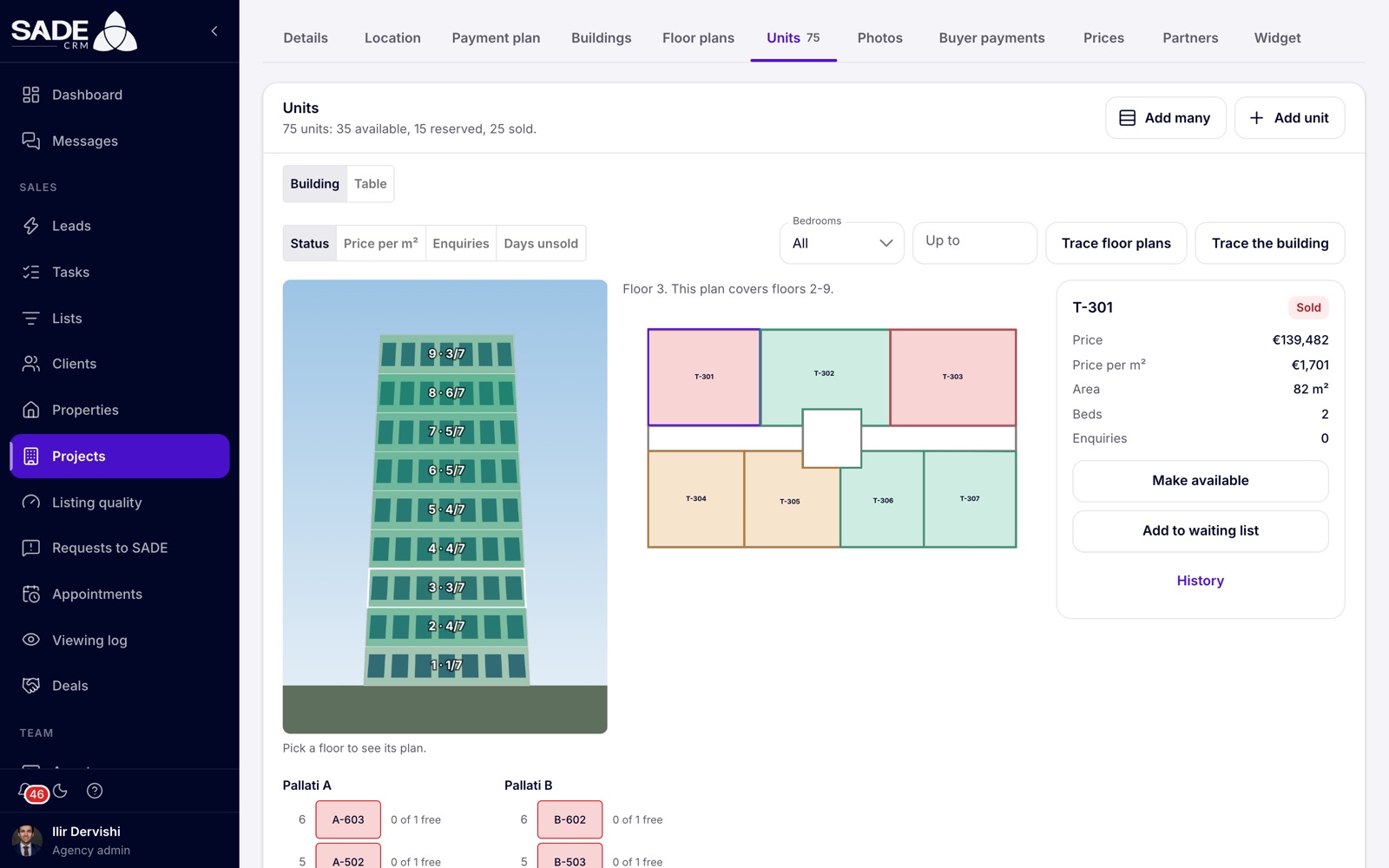
The board with the facade, the traced plan of floor 3, and unit T-301 picked. Below them, each building is drawn floor by floor.
Open the board
- Open the project and click the Units tab.
- The Building view is selected. The other view, Table, lists the units in rows (see The table view).
The line at the top sums the project up, for example “75 units: 35 available, 15 reserved, 25 sold.”
Read the drawing
Each building is drawn under its name, with one row per floor from the top down. Every floor between the lowest and the highest is drawn, even one with no units for sale. Units with no floor come last, and units with no building go into a last drawing called “No building”.
Each floor row ends with how many of its units are free, for example “2 of 4 free”.
On the Status lens, each unit is coloured by its status:
| Colour | Status | Meaning |
|---|---|---|
| Green | Available | On sale. Anyone can hold or reserve it. |
| Blue | On hold | Kept for a client for the project’s hold time. |
| Orange | Reserved | A client has reserved it. |
| Red | Sold | The contract is signed, or the sale is completed. |
The legend gives the number of units in each status.
Choose a lens
The Show buttons above the drawing change what the colours mean.
| Lens | What it shows |
|---|---|
| Status | Available, on hold, reserved or sold, as above. The default. |
| Price per m² | Each unit’s price per m², in euros, so units priced in different currencies can be compared. |
| Enquiries | How many enquiries have named the unit, from the marketplace and from your website widget. |
| Days unsold | For available units, the days since the unit last became available. Other units have no figure. |
The figure lenses paint the units from pale to strong teal. The legend reads “From” the lowest “to” the highest figure, or “No figures yet.” when there is nothing to show.
Tip: use Days unsold to find the units that have waited longest, and Enquiries to see which ones buyers keep asking about. Together they tell you where a price may be wrong. The price book changes prices by rule.
Filter the units
Two filters sit beside the lenses:
- Bedrooms: All, or a number of bedrooms.
- Up to: a highest price. Each unit’s price is compared in its own currency.
Units that don’t match fade, and the line under the filters reads, for example, “12 of 75 match”.
The unit panel
Click any unit on the drawing. Its panel opens on the right; on a narrow screen it slides up from the bottom. With nothing picked the panel reads “Pick a unit on the building to see it here.”
The panel shows:
- the unit’s code and status;
- Price, Price per m², Area, Beds, Floor plan, Enquiries and Days unsold;
- its sale, if it has one: the client, the sale’s stage, the agent and the agreed price, and “Sold by” the partner agency when a partner sold it;
- its hold, if it is on hold: the client, “Held until” a date and time, and the agent;
- the Waiting list, numbered, with a × to remove an entry;
- the buttons for what you can do with the unit now, such as Hold, Reserve or Contract signed, and History. Admins, and the agent of the sale, also get Payments.
Which buttons appear depends on the unit’s state and on who you are. Each one is explained in Holds and sales.
Traced plans and the facade
When you have traced floor plans, the board shows the plan of the floor you last picked next to the drawing, for example “Floor 3. This plan covers floors 2-9.” Each unit’s outline is coloured like the drawing; click an outline to pick that unit.
When you have traced the facade, the render of the building appears too. Each traced floor shows its number and its free units out of the total, for example “3 · 3/7”, and is tinted green while it has free units and red when it has none. Click a floor on it to see that floor’s plan.
Admins on a desktop-width screen also see the buttons Trace floor plans and Trace the building here. See Floor plans and facades.
The table view
Click Table for the units as rows. Use it to find a unit by its code or to check many units at once.
- The chips at the top filter by status and show the counts: All, Available, On hold, Reserved and Sold.
- All buildings narrows the list to one building.
- Search code finds a unit by its code or its floor plan’s name.
- The columns are Code, Status, Building, Floor, Floor plan, Beds, Baths, Area, Price, Orientation and Note. Admins also get the edit and delete buttons.
Click a unit’s status chip to open the same actions as the panel.
How fresh the board is
The board reloads every 20 seconds while the page is open, and at once when you come back to the tab. When a colleague reserves a unit, you see it within 20 seconds without reloading the page. Your own changes show straight away.
If the board cannot load, it reads “The building could not be loaded.” Reload the page.
Note: on the phone app, the project’s page has the same building drawing, reloaded every 20 seconds, with the traced plans and the first facade image. Tap a unit to act on it. The lenses and the filters are on the web only. See The mobile app.
An example
On Monday morning Erjona Hasani opens Rezidenca Liqeni → Units. A client wants a two-bedroom flat for no more than €170,000. She sets Bedrooms to 2 and Up to to 170000; the units that don’t fit fade.
She switches the lens to Days unsold. T-306 shows strong teal: it has been available the longest of the two-bedroom flats. She clicks it. The panel shows €166,000, 98 m², the 2+1 floor plan and no enquiries yet, with Reserve and Hold at the bottom.
While she calls her client, Besnik reserves A-302 for another buyer. Within 20 seconds Erjona’s board turns A-302 orange, without her reloading the page.
Something unclear or missing? Write to [email protected] or call +355 69 808 0118.