A client is anyone your agency works with: a new lead, a buyer, a tenant or an owner. Leads and clients are the same records. When a lead arrives it becomes a client at the Lead stage, and everything that happens with that person afterwards, from enquiries and calls to viewings and deals, collects on one client page.
Agents and agency admins both use Clients. Admins see every client in the agency; agents see the clients they work with. Open it from Sales → Clients.
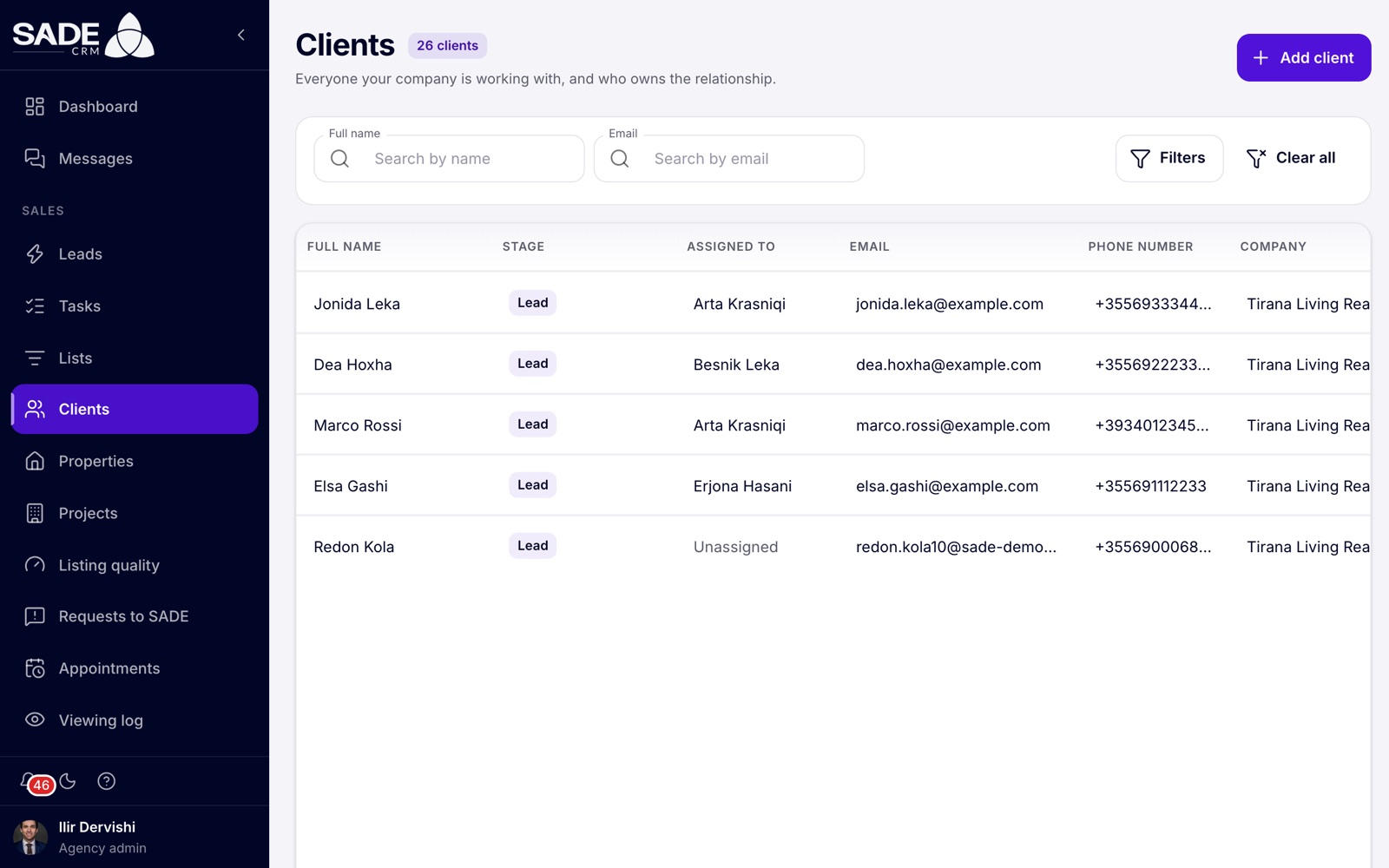
Tirana Living’s clients, filtered by name.
The client list
The list shows the newest clients first, 10 to a page by default (you can choose 5, 20 or 50).
| Column | What it shows |
|---|---|
| Full name | The client’s name. |
| Stage | Their lead stage. |
| Assigned to | Their agent, Unassigned, or an In pond chip. |
| Email and Phone number | How to reach them. |
| Company | Your agency. |
| Status | Owner if at least one property is recorded as theirs, otherwise Buyer. |
| Created at | When the client was added. |
Search by Full name or Email at the top, or click Filters to narrow the list by Phone number, Status, Stage or the date it was Created. Clear all removes every filter.
Each row has buttons to view, edit and delete the client. Edit and delete are for agency admins only.
What agents see
An agent’s list shows the clients who:
- are assigned to the agent;
- were added by the agent;
- have a viewing or a deal with the agent;
- own a listing assigned to the agent;
- asked about a listing assigned to the agent.
Leads in the pond aren’t in an agent’s client list unless one of these applies. To find them, use the Pond on the Leads page or the In the pond list in Lists.
Adding a client
Most clients arrive by themselves as leads. Add one by hand when someone phones the office, walks in, or you meet them at a viewing.
- Click Add client.
- Fill in the Add a client dialog (see the table).
- Click Add client. The CRM says “Client added.”
| Field | What to enter |
|---|---|
| Full name | Required. For example “Arben Hoxha”. |
| Phone | For example “069 123 4567”. |
| Their email address. | |
| Address | Optional. |
| City | Optional. Type to search. |
You need an email address or a phone number, at least one, so the person can be reached.
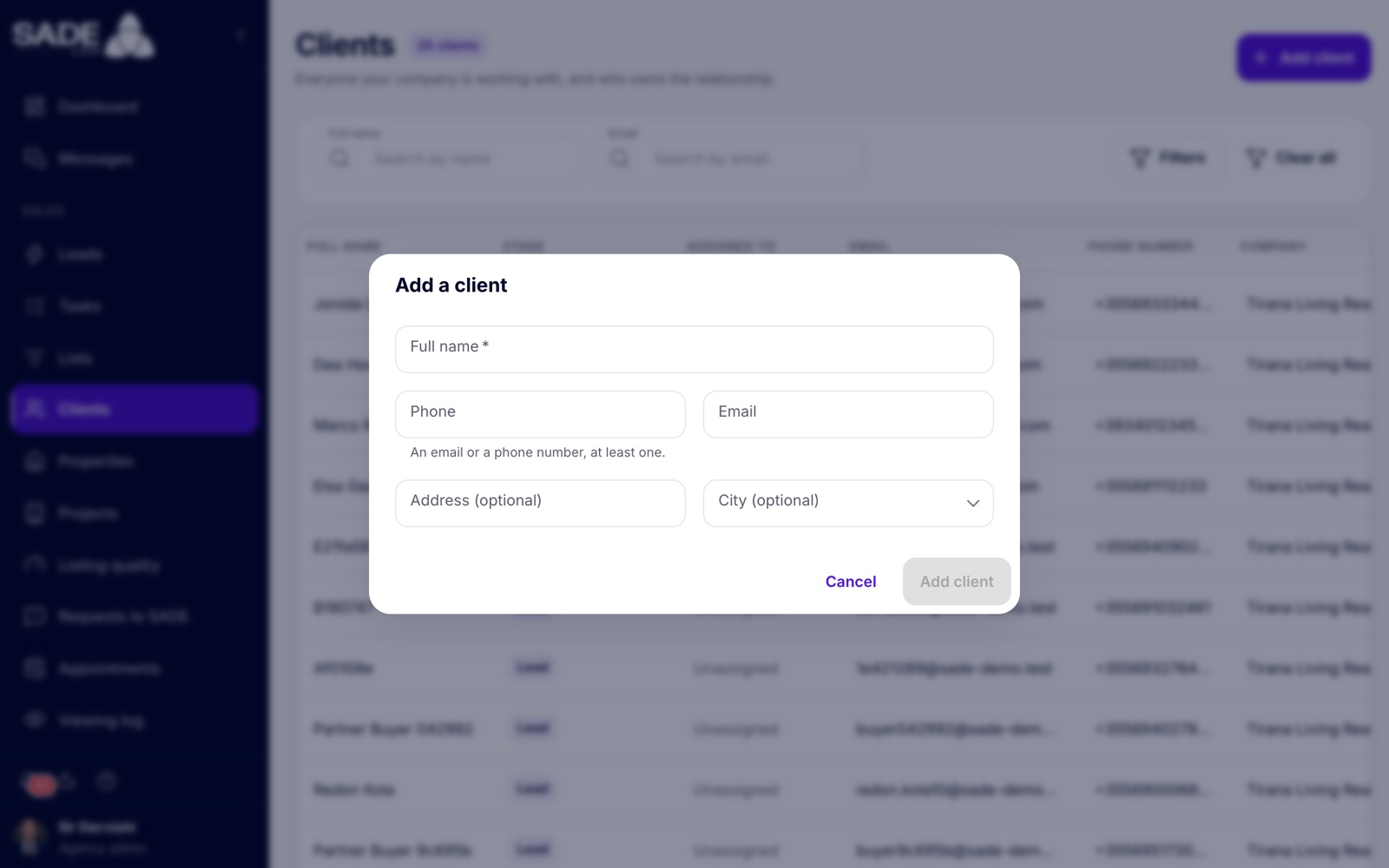
The Add a client dialog.
A client you add by hand starts at the Lead stage, with the source CRM. If an agent adds the client, the client is assigned to that agent. If an agency admin adds them, they are unassigned, and not in the pond; assign them on the client page. Clients added by hand don’t go through routing, have no response clock and don’t start action plans by themselves.
When the person is already a client
The CRM recognises people by their email address and phone number, and keeps one record per person. If the email or the phone you enter already belongs to one of your agency’s clients, Add client saves nothing. The dialog says “This person is already a client.” Phone numbers match with or without the country code, so “069 123 4567” and “+355 69 123 4567” are the same person.
- If you may open that client, the dialog shows their name and agent, for example “Arben Hoxha · assigned to Arta Krasniqi”, and an Open client button that takes you to their page.
- If you may not, it says “They aren’t one of your clients, so you can’t open them. An agency admin can assign them to you.”
Change the email or phone if you typed it wrong, or work with the existing client.
Editing a client
Agency admins can edit a client’s details: click Edit client at the top of the client page, or the edit button on the client’s row in the list. Change the fields and click Save changes. The CRM says “Client updated.”
Agents can’t edit a client’s details, but they can change the stage, log contacts, add notes and tasks, and record consent on the client page.
The client page
Click a client’s name anywhere in the CRM to open their page.
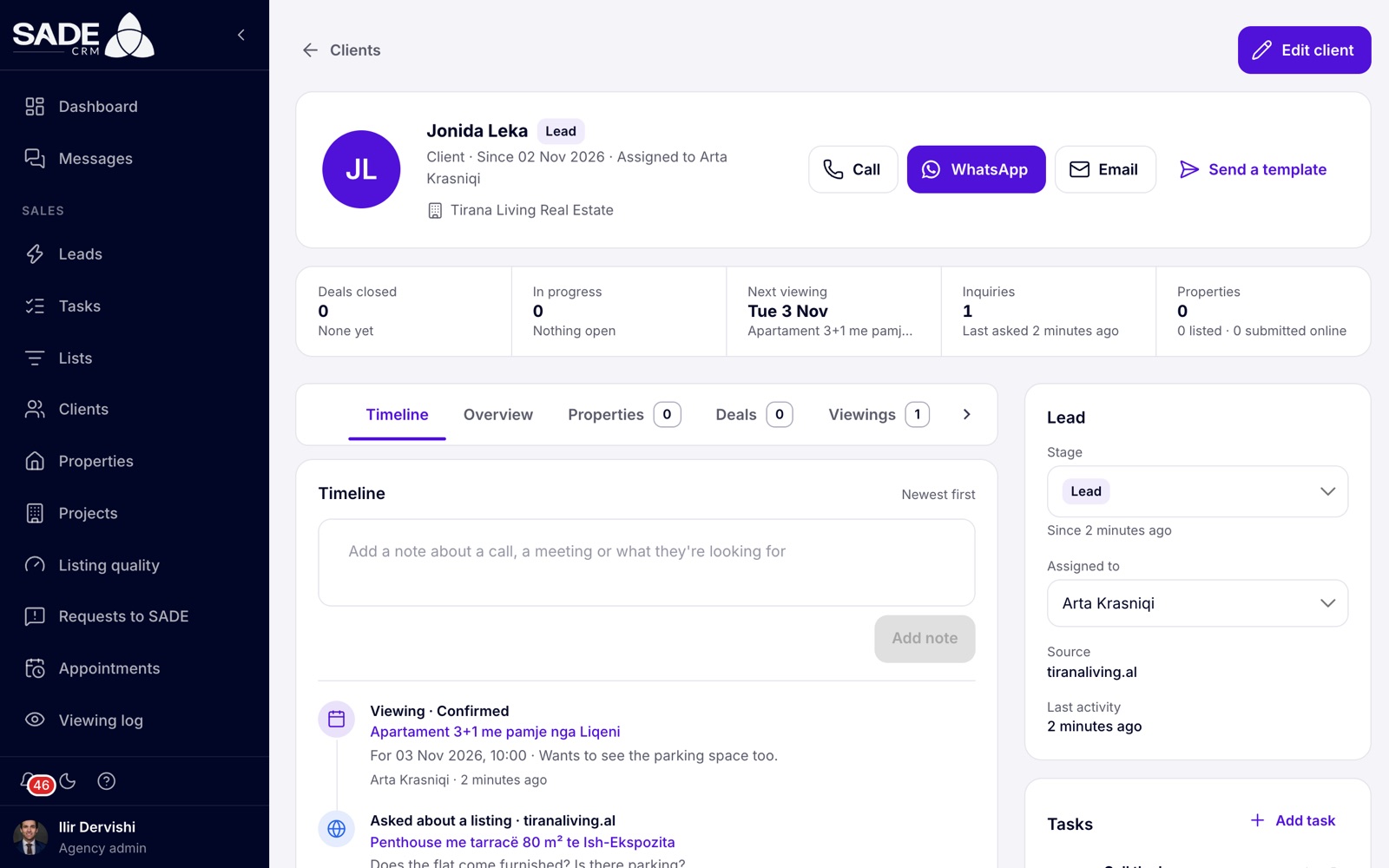
Jonida Leka’s page: a lead from the agency’s website, assigned to Arta, with a viewing booked.
At the top are the client’s name and stage, and a line such as “Client · Since 02 Nov 2026 · Assigned to Arta Krasniqi”. Chips show when the client is a Property owner, Has a website account on the marketplace, or is In the pond (with a Claim button). On the right are Call, WhatsApp, Email and Send a template; see Following up.
Below that, five tiles sum the client up: Deals closed, In progress, Next viewing, Inquiries (with when they last asked) and Properties.
The tabs:
| Tab | What’s in it |
|---|---|
| Timeline | Everything that has happened with the client, newest first. This tab opens first. |
| Overview | Their next viewing, deals in progress, and a summary of their activity. |
| Properties | Properties they own and have listed with you, and anything they submitted on the website. |
| Deals | Their deals. |
| Viewings | Viewings coming up and past. |
| Inquiries | What they asked about, and their messages. |
The timeline shows what the client did (enquiries, sign-ups, searches, with the source of each), contacts your team logged with the outcome and note, notes, stage changes, reassignments, merged duplicates, viewings, deals and consent. You can add a note at the top; see Notes on the timeline.
On the right are these cards:
| Card | What it holds |
|---|---|
| Lead | Stage (anyone can change it), Assigned to (agency admins can change it), Source and Last activity. |
| Tasks | The client’s tasks, with Add task. See Tasks and action plans. |
| Action plans | Plans running or run for the client, with Start and Stop. |
| Marketplace | Shown when one of your agents is the client’s agent on the SADE marketplace: until when, their saved homes, and their saved searches with how often they get alerts. |
| Consent | What the client has agreed to, by channel. |
| Details | Email, phone, address, city, company, client since, who added them, and their website account, with buttons to copy. |
Recording consent
The Consent card shows, for Email, SMS, WhatsApp and Phone, whether the client agreed to Contact (contacting them about their request) and to Marketing (for example new listings): Not asked, Agreed or Declined, and where it was given.
Consent given on your website form or on the marketplace is recorded by itself. For consent given on the phone or in person:
- On the Consent card, click Record consent.
- Choose the Channel and what it is For.
- Choose They agreed or They declined.
- Write down what they agreed to, in their words or as close as you can get. This is your proof, and it is required when they agree.
- Save. The CRM says “Consent recorded”, and the consent appears on the timeline.
Anyone in the agency can record consent.
Duplicates and merging
When another client in your agency has the same email address or the same phone number, a banner at the top of the client page says “Possible duplicate:” and the other client’s name. The CRM compares numbers and addresses ignoring spaces, upper and lower case and the country code, so “069 111 2233” and “+355 69 111 2233” count as the same. Names alone are never matched.
New leads don’t create duplicates: an enquiry from someone already in your CRM is added to their existing record, and Add client refuses a person who is already there. Duplicates come mainly from details changed by hand later, for example a phone number added to one client’s record that another client already has.
To merge two records, open the one you want to keep:
- Click Review on the banner. The dialog lists the records that share an email address or phone number with this client.
- Click Merge into this client on the record to fold in.
- Read the confirmation and click Merge and delete the other record. The CRM says, for example, “Elsa Gashi was merged into this client”.
Only agency admins can merge. Agents see the banner with the message “An admin can merge them if they are the same person.”
Everything on the other record moves to the one you keep: enquiries, viewings, deals, properties, website submissions, notes, contacts, consent, tasks, action plans and any open response clock. The kept record fills any gaps (phone, email, address, city, agent, source) from the other one, and keeps the earlier creation date. The other record’s email and phone are written on the timeline, in the “Merged a duplicate” entry, and the other record is deleted. This can’t be undone.
Deleting a client
Agency admins can delete a client from the client list:
- Click the delete button on the client’s row.
- Confirm with Delete. The CRM says “Client deleted”.
Deleting can’t be undone. Some clients can’t be deleted, and the CRM says why:
| The client has | The CRM says |
|---|---|
| Properties, deals, enquiries or website submissions | “This client has linked records:” and how many of each, for example “This client has linked records: 1 property, 2 deals.” That includes most leads, because their first enquiry is kept on record. |
| A Pending viewing | “This client has a pending viewing. Cancel it or mark it done, then delete the client.” Change the viewing’s status on the calendar, then try again. |
Tip: to get a lead out of the way without deleting it, move it to the Trash stage. Its clock and action plans stop, and its history stays.
Example
On Tuesday a man phones Tirana Living’s office about selling his flat near the Artificial Lake. Ilir Dervishi, the agency admin, searches the client list by the caller’s phone number, 069 455 1201, and finds nobody. He clicks Add client and enters “Klodian Meta”, the phone number and the city Tiranë, then clicks Add client.
Klodian starts as an unassigned Lead with the source CRM. Ilir opens his page, sets Assigned to to Besnik Leka and adds a note: “Owner, 2+1 near the Lake, wants a valuation this week.”
On Friday Klodian asks a question on the SADE marketplace from the same phone number. The CRM recognises the number, so the enquiry appears on his existing timeline under the source SADE Marketplace, and goes to Besnik, who already works him. His Source on the Lead card stays CRM, where he first came from.
A week later Erjona Hasani notices a banner on Elsa Gashi’s page: “Possible duplicate: Elsa Gashi”. A second record for Elsa, made under her work email with no phone, had just had her mobile number added by hand, written another way than on her original record. Ilir clicks Review, then Merge into this client on the newer record. Its notes move to Elsa’s original record, and the copy is deleted.
Something unclear or missing? Write to [email protected] or call +355 69 808 0118.