Templates are the messages your agents send most often, written once for the whole agency. When an agent uses one, the CRM fills in the person’s name, the agent’s own name, the agency and the listing they asked about, then opens the message in the agent’s own WhatsApp, SMS app or email. SADE doesn’t send the message itself: the agent sends it from their own account, so the reply comes back to them.
Agency admins write and edit templates under Settings → Templates. Everyone in the agency uses them: from a client page, from a task, and in action plan steps.
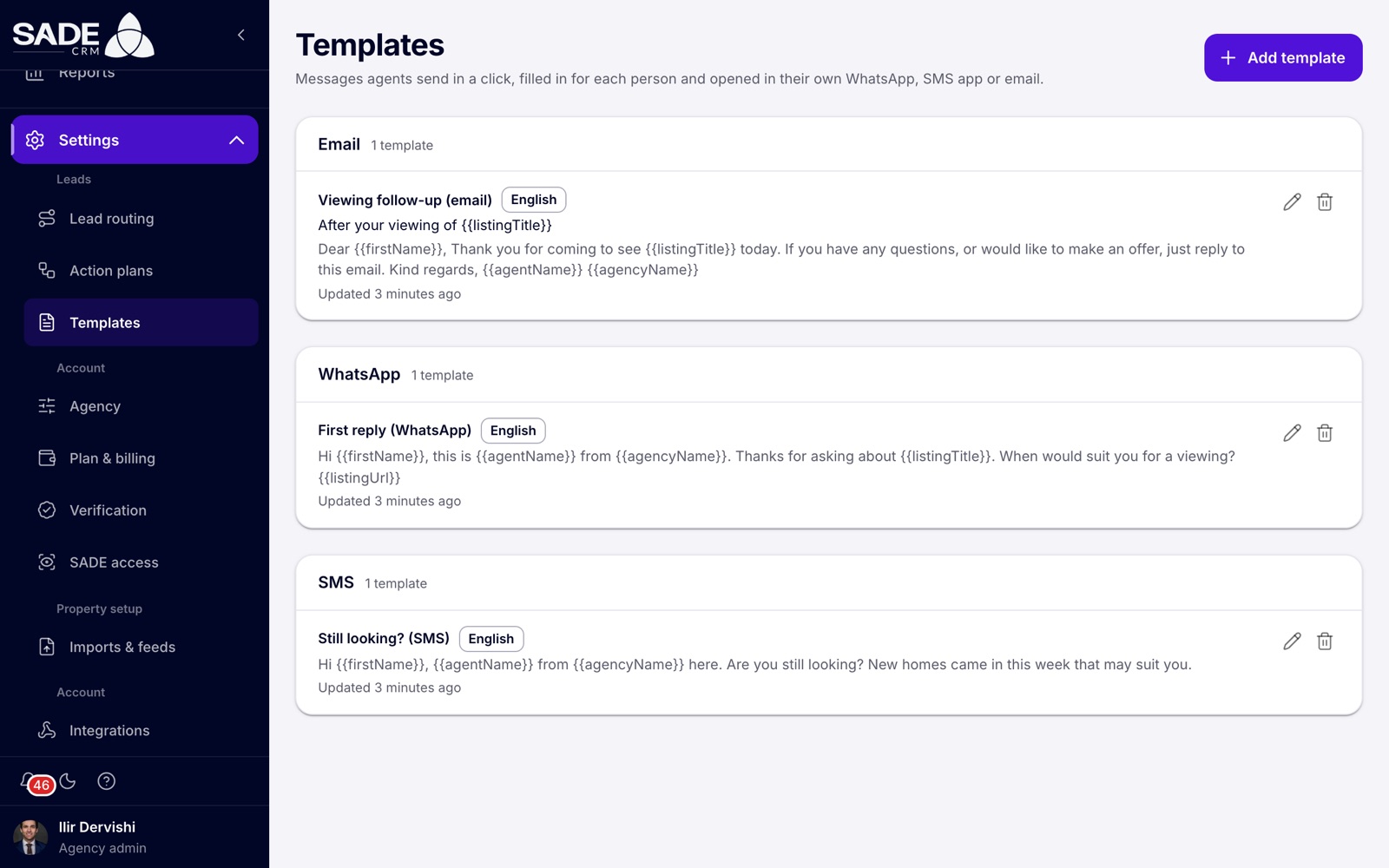
Tirana Living’s three templates, grouped by channel.
The page groups templates by channel: Email, WhatsApp and SMS. Each shows its name, its language, the message with its placeholders, and when it was last updated.
Adding a template
- Go to Settings → Templates and click Add template.
- Fill in the Add a template dialog (see the table).
- Check the Preview, which shows the message with sample details.
- Click Add template. The CRM says “Template added”.
| Field | What to enter |
|---|---|
| Name | What agents pick from the list, up to 100 characters. For example “First WhatsApp”. |
| Channel | Email, WhatsApp or SMS. WhatsApp is chosen by default. |
| Language | The language the message is written in. It labels the template, and the listing link opens the marketplace in that language. |
| Subject | Email only. Placeholders work here too. |
| Message | The text, up to 5,000 characters. Use Insert to add a placeholder where the cursor is. |
To change a template, click its pencil, edit it and click Save. To delete one, click its bin and confirm.
Important: deleting a template removes it from any action plan step or task that used it. Those steps and tasks stay, but no longer offer a message.
Placeholders
Placeholders are words in double curly brackets. The CRM replaces them when an agent uses the template.
| Insert | Placeholder | Filled in with |
|---|---|---|
| First name | {{firstName}} |
The first word of the client’s full name. |
| Full name | {{name}} |
The client’s full name. |
| Agent’s name | {{agentName}} |
The name of the agent sending the message. |
| Agency name | {{agencyName}} |
Your agency’s name. |
| Listing title | {{listingTitle}} |
The title of the listing the person last asked about. |
| Listing link | {{listingUrl}} |
A link to that listing on the SADE marketplace. |
Anything else in double curly brackets is left exactly as written, so check the spelling.
If the person hasn’t asked about one of your listings, the listing title and link are left empty. Write templates that use them, such as a first reply to a listing enquiry, separately from general ones, such as a “still looking?” message.
Channels and limits
| Channel | Opens in | Good to know |
|---|---|---|
| WhatsApp, in a new tab, with the client’s number. | Needs a phone number on the client. | |
| The agent’s email app, with the subject and message filled in. | Needs an email address on the client. | |
| SMS | The agent’s messages app. | Needs a phone number. The editor counts characters: over 160, an SMS is sent in parts. |
Every message can be up to 5,000 characters long, and a template name up to 100.
Using a template
Agents send templates in three ways:
- From a client page: click Send a template, choose the channel and the template, then Open in WhatsApp, Open in email or Open in Messages.
- From a task: a WhatsApp, email or SMS task with a template opens the filled-in message when the agent clicks Send WhatsApp, Send email or Send SMS.
- In an action plan: a message step with a template gives each new lead a task that carries it.
After sending, the agent logs how it went. The steps are on Following up.
Example
Tirana Living has three templates, all in English:
- First reply (WhatsApp): “Hi {{firstName}}, this is {{agentName}} from {{agencyName}}. Thanks for asking about {{listingTitle}}. When would suit you for a viewing? {{listingUrl}}”
- Viewing follow-up (email), with the subject “After your viewing of {{listingTitle}}”.
- Still looking? (SMS): “Hi {{firstName}}, {{agentName}} from {{agencyName}} here. Are you still looking? New homes came in this week that may suit you.”
Erjona Hasani sends the first one to Elsa Gashi, who asked about “Apartament 3+1 me pamje nga Liqeni”. WhatsApp opens with: “Hi Elsa, this is Erjona Hasani from Tirana Living Real Estate. Thanks for asking about Apartament 3+1 me pamje nga Liqeni. When would suit you for a viewing?”, followed by the link to the listing.
The SMS template uses no listing, so Besnik Leka can send it to any buyer, even one who never asked about a particular flat. Filled in for Dea Hoxha it comes to 126 characters, so it goes as a single SMS.
Something unclear or missing? Write to [email protected] or call +355 69 808 0118.