Properties, under Sales in the menu, is where your agency’s listings live. Agency admins see every listing of the agency. Agents see the listings assigned to them. From here you find a listing, open it, edit it, hand it to another agent or delete it, and download the list to Excel.
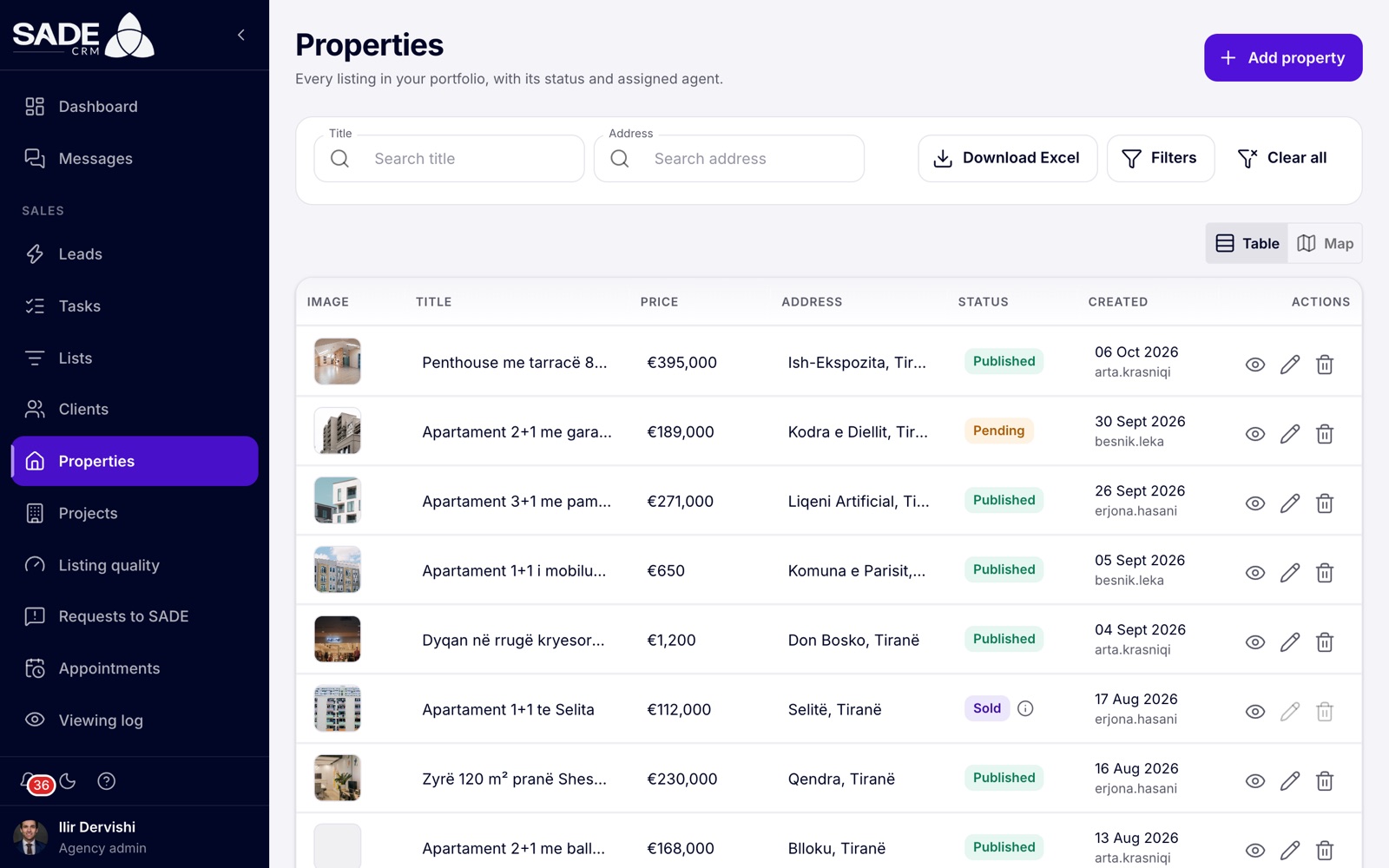
The Properties list of Tirana Living Real Estate. The sold flat’s edit and delete buttons are greyed out.
Who sees which listings
| Role | What they see in Properties |
|---|---|
| Agency admin | Every listing of the agency. |
| Agent | Only the listings assigned to them. A listing an agent created but an admin gave to someone else leaves that agent’s list. |
| Organization admin | An agency’s listings, once they have opened that agency. |
Finding a listing
The Title and Address boxes are always shown. Click Filters for the others, and Clear all to start again. The list updates by itself a moment after you stop typing.
| Filter | What it does |
|---|---|
| Title | Listings whose title contains the text. |
| Address | Listings whose address contains the text. |
| Status | Published, Pending, Rejected, Rented, Sold, Blocked or Withdrawn. |
| Sale or rent | For sale or For rent. |
| Price (€) | From and to. It compares the amounts as entered, whatever their currency. |
| Bedrooms, Bathrooms | From and to. |
| Area (m²) | From and to. |
| Date created | A date range. |
The table shows the photo, Title, Price (“/ m²” or “/ month” when the price is per m² or monthly), Address, Status, Created (with who created it) and Actions. Choose 5, 10, 20 or 50 rows a page at the bottom.
In Actions, the eye opens the listing, the pencil edits it and the bin deletes it. For Sold and Rented listings, the pencil and the bin are greyed out.
Table and map
Switch between Table and Map above the list. The map shows a pin for every listing that matches your filters. The choice is kept in the page’s address, so a reload or a shared link opens the same view.
- Click a pin and then Open property to go to the listing.
- Move or zoom the map and click Search this area to list only what is in view; Back to the whole map undoes it.
- The map shows up to 2,000 listings, the newest first. With more, it says so: filter, or zoom in and search the area, to see the rest.
- Listings without a pin are only in the table, and the map tells you how many there are.
Download Excel
Download Excel downloads the listings that match your current filters as an Excel file. Agents get only their own listings. The file has one row per listing, with its id, title, price, status, agent, owner, date created and address, and a total row at the end. It is in Albanian when your agency’s CRM language is Albanian, and in English otherwise.
The listing’s page
Click a listing to open its page. It shows the photos, price and address (with Copy address and Open in Google Maps), and the counts of Inquiries, Viewings and Deals, and how many days it has been Listed. The tabs are:
- Overview: the specification, the location on the map, the description and the amenities;
- Media: every photo and video;
- Activity: the listing’s enquiries and appointments.
On the right are the Listing quality card, the property code card, the availability, the contact buttons for the agent, the owner, the company and the assigned agent.
Editing a listing
Agency admins can edit any of the agency’s listings. Agents can edit the listings assigned to them.
- Open the listing and click Edit, or click the pencil in the Properties list.
- Move between the tabs Basic info, Location & ownership, Property details, Type & amenities and Media. They hold the same fields as when you added the listing.
- A chip Unsaved changes appears once you change something.
- Click Save changes. If a field is wrong, the page jumps to the first tab with a problem, and each tab shows how many it has.
The CRM says “Property updated successfully”. If you click Cancel with unsaved changes, it asks whether to leave and discard them.
- On the Media tab you can add photos and videos (same limits as when adding) and remove any. A file that breaks a limit is not added, and the CRM names it with the reason. If SADE refuses a file while saving, the rest is saved and the CRM says “Saved without these files:” with each file and why.
- The Property details tab also shows the Status, greyed out: you can’t change it. Its hint reads “SADE publishes the listing once it’s approved. Sold and Rented come from closing a deal.”
- A Rejected listing shows SADE’s reason at the top of the edit page, and the hint reads “Saving sends the listing back to SADE for review.” Saving it makes it Pending again: “Saved and sent back to SADE for review.” See Fixing a rejected listing.
- Only an agency admin can change the owner and the assigned agent.
- Saving a change confirms the listing for another marketplace period. If the listing is published, the change shows on the marketplace shortly after you save.
Assigning a listing to an agent
The assigned agent handles the listing’s viewings and enquiries, and gets its reminders and notifications. Only an agency admin can change it.
- Open the listing and click Edit.
- On Location & ownership, under People, pick the new person in Assigned agent.
- Click Save changes.
The new agent gets a notification and an email. The listing moves from the old agent’s Properties list to the new agent’s.
Sold and rented listings
A listing becomes Sold or Rented through a deal. When a deal on the listing is set to Completed, the listing becomes Sold if it is for sale, or Rented if it is for rent. See Deals.
- The listing leaves the marketplace. Its page there says it is no longer available.
- In the Properties list its edit and delete buttons are greyed out.
- It no longer holds the property code, so the home can be listed again later.
- If the deal is moved off Completed or deleted, and no other completed deal holds the listing, it goes back to Published. Only an admin can change a completed deal.
Taking a listing off the marketplace
There is no archive or withdraw button. Depending on why the listing should go:
| Situation | What to do |
|---|---|
| Sold or rented through your agency | Complete the deal. |
| Sold by someone else, or the owner withdrew it | Delete the listing, or simply stop confirming it: it comes off the marketplace at the end of its period (see expiry). |
| It came from a spreadsheet or feed | Mark it as withdrawn in your file or source: it becomes Withdrawn. Or delete it: the import won’t bring it back. See Imports and feeds. |
Deleting a listing
- In Properties, click the bin on the listing’s row.
- The CRM asks “Confirm deletion?” and warns that this cannot be undone. Confirm.
The CRM says “Property deleted successfully!” Deleting is permanent: the listing, its photos and its videos are erased. It also frees a place under your plan’s listing limit.
Agency admins can delete any of the agency’s listings, agents only the ones assigned to them. Sold and rented listings can’t be deleted from the list.
A listing that came from a spreadsheet or a feed stays deleted: later uploads of the file, and later reads of the feed, leave it out even if they still have it. To list the home again, add it by hand.
Blocked by SADE
SADE’s moderators can block a listing: for example a duplicate, or a home a client has reserved. They give a reason. A blocked listing has the status Blocked and is not on the marketplace. The assigned agent gets a notification: “Property has been blocked”.
When a moderator unblocks it, its status returns to Published.
Property codes
In countries with an official property number (in Albania, the cadastral zone and property number), each listing carries that number as its property code. It is private: only your agency and SADE see it. It shows in the property code card on the listing’s page.
The code makes sure that a home is listed by only one agency at a time:
- A code is held by a listing while it is Pending or Published and not blocked.
- When a listing is sold, rented, rejected, blocked, withdrawn or deleted, it lets go of the code.
- Your agency can list the same home twice, once for sale and once for rent.
- Older listings without a code show “Not added yet. Add it the next time you edit the listing.”
If you try to add a home whose code another agency holds, the CRM refuses to save it. If the owner signed an exclusive contract with you, click Ask SADE to look into it. The dialog asks for:
| Field | What to enter |
|---|---|
| Message to SADE | Required, at least 10 characters. For example when the owner signed and why the other listing is wrong. |
| The owner’s contract | Optional. A photo or PDF, up to 10 MB. Only SADE’s moderators see it. |
Click Send to SADE. The CRM says “SADE’s moderators will look into it. You’ll get their answer in the CRM and by email.”
Requests to SADE
Requests to SADE, under Sales in the menu, lists what your agency asked SADE’s moderators about a property, and their answers.
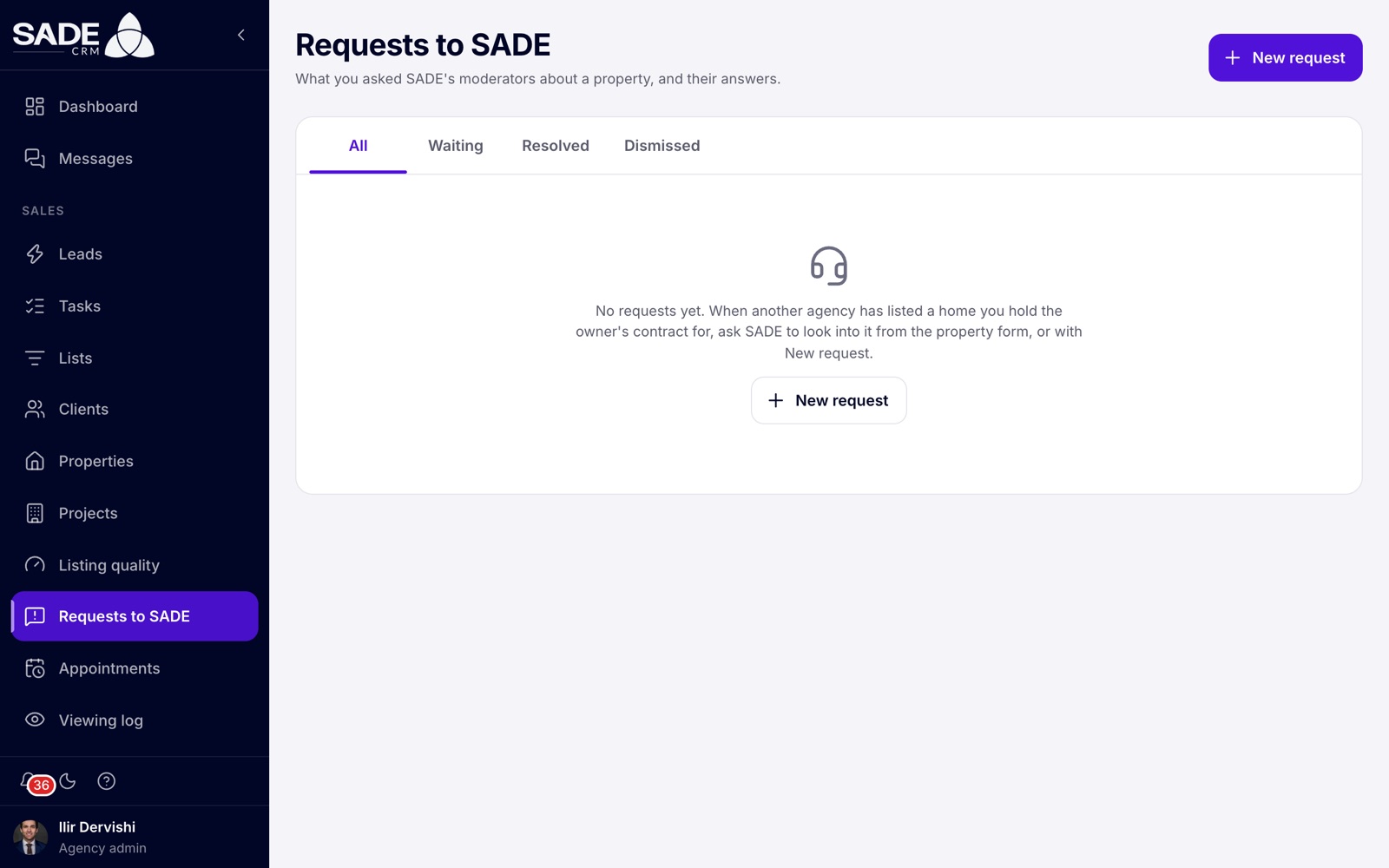
Requests to SADE before the agency has asked anything.
There are three ways to ask:
- Ask SADE to look into it, when a property code is refused while you add or edit a listing (see above);
- Report a problem to SADE, in the property code card on a listing’s page, for anything wrong with that listing, such as a wrong owner;
- New request on the Requests to SADE page, for example when another agency has listed a home you hold the owner’s contract for. Say which home it is about, write a Message to SADE, and attach the contract if you have it.
How you name the home in a new request depends on your country:
| Your country | What the dialog asks for |
|---|---|
| Has property codes (Albania, and the countries where the code is optional) | The Property code, for example 8150/7/419+1-6. |
| Has no property codes | One of your listings: type at least 2 letters of its title and pick it. Or A link from the SADE marketplace: paste the Link to the listing, copied from its page on sadegre.com. If the link doesn’t lead to a listing, the CRM says “That listing wasn’t found on SADE.” |
Each request shows its status, the property code or listing, who asked and when, the message, and whether a contract is attached. The tabs filter them:
| Status | Tab | What it means |
|---|---|---|
| Waiting for SADE | Waiting | Sent; SADE has not answered yet. |
| Resolved | Resolved | SADE agreed and acted, for example by taking the other listings off the marketplace. |
| Dismissed | Dismissed | SADE found nothing to change. |
SADE’s answer appears under the request, with its date, and you are told by notification and by email.
If SADE takes one of your listings off the marketplace after another agency’s request, your agency admins and the listing’s agent get a notification and an email: “SADE took “title” off the marketplace”, with SADE’s reasons.
Erjona Hasani goes on two weeks’ leave, so Ilir Dervishi hands her office listing to Besnik Leka. He opens Properties, types “Zyrë” in Title, and opens “Zyrë 120 m² pranë Sheshit Skënderbej”. He clicks Edit, and on Location & ownership sets Assigned agent to Besnik. He clicks Save changes. Besnik gets a notification and an email, and the office now appears in his Properties list. Unless a lead routing rule says otherwise, new enquiries about it now go to Besnik.
The same week, the flat “Apartament 1+1 te Selita” sells. Erjona’s deal for it is set to Completed before she leaves, so the listing becomes Sold, leaves the marketplace, and its edit and delete buttons in the list turn grey.
At the end of the month Ilir clicks Download Excel with no filters and takes the list of every listing, with its status and agent, to the monthly office meeting.
Something unclear or missing? Write to [email protected] or call +355 69 808 0118.