The Agency settings page holds two things: what the marketplace shows about your agency, and how your CRM works day to day (its clock, its currency and its language). Only the agency admin can open it. Open Settings, then Agency (under Account).
This page also covers SADE access, the record of every time SADE’s staff looked inside your CRM.
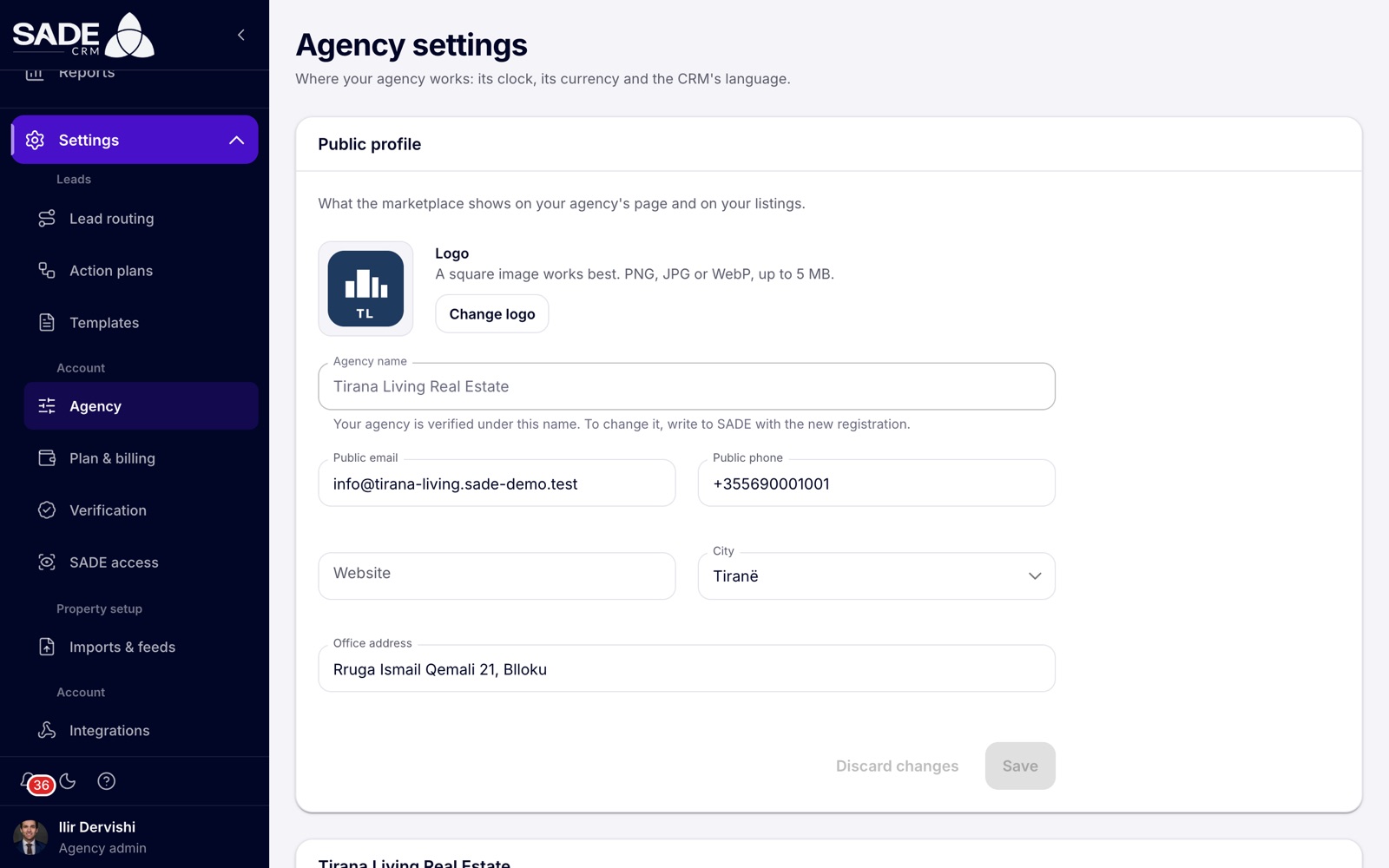
The public profile of a verified agency. The name is locked because SADE verified the agency under it.
Public profile
“What the marketplace shows on your agency’s page and on your listings.”
| Field | What to enter |
|---|---|
| Logo | A square image works best. PNG, JPG or WebP, up to 5 MB. Click Upload logo or Change logo. The logo saves at once (“Logo updated.”). |
| Agency name | Your agency’s name, 2 to 120 characters. Locked once SADE has verified the agency (see below). |
| Public email | The address buyers can write to. |
| Public phone | The number buyers can call. |
| Website | Your own website, if you have one, for example www.example.al. |
| City | Pick your city from the list. |
| Office address | The street and area of your office. |
Click Save. The CRM shows “Profile saved.” Discard changes puts back what was saved before.
Changing a verified agency’s name
Once your agency is verified, the name field is locked and says “Your agency is verified under this name. To change it, write to SADE with the new registration.” Send SADE the registration that shows the new name, and SADE changes it for you.
How your CRM works
The second card carries your agency’s name as its title.
| Setting | What it does |
|---|---|
| Time zone | Decides when “today” starts for tasks and reports. It starts as your country’s time zone, for example Europe/Tirane. The help text shows the current offset from UTC. |
| Currency | Used in reports. Pick one from the list or type any three-letter code, for example EUR. |
| CRM language | The language your team’s CRM starts in. Each person can switch to another language in their account menu (see Signing in). It also decides the language of SADE’s emails and bell notifications to your agency’s people, the password emails included: Albanian if it is Albanian, English otherwise. Viewing emails are written in all 11 languages: your team gets them in this language, and clients in their own when the CRM knows it. |
Click Save. The CRM shows “Agency settings saved”.
What you can’t change here
- Country and the choice between agency and developer are set at sign-up and can’t be changed from the CRM.
- How fast agents must contact new leads is set in Lead routing.
- How long a project unit can be held is set on each project. See Holds and sales.
SADE access
SADE’s staff check your registration documents and review listings before they go public. They do not see your clients, leads, deals, appointments, tasks, lists, templates, routing, imports, integrations, reports, settings or billing in the normal course of their work. The only way they can look at those is a view as agency, and every view is shown to you on the SADE access page.
Open Settings, then SADE access (under Account). Only agency admins see it.
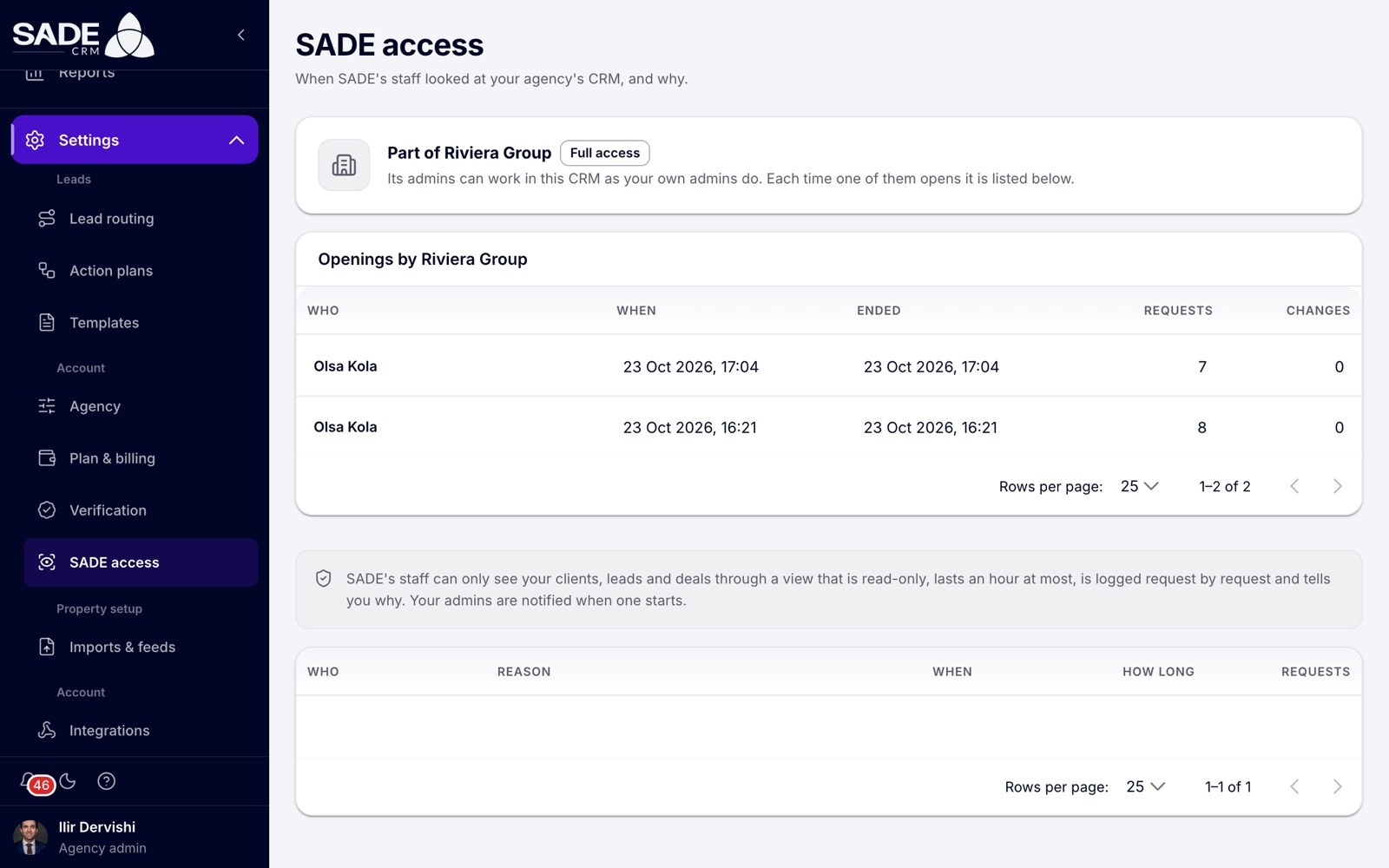
An agency that belongs to an organization sees the organization’s openings above SADE’s own views.
How a SADE view works
When someone at SADE needs to look inside your CRM, for example because you asked for help with a lead:
| Rule | What it means for you |
|---|---|
| A reason, every time | They must write why they are looking, in 5 to 500 characters. You read that reason. |
| Read-only | They see your CRM as your admin does, but they can’t change anything. Any change is refused. |
| One hour at most | The view ends on its own after an hour. |
| Logged | Every request they make during the view is logged, one by one. |
| You are told | Every agency admin gets a notification “SADE is viewing your CRM” with the person’s name and reason, at the moment the view starts. |
A SADE view works even if your plan has ended, so SADE can still help you.
The log
Each row of the log shows:
| Column | What it shows |
|---|---|
| Who | The SADE staff member. |
| Reason | The reason they wrote. |
| When | When the view started. |
| How long | “Under a minute” or the number of minutes. |
| Requests | How many requests they made during the view. |
A view still running shows Open now. If SADE has never looked, the page says “SADE hasn’t looked at your CRM”.
If your agency is part of an organization
An agency inside an Enterprise organization also sees, at the top of the page, a card “Part of” the organization with its access level, and a log “Openings by” the organization. That log lists each time one of the organization’s admins opened your CRM, with Who, When, Ended, Requests and Changes. The organization’s openings don’t send you a notification; they appear only here. See Organizations.
Note: what SADE can see without a view is the platform side of your account: your agency’s details, your verification documents, and your listings and projects, which SADE reviews before they go public.
Arta tells Ilir that a lead from the marketplace shows the wrong source, and Ilir writes to SADE about it.
At 19:36, Ilir’s bell rings: “SADE is viewing your CRM”, with the name of the person at SADE and their reason, “The agency asked us to check a lead’s source.” He opens SADE access and sees the view listed as Open now.
The next morning the row shows How long “1 minute” and 31 requests. Nothing in the CRM was changed, because the view was read-only. SADE writes back with the answer.
Something unclear or missing? Write to [email protected] or call +355 69 808 0118.