A project starts with three things: a name, a city and a status. Everything else, from the buildings to the photos, can come later. The project stays a draft, seen only by your agency, until you publish it.
Only agency admins create and edit projects. Agents open every project but see its fields read-only.
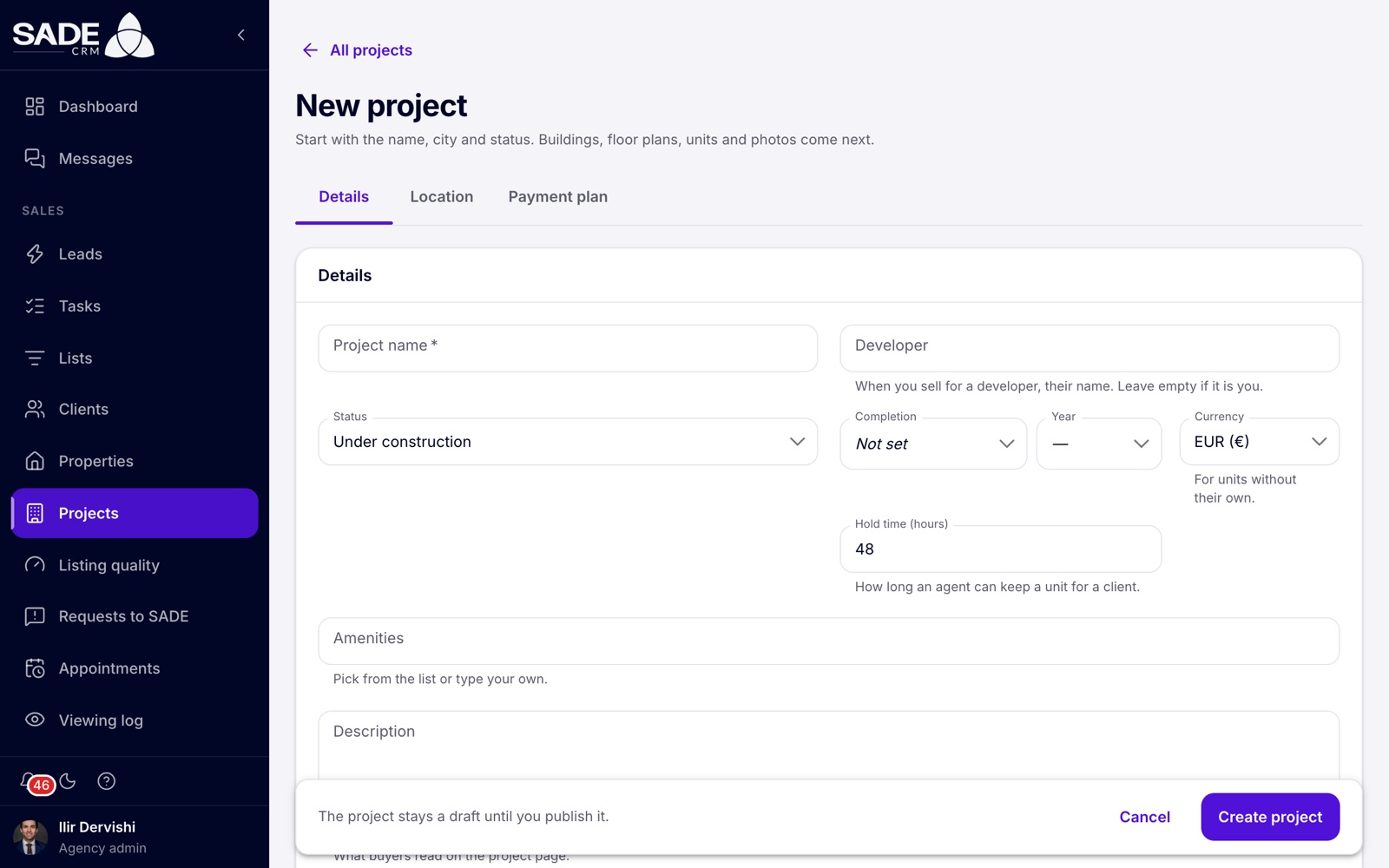
A new project shows only the Details, Location and Payment plan tabs. The rest appear once it is created.
Create the project
- Open Projects in the menu and click New project.
- On the Details tab, fill in the Project name and any other fields you know.
- On the Location tab, choose the City. Place the pin on the map if you want.
- On the Payment plan tab, add the steps if you know them.
- Click Create project in the bar at the bottom. If a tab has a mistake, the page jumps to it.
You see “Project created. Add its buildings, floor plans and units next.” and the Buildings tab opens. The project now has all its tabs: Details, Location, Payment plan, Buildings, Floor plans, Units, Photos and Buyer payments, and for admins Prices, Partners and Widget.
Saving changes later
Details, Location and Payment plan each have their own Save and Discard changes buttons. The line beside them reads “Unsaved changes”, “Saving…” or “Saved”, and an orange dot on the tab marks unsaved changes there. If you try to leave with unsaved changes, the CRM asks “Leave without saving?” with Stay or Leave.
Buildings, Floor plans, Units and Photos save each change as you make it.
Details
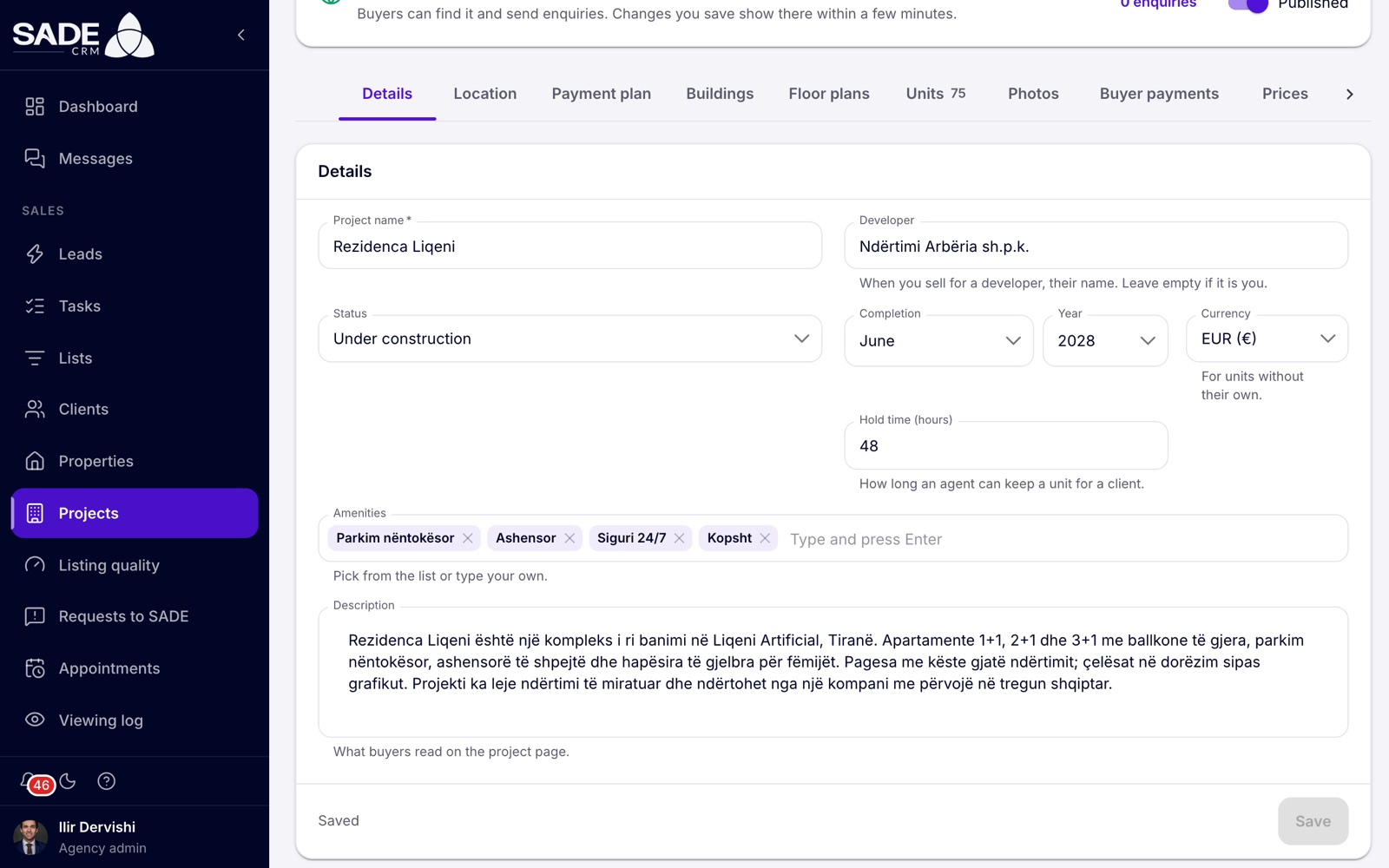
| Field | What to enter |
|---|---|
| Project name | Required, up to 200 characters. |
| Developer | When you sell for a developer, their company name. Leave it empty if the project is yours. |
| Status | Planned, Under construction (the default) or Completed. |
| Completion | The month and the year the project is ready. Choose both or neither; Not set is allowed. The projects list shows it as “Ready Jun 2028”; buyers on the marketplace see “Completion” with the month and year. |
| Currency | The currency for units that have no currency of their own. EUR by default. |
| Hold time (hours) | How long an agent can keep a unit for a client: a whole number of hours from 1 to 720. The default is 48. See Holds. |
| Amenities | Pick from the list (Parking, Garage, Elevator, Gym, Pool, Garden, Playground, 24h security, Concierge, Storage room, Terrace, Sea view), or type your own and press Enter. Up to 50, of up to 60 characters each. |
| Description | What buyers read on the project page, up to 20,000 characters. |
Location
The location puts the project on the marketplace map.
| Field | What to enter |
|---|---|
| City | Required. Type to search. |
| Neighbourhood | For example “Blloku” or “Liqeni”. Up to 120 characters. |
| Address | Street and number, up to 500 characters. When you place the pin, the CRM suggests the address from the map: click Use this to take it. |
| On the map | Search, or click where the project is, then drag the pin to adjust it. |
The switch Show the exact location on the marketplace is on by default, and buyers see the pin and the address. Turn it off and buyers see an area of about 300 m around the pin, and no address.
Payment plan
The payment plan tells buyers how they pay: each step’s share of the price. The steps must add up to 100%.
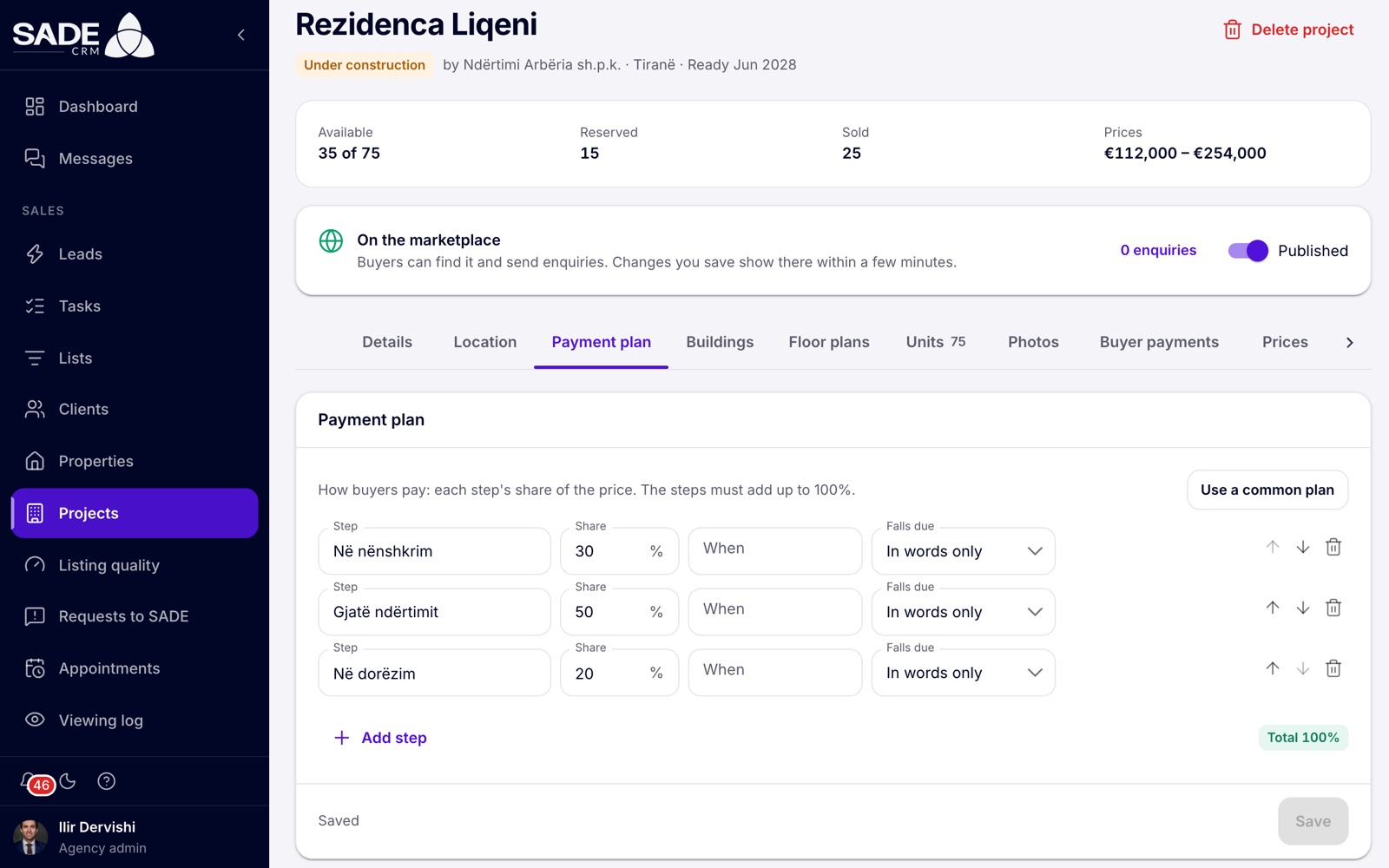
- Click Add step, or Use a common plan to start from a ready plan (30 / 70, 20 / 30 / 50, 10 / 40 / 50, or 100% on signing).
- For each step, fill in:
- Step: its name, such as “On signing”.
- Share: its percentage of the price, more than 0 and at most 100.
- When: words buyers read, such as “At contract, June 2027”.
- Falls due: when the step is due in the buyer’s payment schedule.
- Use the arrows to change the order, and the bin to remove a step.
- Check the chip: “Total 100%” turns green when the steps add up. Then click Save.
Falls due has four choices:
| Choice | The instalment falls due |
|---|---|
| In words only (the default) | On the contract day for the first step. Later steps have no date until an admin gives them one. |
| At the contract | On the day the contract is signed. |
| On a date | On the Date you choose. |
| At a milestone | When a construction milestone is marked reached. |
At a milestone stays greyed out until the project has a milestone: add it under Buyer payments first, then come back to the plan.
Note: buyers on the marketplace see only each step’s name, share and When words. Falls due is used only for the buyer payment schedules.
A plan has at most 20 steps. A project with no steps shows no payment plan to buyers.
Buildings
Add one building for each tower or block. A project of one building needs none.
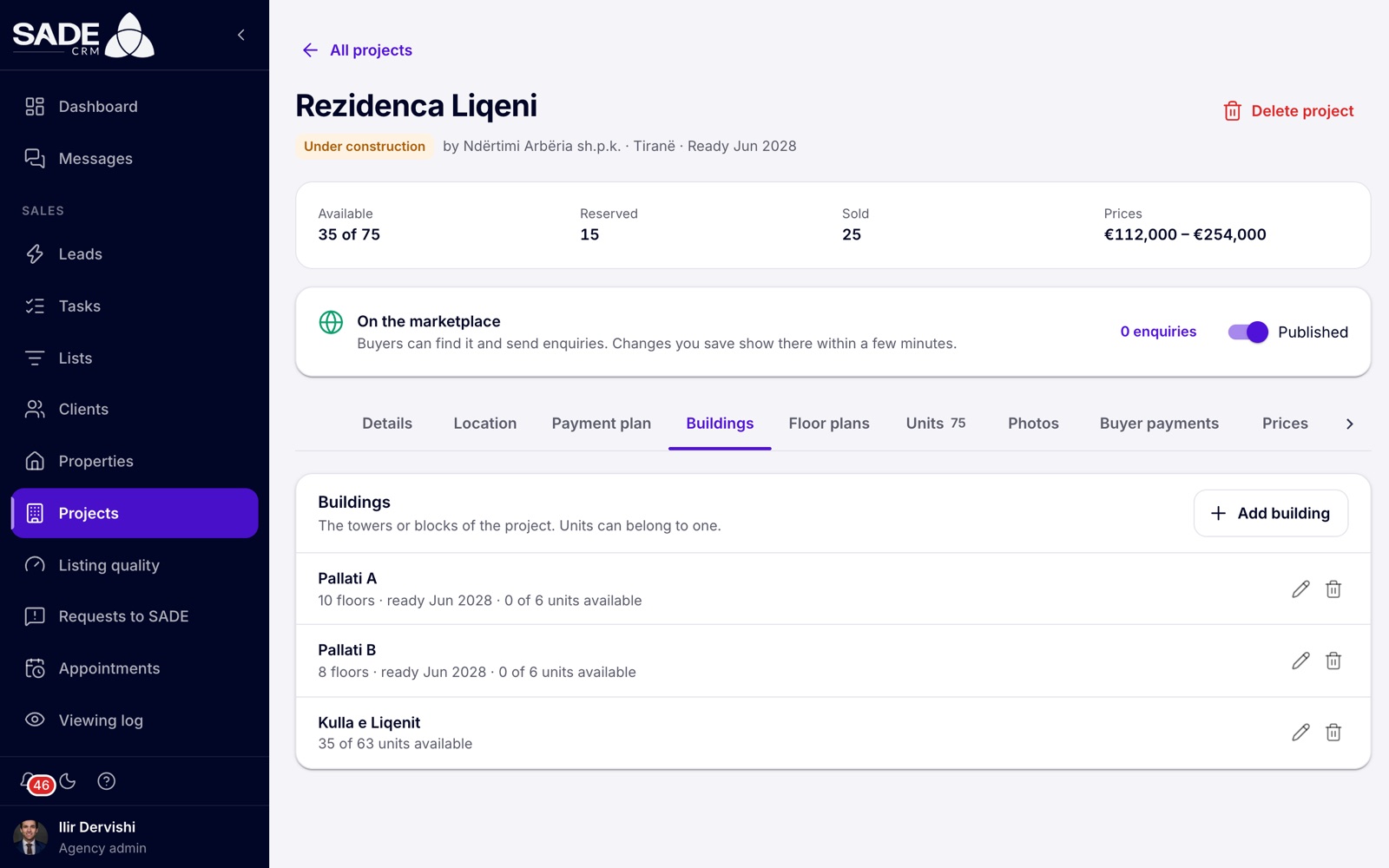
- Open Buildings and click Add building.
- Fill in the Name (required), the number of Floors (1 to 200) and, if this building is ready at a different time from the project, its Completion.
- Click Add building.
Each row shows the building’s floors, when it is ready and how many of its units are available. Use the pencil to edit a building and the bin to delete it. Deleting a building keeps its units in the project, without a building, and deletes its traced floor plans.
Floor plans and units
The layouts on offer, such as “2+1”, and the units themselves have pages of their own: see Floor plans and facades and Holds and sales.
Photos
Photos and renders of the project. The cover is the photo on its marketplace card and always comes first.
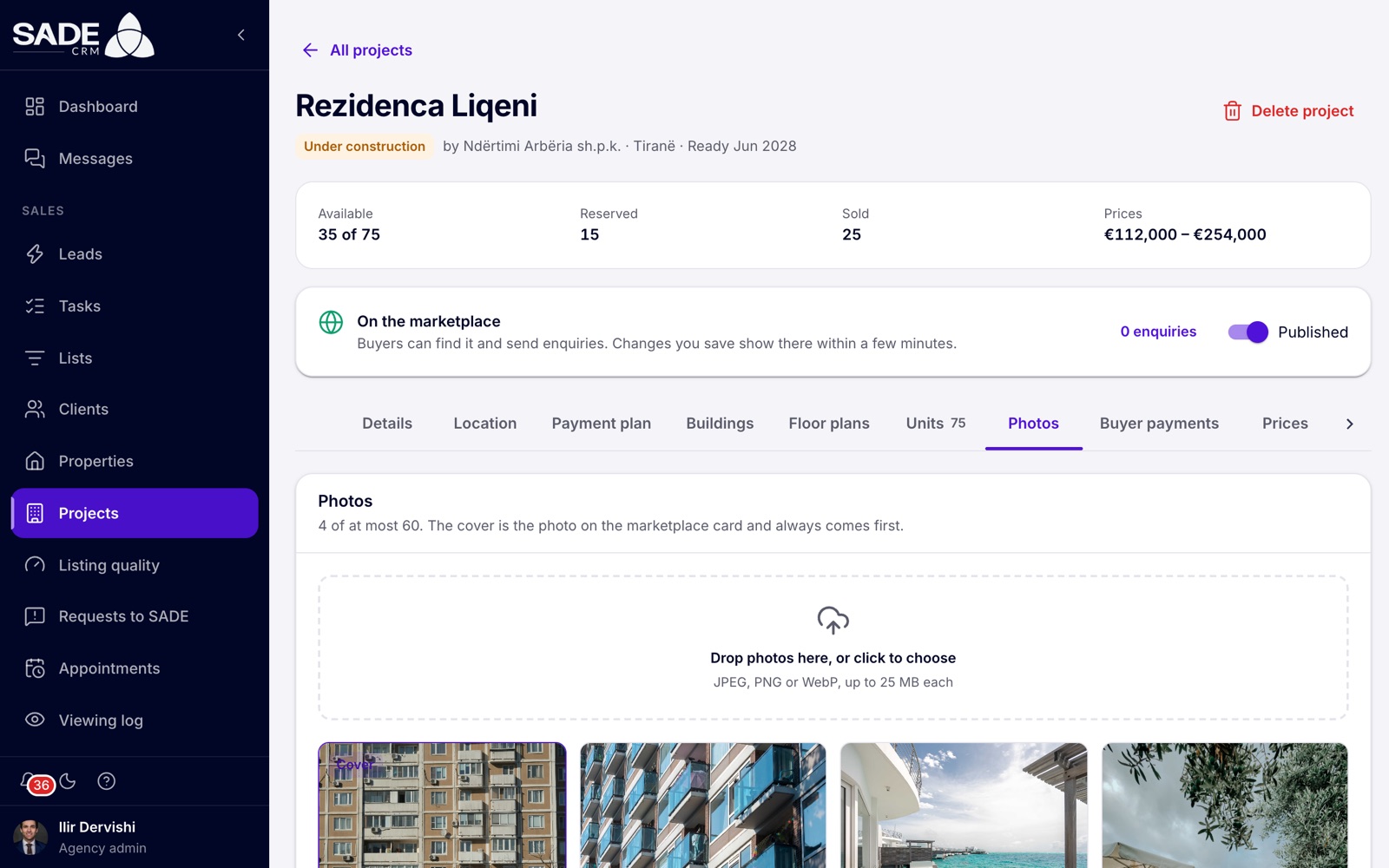
- Open Photos.
- Drop the photos on the area, or click it to choose them. JPEG, PNG or WebP, up to 25 MB each. Other files are skipped.
- Use the arrows (Show earlier, Show later) to set the order buyers see them in.
- To change the cover, click Make it the cover on another photo.
A project holds up to 60 photos. The first photo you upload becomes the cover; if you delete the cover, the next photo takes its place. Location and camera details are removed from photos when they are uploaded.
Publish on the marketplace
Above the tabs, the header shows the project’s status and figures: Available (“35 of 75”), Reserved (units on hold included), Sold and Prices, the range over the units still available (or over all units when none is left). Below it, the publishing panel has the Published switch and says where the project stands:
| The panel says | What it means |
|---|---|
| “Draft: not on the marketplace” | Only your agency sees the project, here in the CRM. |
| “On the marketplace” | Buyers can find it and send enquiries. Changes you save show there within a few minutes. |
| “Published, but hidden for now” | The project is published, but your agency is not verified yet. It appears as soon as SADE has checked your agency’s documents. |
To publish, turn on Published. To take the project off the marketplace, turn it off.
There is no separate review of each project. A project is on the marketplace when it is published and your agency is verified. The panel’s enquiries button, such as “3 enquiries”, opens Leads.
Tip: where SADE offers promotions in your market, a published project can also be promoted on the marketplace. See Promotions.
Delete a project
Click Delete project in the header. Its buildings, floor plans, units and photos are deleted with it, and it leaves the marketplace. Enquiries about it stay with your leads. A project with any sale on record cannot be deleted: “This has sales on record, so it can’t be deleted.”
The marketplace project page
Buyers find published projects on the marketplace’s New developments page at sadegre.com, on your agency’s profile, and on the map. The project page shows:
- the building drawing, with the traced floor plans and facade if you made them;
- the units, with their status: units on hold show as Reserved, and sold units are listed without a price;
- the floor plans with their “from” prices, the payment plan, the amenities and the photos;
- the map, exact or as an area of about 300 m;
- an enquiry form, and call and WhatsApp buttons with your agency’s number.
Each enquiry arrives in the CRM as a lead and names the unit the buyer asked about. See Leads.
An example
Ilir Dervishi opens Projects → New project. On Details he types Rezidenca Liqeni, puts Ndërtimi Arbëria sh.p.k. in Developer because Tirana Living sells for them, keeps Under construction, chooses June 2028 for Completion, keeps EUR and the hold time of 48 hours, and adds Parking, Elevator, 24h security and Garden.
On Location he chooses Tiranë, types “Liqeni” as the neighbourhood and drops the pin by the lake. On Payment plan he adds three steps: 30% “On signing”, 50% “At the frame” and 20% “At handover”. The chip reads “Total 100%”. He clicks Create project.
On Buildings he adds Pallati A with 10 floors and Pallati B with 8. He uploads four photos and keeps the render of the lake front as the cover. Then he turns on Published: Tirana Living is verified, so the panel reads “On the marketplace”.
Something unclear or missing? Write to [email protected] or call +355 69 808 0118.