Lists are sets of clients that keep themselves up to date. Each list is a set of conditions, such as “no contact in 3 days” or “had a viewing but no deal”, and whoever meets them is on it, right now. Pick a list and work down it: every row has buttons to call, WhatsApp or email the person.
Everyone in the agency uses Lists. The CRM comes with eight built-in lists, each agent can make their own, and agency admins can share lists with the whole agency. Open it from Sales → Lists.
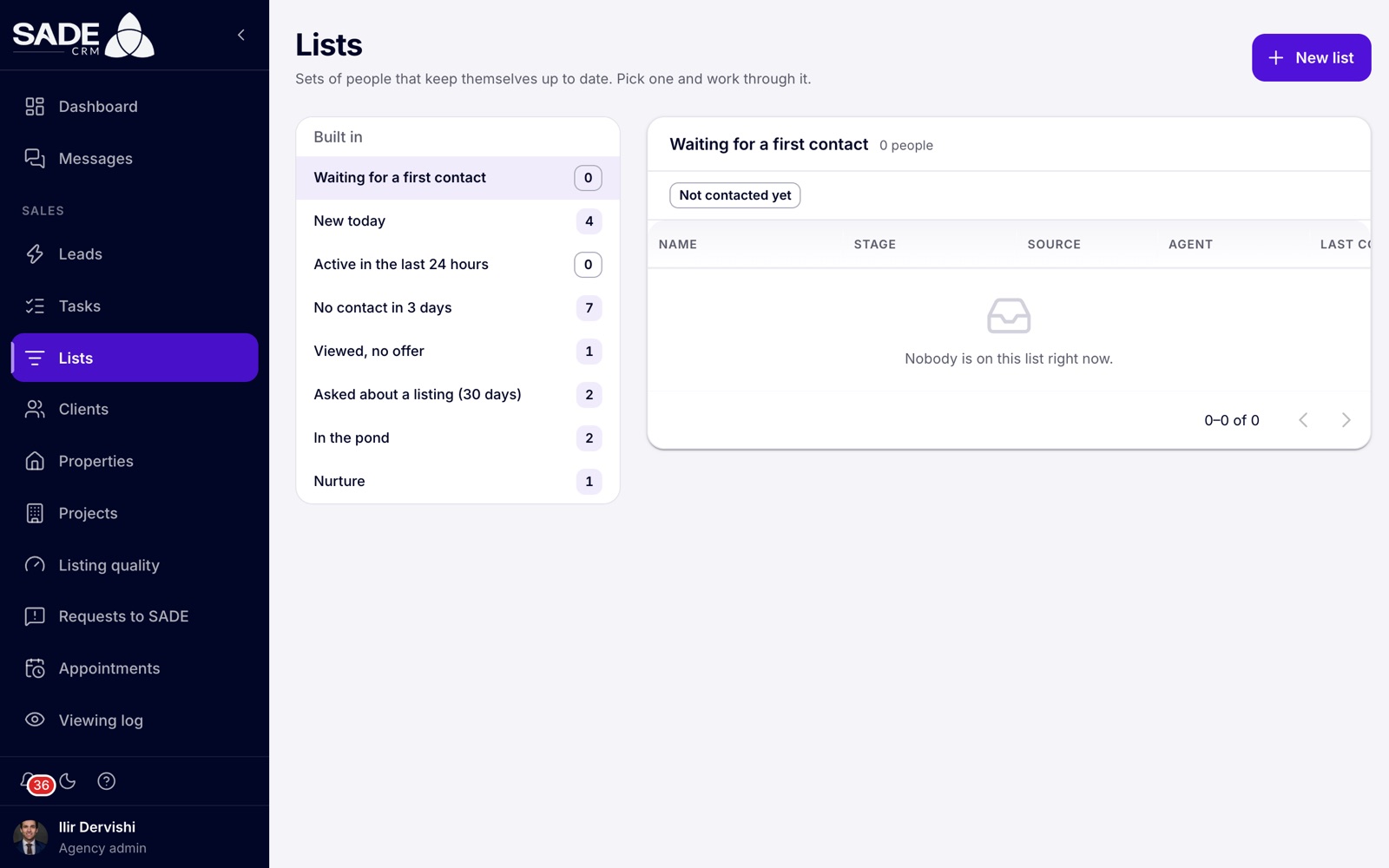
The built-in lists, each with the number of people on it now.
Using a list
The left column groups lists under Built in, Shared with the agency and My lists, each with a live count. Click a list to see its people on the right, 50 to a page. The list’s conditions show as chips under its name.
| Column | What it shows |
|---|---|
| Name | The client. |
| Stage | Their lead stage. |
| Source | Where they first came from. |
| Agent | Their agent, or In pond, or Unassigned. |
| Last contact | The last call, WhatsApp, email or SMS someone logged, or Never. |
| Last activity | The last thing the client did themselves, such as an enquiry. |
Each row has Call, WhatsApp and Email buttons, and a button to open the client. Contacts you make from a list are logged in the usual way; see Following up.
Who sees whom
Agency admins see everyone who meets a list’s conditions. An agent sees only the people assigned to them, plus the pond, on every list: built-in, shared or their own. So when Arta and Besnik open the same shared list, each sees their own clients on it.
The built-in lists
| List | Who is on it |
|---|---|
| Waiting for a first contact | New leads whose clock is still running: nobody has contacted them yet. |
| New today | Clients added today, in your agency’s time zone. |
| Active in the last 24 hours | Clients who did something themselves in the last 24 hours, such as an enquiry. |
| No contact in 3 days | Clients added more than 3 days ago with no contact logged in the last 3 days. Clients at Closed, Trash or Nurture are left out. |
| Viewed, no offer | Clients who had a completed viewing and have no deal. |
| Asked about a listing (30 days) | Clients who asked about one of your listings in the last 30 days. |
| In the pond | Clients in the pond, whom any agent can claim. |
| Nurture | Clients at the Nurture stage. |
Built-in lists can’t be changed or deleted.
Making your own list
- Click New list.
- Give it a Name, for example “Buyers in Blloku to call this week”.
- Under Who’s on it, set the conditions (see the table). Leave a field empty to ignore it.
- Agency admins only: switch on Share with the agency to make it a shared list.
- Click Create list. The CRM says “List created”.
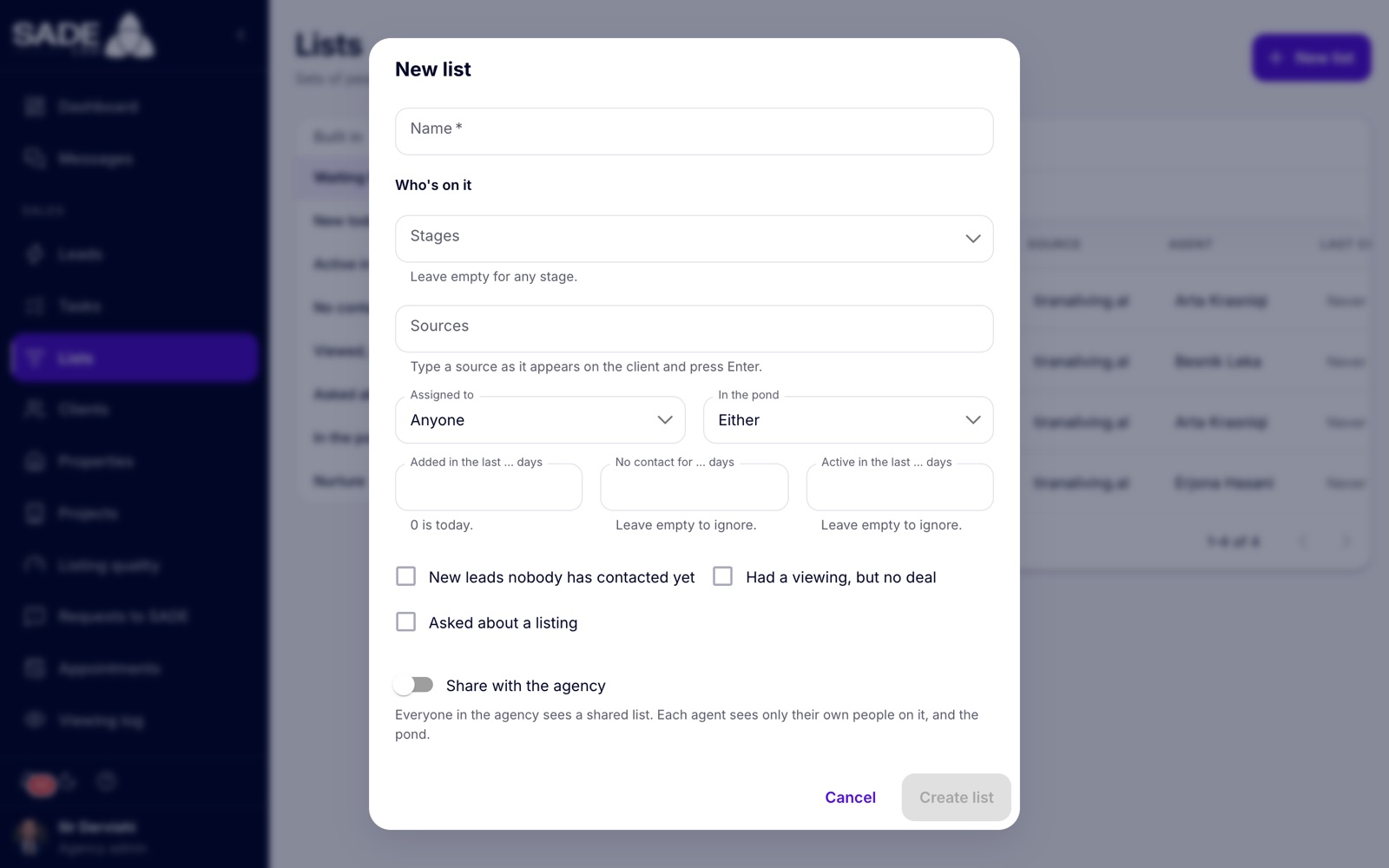
The New list dialog. Share with the agency appears for agency admins only.
| Condition | What it does |
|---|---|
| Stages | Only clients at these stages. Leave empty for any stage. |
| Sources | Only clients from these sources. Type a source exactly as it appears on the client, such as “SADE Marketplace” or “MerrJep”, and press Enter. |
| Assigned to | Anyone, Me (yours) or Nobody (no agent). |
| In the pond | Either, In the pond or Not in the pond. |
| Added in the last … days | Clients added recently. 0 means today. |
| No contact for … days | Clients nobody has logged a contact with for this many days. |
| Active in the last … days | Clients who did something themselves within this many days. |
| New leads nobody has contacted yet | Only leads whose clock is still running. |
| Had a viewing, but no deal | Only clients with a completed viewing and no deal. |
| Asked about a listing | Only clients who asked about a listing. Then choose Which listing (type at least 2 letters; leave empty for any of the agency’s listings) and In the last … days (leave empty for any time). |
A client is on the list when they meet every condition you set.
Changing or deleting a list
Select the list, then use the pencil (Edit list) or the bin (Delete list) next to its name.
- You can change or delete your own lists. Shared lists can be changed or deleted by agency admins.
- An agency admin can turn a personal list into a shared one, or back, with Share with the agency when editing it.
- Deleting a list removes only the list. The people on it stay exactly as they are.
Example
Besnik Leka wants a list of buyers he has spoken to but not chased for a while. He clicks New list and sets:
- Name: “Buyers to call this week”
- Stages: Spoke with Customer, Appointment Set, Showing Homes
- Assigned to: Me
- No contact for … days: 5
The list appears under My lists. On Monday it holds four of his buyers, including Gentian Shehu, whom he last called six days ago. He calls Gentian from the row and logs Reached them. His last contact is now today, so he drops off the list at once.
Ilir Dervishi, the agency admin, makes the same kind of list for the whole team, with Assigned to set to Anyone and Share with the agency on. It appears under Shared with the agency for everyone. Ilir sees all the agents’ buyers on it; Besnik, Arta and Erjona each see only their own, plus any in the pond.
Something unclear or missing? Write to [email protected] or call +355 69 808 0118.