A promotion is something your agency pays for to make one listing or one project more visible on the SADE marketplace, for a set number of days. SADE decides country by country whether promotions are on sale, which ones, for how many days and at what price.
Promotions, under Team in the menu, is where you see what is on sale in your market, buy it, and follow what you bought. Agency admins and agents can open the page. Only agency admins can buy and pay.
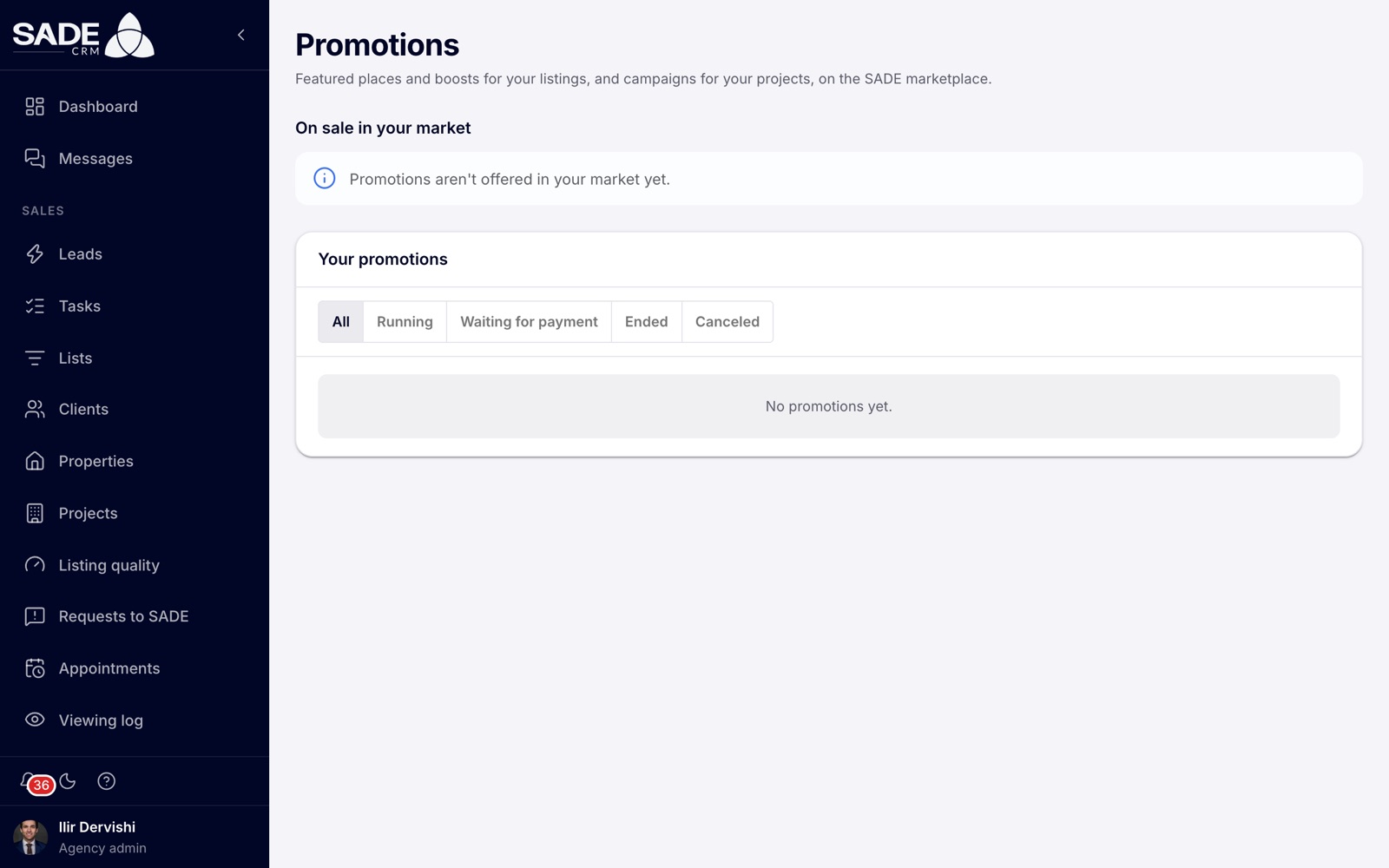
The Promotions page in a market where SADE does not sell promotions yet.
Is it offered in your market?
Promotions are not on sale in every market. The On sale in your market section at the top of the page tells you where you stand:
| What the page says | What it means |
|---|---|
| Cards for each product, with the price and the number of days | Promotions are on sale in your market. |
| “Promotions aren’t offered in your market yet.” | SADE does not sell promotions in your country yet. There is nothing to buy. |
| “Your agency must be verified by SADE before it can promote…” | Your agency is not verified yet. An agency admin can click Get verified to go to Verification. |
| “Online payment isn’t set up yet — contact SADE.” | Payment is not ready yet; ask SADE. |
Prices and durations are set by SADE for each country and shown on the product cards. They are not listed in this guide.
The three kinds of promotion
| Kind | Bought for | What it does on the marketplace |
|---|---|---|
| Featured | A listing | Shown in the featured places above search results, with a label, and ranks higher. |
| Boost | A listing | Ranks higher in search results. No label. |
| Project campaign | A project | Shown first on New developments and on the home page, with a label. |
More about each:
- Featured. The listing’s card carries a Featured label. Above the search results, a box called “Featured homes” shows up to two featured listings that match the search, chosen at random each time, so featured listings share the places. The box tells visitors that agencies pay to show these homes there, and that the results below are in their usual order.
- Boost. The listing moves up in the marketplace’s default order. Nothing on the card shows it.
- Project campaign. The project card carries a Featured label and comes first on the New developments page. Projects come with the Pro plan or an Enterprise organization; see Projects.
A listing can be Featured and Boosted at the same time. Promotions only affect the marketplace’s default order; when a visitor sorts by price or size, promotions make no difference.
Buying a promotion
Only an agency admin can buy. There are three ways in:
- On Promotions, click Promote a listing or project.
- On a published listing’s page, click Promote (next to Edit).
- In a published project, click Promote.
The Promote buttons only appear where your market sells promotions.
- The dialog Promote on the marketplace opens. If you started from the Promotions page, choose A listing or A project, then pick it. Only listings that are on the marketplace now, and published projects, can be chosen.
- Under What to buy, click a product. Each card shows its name, its kind, the price and the number of days.
- Read the note: the promotion starts as soon as the payment arrives and runs its number of days. If the listing is already promoted the same way, the new days start when the current ones end.
- Pay with PayPal (see below).
What can be promoted
- A listing must be on the marketplace now: published, confirmed (not expired) and not blocked. If it has expired, the dialog asks you to confirm it’s still available first.
- A project must be published on the marketplace.
- Boost is greyed out for a listing when another agency lists the same home and search shows their listing, because a boost would not be seen. Featuring it still works.
- You can buy up to a year ahead. Two promotions of the same kind on the same listing never overlap: the second waits for the first to end. Different kinds run side by side.
Paying with PayPal
Each promotion is a one-off payment, not a subscription.
- PayPal’s own buttons appear in the dialog. Depending on your country and device, PayPal may also offer to pay by card without a PayPal account.
- Approve the payment in PayPal’s window.
- The dialog says “Payment received — your promotion starts in a moment.” and then, once the payment is confirmed, either “Your promotion is running, until …” or, if the same kind is already running, “Paid. Your promotion starts on …, when the current one ends, and runs until …”.
If PayPal’s buttons don’t load, the dialog shows a Pay button that takes you to PayPal’s page instead.
If PayPal has not confirmed the payment within a minute, the dialog says so: it can take a few minutes, and the promotion starts when the payment arrives. If you were charged and it doesn’t start, contact SADE.
If you cancel on PayPal’s page, nothing is charged. The promotion stays in your list as Waiting for payment with a Pay button, so you can pay later. If it is still unpaid 48 hours after you bought it, it is canceled.
Every promotion payment also appears in Plan & billing, under payments, with the kind “Promotion”. See Plans and billing.
Your promotions
The Your promotions table lists everything your agency bought, newest first. Filter it with All, Running, Waiting for payment, Ended and Canceled.
| Column | What it shows |
|---|---|
| Listing or project | Its photo and name, linked to it. “Deleted” if it no longer exists. |
| Product | The product and its kind. |
| Period | The start and end dates. While unpaid, how many days it will run from payment. |
| Status | See below. |
| Payment | The amount and the date it was paid, or a Pay button while it waits for payment. |
| Status | What it means |
|---|---|
| Waiting for payment | Bought, not paid yet. |
| Paid, starts later | Paid, and waiting for a promotion of the same kind on the same listing or project to end. |
| Running | On the marketplace now. |
| Ended | Its days are over. |
| Canceled | Not paid within 48 hours, or the payment was refused or refunded. |
On a listing’s page, a running promotion shows next to Promote, for example “Featured until 20/11/2026” or “Boosted until …”. In a project it reads “Campaign until …”.
Rules to know
- A paid promotion can’t be stopped from the CRM.
- The days run from start to end whatever happens to the listing. If it leaves the marketplace in the meantime (sold, expired or blocked), the promotion shows nothing while it is off, and the days are not paused.
- Buying a promotion does not confirm the listing. Keep confirming it as usual.
- You don’t get a notification when a promotion starts or ends; check Your promotions.
- Promotions are not in the phone app.
In a market where SADE sells promotions, Ilir Dervishi wants more buyers to see Erjona’s “Apartament 3+1 me pamje nga Liqeni”. It is published, confirmed last week and not blocked, so it is on the marketplace.
He opens the listing and clicks Promote. Under What to buy he picks a 30-day Featured product, reads the price on the card, and pays with PayPal. The dialog says his promotion is running, and the listing’s page now shows “Featured until” with the date 30 days on.
On sadegre.com, the flat’s card now has the Featured label, and it can appear in the “Featured homes” box above searches for flats in Tiranë. Two weeks later Ilir buys a second 30-day Featured product for the same flat. The table shows it as Paid, starts later, with a period that begins the day the first one ends.
Something unclear or missing? Write to [email protected] or call +355 69 808 0118.