A listing is one home or commercial space your agency offers for sale or rent. The CRM calls it a property. Agency admins and agents add listings with a six-step wizard. Each new listing is sent to SADE for review and starts as Pending; it goes on the SADE marketplace once SADE approves it and your agency is verified.
To start, open Properties in the menu and click Add property. The steps are shown across the top: Basic info, Location & ownership, Property details, Type & amenities, Media and Review & submit.
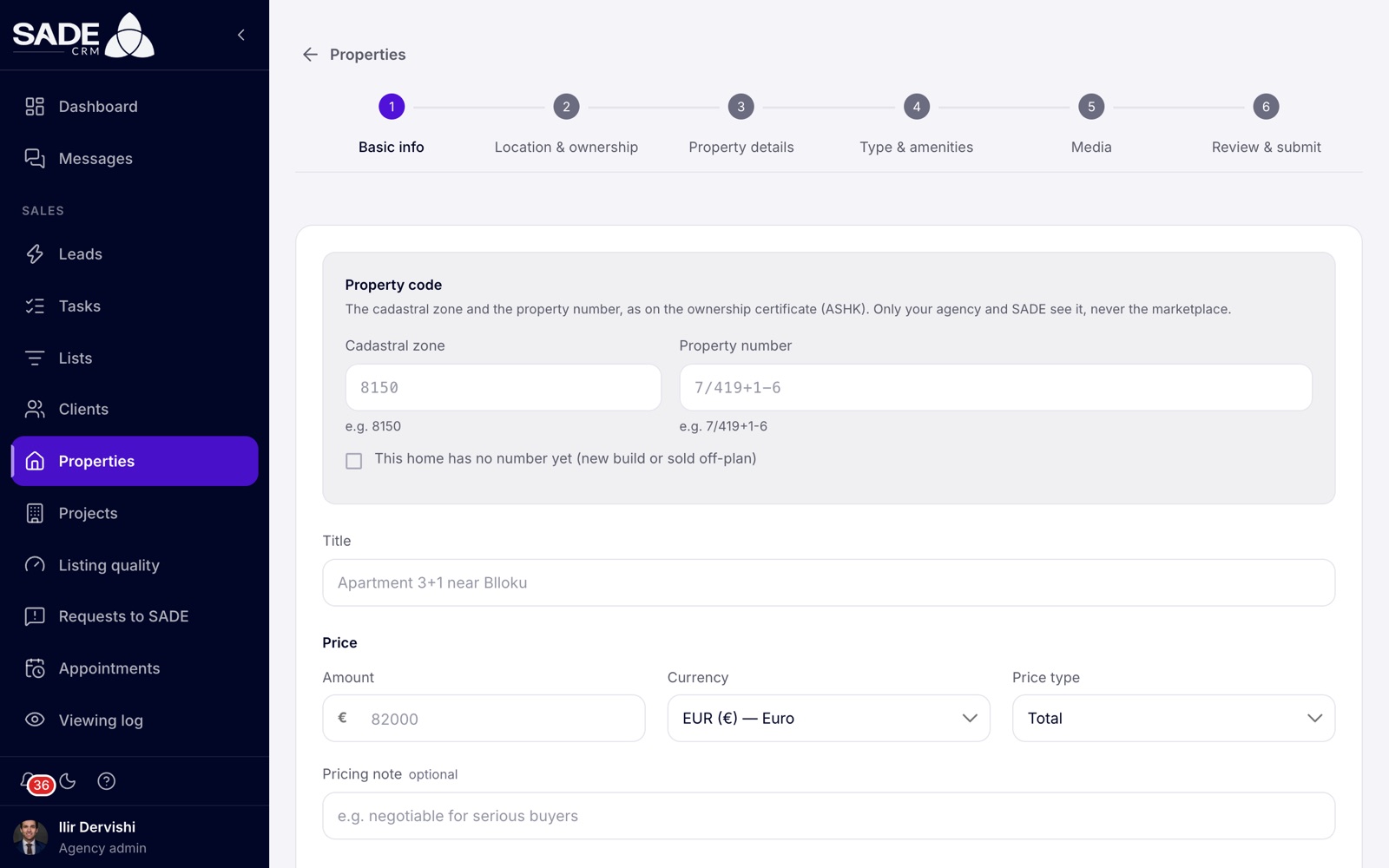
Step 1 of the wizard in an Albanian agency, where the property code comes first.
How the wizard works
- Fill in the step and click Next. The CRM checks the step first and will not move on until it is complete. What is missing is shown in red under each field.
- Use Back to return to an earlier step. The footer shows Step 2 of 6 and so on.
- On the last step, click Create property.
If SADE has not finished setting up the cities, property types or amenities for your country, the wizard shows “This listing can’t be created yet” and the form is switched off. Let SADE know, and try again once it is done.
Note: the wizard keeps a draft in your browser as you type: the step you were on and every field, except the photos and videos. If you leave and come back to Add property on the same computer and browser, your text is still there, but you need to add the files again. The draft is cleared when the listing is created.
Basic info
| Field | What to enter |
|---|---|
| Property code | The home’s official number. Only in countries that have one; see Property code below. |
| Title | Required. A short headline, for example “Apartament 2+1 me ballkon në Bllok”. |
| Amount | Required. The price, as a number of 0 or more. |
| Currency | Required. Euro is selected to start with. |
| Price type | Total (the default), Per m², Per month or On request. The amount is required whatever you choose. |
| Pricing note | Optional. For example “negotiable for serious buyers”. |
| Description | Required. A text box with headings, bold, italic and lists. |
Currencies
You can price a listing in any of these currencies, in every country: Euro (EUR), Albanian lek (ALL), Macedonian denar (MKD), Romanian leu (RON), Moldovan leu (MDL), Australian dollar (AUD), Canadian dollar (CAD), Swiss franc (CHF), Chinese yuan (CNY), British pound (GBP), Japanese yen (JPY), New Zealand dollar (NZD) and US dollar (USD).
The currency is a label on the amount. Changing it later does not convert the price. On the listing’s marketplace page, the price shows as you entered it, with an approximate conversion into the country’s usual currencies beside it, marked “≈” (in Albania, for example, euros and lek).
Property code
In countries with an official property number, the code is the first field of the wizard. Only your agency and SADE see it. It never appears on the marketplace or in feeds.
- Albania: required. Enter the Cadastral zone (for example 8150) and the Property number (for example 7/419+1-6), as on the ownership certificate (ASHK).
- Italy, Greece, Bulgaria, Romania, Slovenia, Croatia, Spain, Portugal and France: optional. The fields carry the country’s own name for the number, such as “Riferimento catastale” in Italy or “Referencia catastral” in Spain.
- Other countries: there is no property code field.
As you type, the CRM checks the code and shows Available or Already listed by another agency. A home can be listed by only one agency at a time. If the home has no number yet, tick This home has no number yet (new build or sold off-plan).
If another agency already holds the code, the listing is not saved and the wizard goes back to this step. You are not told which agency it is. If the owner signed an exclusive contract with you, click Ask SADE to look into it. See Property codes for how this works.
Location and ownership
Address
| Field | What to enter |
|---|---|
| City | Required. Type two or three letters and pick the city from the list. Only cities SADE has set up for your country can be chosen. |
| Address | Required. Street, building, entrance. |
| Zip code (optional) | Optional. |
The map pin
The Pin is required. Search for a street, building or place (at least 3 letters), or click on the map where the building is. Drag the pin to adjust it, or use Centre and Remove pin.
When you place the pin, the CRM looks up the address and fills in the address, neighbourhood and zip code if they are empty. If you have already typed an address, it offers the one from the map with Use this instead of overwriting yours. If the pin is outside the city you chose, you see a warning so you can check one or the other.
| Field | What to enter |
|---|---|
| Neighbourhood | Optional, up to 120 characters. For example Blloku or Komuna e Parisit. Market prices group listings by this name. |
| How to find it | Optional, up to 300 characters. A landmark or directions for viewings. Only your agency sees it. |
| Show the exact location on the website | Off by default. |
The public area
The switch Show the exact location on the website decides what the marketplace shows:
- Off (the default): visitors see a shaded area of about 300 m around the building, so the owner’s address stays private.
- On: visitors see the pin on the building.
Inside the CRM, your team always sees the exact pin.
The owner
Owner is required. Search your agency’s clients by name and pick one.
If the owner is not a client yet, click Add a new owner (or Add “Name” as a new owner once you have typed a name). The Add the owner dialog asks for:
| Field | What to enter |
|---|---|
| Full name | Required. |
| Phone | A phone number. |
| An email address. | |
| Address (optional) | Optional. |
| City (optional) | Optional. |
You need an email or a phone number, at least one. Add owner stays greyed out until the name and one of them are filled in. The owner is saved as one of your agency’s clients and picked for the listing. The owner is never shown on the marketplace.
If the email or phone already belongs to one of your clients, nothing is saved and the dialog says “This person is already a client.” Pick that client as the owner instead of adding them again. If you may open the client, the dialog shows their name and agent, and Open client opens their page in a new tab, so the listing you are adding stays open.
The assigned agent
- An agent sees You: you are the agent on the listings you create.
- An agency admin can search the agency’s people and pick an agent. Leave it empty and the listing is yours.
The assigned agent handles the listing’s viewings and enquiries, and gets its notifications.
Property details
A chip at the top reads Starts as Pending: you do not choose the status when you create a listing.
| Field | What to enter |
|---|---|
| Listing type | Required. For sale or For rent. |
| Bedrooms | Required. 0 to 50. |
| Bathrooms | Required. 0 to 50. |
| Floor area | Required. In m². In the United Kingdom you enter square feet and the CRM converts them. |
| Year built | Not specified, or a year from 1850 to five years from now. |
| Energy class | Only in countries with an energy certificate; see below. |
| Available from | Required. The first date the home can be shown. |
| Viewing days | Required. Anytime, Weekends only or Weekdays only. |
Energy class
Where your country has an energy certificate, the field is labelled with its name, for example Energy class (APE) in Italy, and it is required. Choose the class, or tick No certificate needed (land, garage…). Without one of the two, Next stops with “Choose the energy class, or tick that no certificate is needed.”
| Country | Certificate | Classes |
|---|---|---|
| Italy | APE | A4, A3, A2, A1, B, C, D, E, F, G |
| Greece | ΠΕΑ | A+, A, B+, B, C, D, E, F, G |
| Bulgaria | EPC | A to G |
| Romania | CPE | A to G |
| Slovenia | EI | A1, A2, B1, B2, C, D, E, F, G |
| Croatia | EPC | A+, A, B, C, D, E, F, G |
| Spain | CEE | A to G |
| Portugal | CE | A+, A, B, B-, C, D, E, F |
| France | DPE | A to G |
| Belgium | PEB | A++, A+, A, B, C, D, E, F, G |
| Luxembourg | CPE | A to I |
| Germany | Energieausweis | A+, A, B, C, D, E, F, G, H |
| Austria | Energieausweis | A++, A+, A, B, C, D, E, F, G |
| Cyprus | EPC | A to G |
| Malta | EPC | A to G |
| Ireland | BER | A1, A2, A3, B1, B2, B3, C1, C2, C3, D1, D2, E1, E2, F, G |
| United Kingdom | EPC | A to G |
| Albania, Kosovo, Montenegro, North Macedonia, Switzerland, Moldova, San Marino | none | The field is not shown. |
Type and amenities
| Field | What to enter |
|---|---|
| Property type | Required. For example Apartment, Villa, Office or Building plot. |
| Amenities | Optional. Tick the ones that apply. |
The amenities offered depend on the type, so choose the type first. Changing the type clears the amenities you ticked. Search the list (for example “Parking, balcony, lift…”), use Show all to see more than the first 20, and Select all visible or Clear all.
Property types and amenities are the same for every agency. SADE keeps the lists; you pick from them.
Media
Drop photos and videos on the box, or click it to choose files. You can add several at once, and remove any with Remove. At least one photo or video is required.
| Rule | Limit |
|---|---|
| Size of each file | Up to 25 MB, photos and videos alike |
| Size of each photo | Up to about 50 megapixels |
| Everything added at once | Up to 300 MB |
| Photo types | .jpg, .jpeg, .png, .webp, .gif, .bmp, .tif, .tiff. HEIC and AVIF photos are not taken: save them as JPG first. |
| Video types | .mp4, .mov, .m4v, .avi, .wmv, .mkv, .webm |
A file that breaks one of these rules is not added. The box says “Not added:” and names each file with the reason, for example “over 25 MB” or “not a photo or video SADE can take”. The other files you picked are added.
Some problems only show when SADE saves the file, such as a photo over 50 megapixels. The listing is then created without that file, and the CRM says “Saved without these files:” with each file and why. Fix them and add them on the listing’s Edit page.
- The first photo you add becomes the cover. Add your best photo first.
- Location and camera details stored inside photos are removed before they are saved.
- Single listings have no floor plans and no video link field; upload the video file itself.
Tip: listings with 8 photos or more get full marks for photos in the quality score, and higher scores rank higher on the marketplace.
Review and submit
The last step shows everything you entered, with an Edit link for each section. It also shows what the website will show of the location (“Exact pin” or “Area of about 300 m around it”), your amenities, up to six of your photos and the property code (or “No number yet”).
Click Create property. The CRM says: “Your property has been created and sent for review. You will be notified once our moderators complete the approval process.”
What happens next
- The listing appears in Properties with the status Pending. It is not on the marketplace yet.
- If an agent created it, every agency admin gets a notification, “New Property Created”.
- If an agency admin created it for another agent, that agent gets a notification and an email.
- SADE’s moderators review it. See Review and publishing.
Your plan’s listing limit
Each plan allows a number of listings; see the plans. Every listing in your Properties list counts, whatever its status: pending, published, rejected, blocked, sold, rented or withdrawn. At the limit, the CRM refuses a new listing with “Property limit reached.” Deleting a listing frees a place, or you can change your plan.
In an Enterprise organization, the limit is the organization’s contract, shared by all its agencies. The message is then “The organization’s listing limit is reached.”
Note: you can also add listings from the phone app, with the camera and your phone’s location for the pin. See The mobile app. To add many listings at once, use a spreadsheet import.
Arta Krasniqi, an agent at Tirana Living Real Estate, takes on a two-bedroom flat in Blloku. She opens Properties and clicks Add property.
- Basic info: Cadastral zone 8150, Property number 7/419+1-6, which shows Available. Title “Apartament 2+1 me ballkon në Bllok”, Amount 168000, Currency Euro, Price type Total, and a description of about 450 characters.
- Location & ownership: City Tiranë, the street and building, then she searches the address and drops the pin on the building. The neighbourhood fills in as Blloku. She leaves Show the exact location on the website off. The owner, Drita Shehu, is not a client yet, so Arta types her name, clicks Add “Drita Shehu” as a new owner, enters her phone number and clicks Add owner. Assigned agent shows You.
- Property details: For sale, 2 bedrooms, 1 bathroom, 85 m², built 2018, available from today, viewings Anytime. There is no energy class field, because Albania has none.
- Type & amenities: Apartment, with Elevator, Balcony and Air conditioning.
- Media: nine photos, the living room first.
She checks the review and clicks Create property. The flat appears in Properties as Pending, and Ilir Dervishi, the agency admin, gets a “New Property Created” notification.
Something unclear or missing? Write to [email protected] or call +355 69 808 0118.