A website form sends each enquiry from the contact form on your own website straight into SADE CRM as a lead. The lead is routed, timed and alerted like a lead from the marketplace. You need no server and no programming: SADE CRM gives you a short piece of code, and whoever looks after your website pastes it where the form should go.
Agency admins set up forms under Settings → Integrations, in the Website forms card. Agents don’t see this page. Integrations are set up on the web CRM only.
Each form has a public key that starts with pk_. It is not a secret: it can only send enquiries to your agency, and only from the websites you allow.
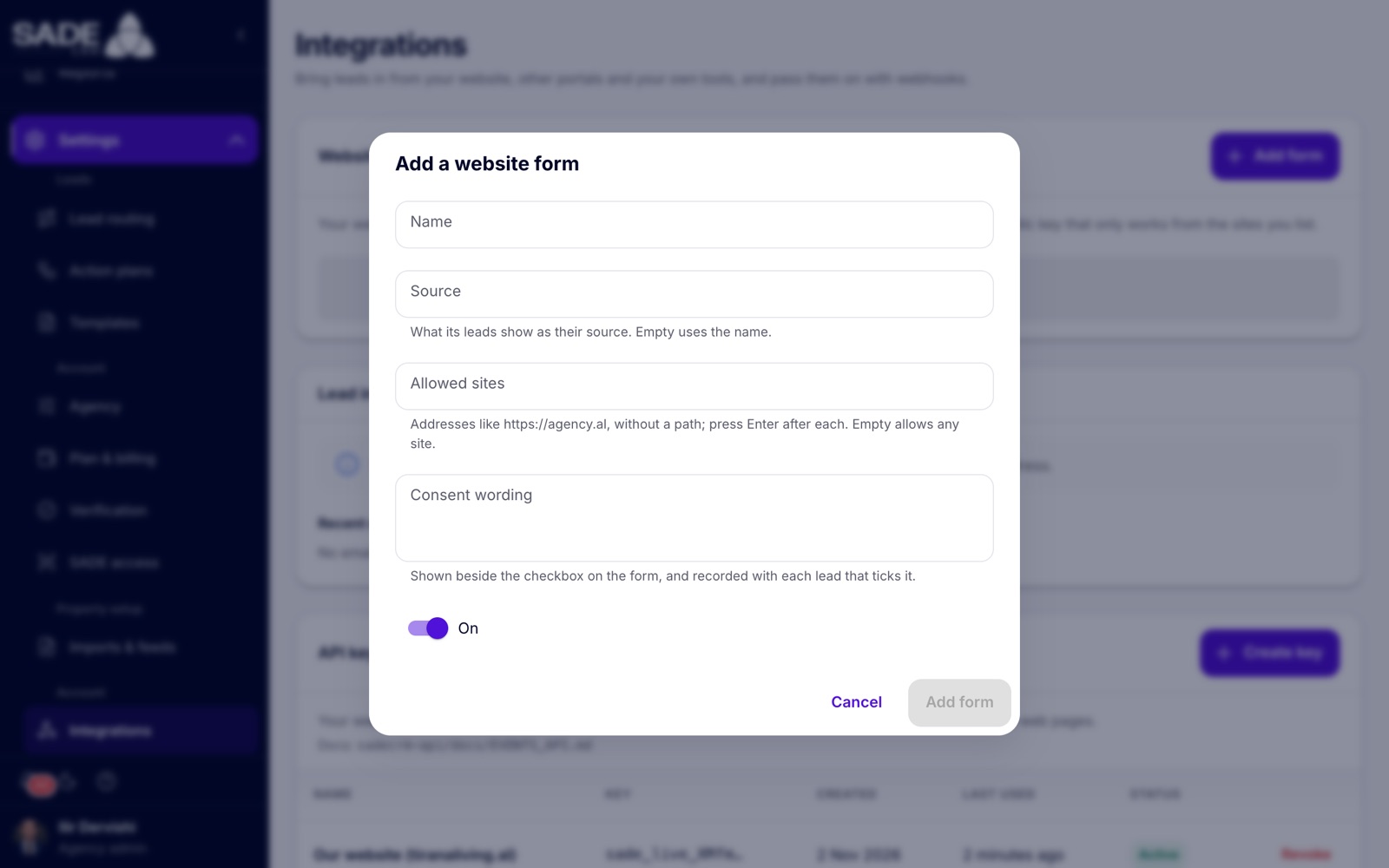
The “Add a website form” dialog.
Adding a form
- Open Settings → Integrations.
- In Website forms, click Add form.
- Fill in the fields below. Leave On switched on.
- Click Add form. The form appears in the list with its code showing.
- Under Code for your website, click Copy code.
- Paste the code into your website where the form should be, or send it to whoever edits your website.
- Send a test enquiry from the live website and check that the lead arrives in Leads.
| Field | What to enter |
|---|---|
| Name | Required. A name you will recognise, such as “Website contact page”. Up to 100 characters. |
| Source | What the leads from this form show as their source, such as tiranaliving.al. If you leave it empty, the name is used. Lead routing rules can match on it. |
| Allowed sites | The addresses of the websites the form may be used from, like https://tiranaliving.al: the start of the address only, with no path after it. Press Enter after each one. If you leave it empty, the form works from any website. |
| Consent wording | Optional. The sentence shown beside a checkbox on the form, such as “I agree to be contacted about my enquiry.” It is recorded with each lead that ticks the box. |
| On | Whether the form accepts enquiries. |
Tip: a website that opens both with and without
www.counts as two sites. Add both, for examplehttps://tiranaliving.alandhttps://www.tiranaliving.al.
Managing your forms
Each form in the list shows its name, an On or Off chip, where its leads come from, its Public key with a copy button, and either “Only from” the allowed sites or “From any site”.
- Use the switch to turn a form off or on. A form that is off turns away every enquiry until you switch it on again.
- Click the pencil to change the form in Edit website form. The public key stays the same, so the code on your website keeps working.
- Click the bin to delete the form. Your website’s form stops sending leads; leads already received stay in the CRM.
You can have as many forms as you need: one for the contact page, one for each listing page template, one for a second website.
The code for your website
This is what the code looks like for a form with consent wording. Always copy your own from Code for your website: it holds your form’s public key and the full address of SADE’s script, which are shortened here.
<script src="https://…/forms/v1.js" defer></script>
<form data-sade-form="pk_…" data-sade-success="Thank you! We'll be in touch soon.">
  <input name="name" placeholder="Name" required>
  <input name="email" type="email" placeholder="Email">
  <input name="phone" type="tel" placeholder="Phone">
  <textarea name="message" placeholder="Message"></textarea>
  <!-- optional: the SADE listing it is about -->
  <input type="hidden" name="listing" value="">
  <label><input type="checkbox" name="consent" value="true"> I agree to be contacted about my enquiry.</label>
  <button>Send</button>
</form>
The placeholders in your copy are in the language your CRM is set to. Change them to your website’s language if they differ.
Notes for your web developer
- Rename, translate and restyle the fields as you like, but keep their
names:name,email,phone,message,listingandconsent. - The visitor must give an email or a phone number. The form says “Please add an email or a phone number.” otherwise.
- The form’s own messages, its two errors and its thank-you (“Thank you, we’ll be in touch soon.”), follow the page’s
langattribute (the nearest one around the form, or the one on<html>) in any of the CRM’s 11 languages, and are in English otherwise. data-sade-successreplaces the thank-you text shown under the form after it is sent. Adddata-sade-error="…"to replace the error messages with your own text. It replaces all of them with that one text.- On a listing page, put the listing’s SADE id in the hidden
listingfield. The lead then arrives as an enquiry about that listing. The id is the last part of the listing’s page address in the CRM. Leave the field empty on a general contact page. - Several forms on one page work. Each needs its own
data-sade-form. - The script adds a hidden field that catches spam robots, and sends the page address with each enquiry. A form sent twice by a double click is recorded once.
- The phone number can be typed without the country code; it is read as a number in your agency’s country.
What happens to an enquiry
- The person is found or created. SADE CRM looks for a client with the same email, then the same phone. If there is none, it creates one at the stage Lead. It never overwrites details you already have; it only fills in what is missing.
- It is recorded as an enquiry. With a listing id of one of your listings, it is an enquiry about that listing and opens an enquiry on it. Otherwise it is a general enquiry.
- It is routed. If nobody in the agency works with the person yet, your lead routing rules decide who gets it. With no matching rule, a listing enquiry goes to the listing’s agent, and anything else goes to the pond. If the person already has an agent, that agent is told they asked again.
- The timer starts. The response timer starts and the agent is alerted, as for any new lead. See Leads.
- Consent is recorded. If the visitor ticked the checkbox, the CRM records their consent to be contacted with your exact wording, on email and on phone and WhatsApp (for what they gave), with the page and the time as proof. See Security and privacy.
- The visitor is thanked. The thank-you text appears under the form, and the form is cleared.
Limits
- Each visitor can send up to 10 enquiries in 10 minutes. More are turned away.
- The message can be up to 4,000 characters. Anything longer is cut.
- The visitor sees only a general error (“That didn’t go through. Please try again.”) when an enquiry is turned away, whatever the reason.
When enquiries don’t arrive
If your website says “That didn’t go through. Please try again.” or no lead appears, check:
- that the form is On in the list;
- that your website’s address is under Allowed sites, exactly as the browser shows it, including
https://and, if your website uses it,www.; - that the code on your website has the public key of a form that still exists (a deleted form’s key stops working);
- that the visitor gave an email or a phone number that looks valid.
Example
Ilir Dervishi, admin of Tirana Living Real Estate, opens Settings → Integrations and clicks Add form. He names it “Website contact page”, sets the Source to tiranaliving.al, adds https://tiranaliving.al and https://www.tiranaliving.al under Allowed sites, and writes the Consent wording “Pranoj të më kontaktoni për kërkesën time.” He clicks Add form, then Copy code, and sends the code to the agency’s web designer, who pastes it on the Contact page and translates the placeholders into Albanian.
On Saturday evening Ana Hoxha fills in the form on tiranaliving.al: her name, phone 069 123 4567, “Kërkoj një apartament 2+1 në Tiranën e Re”, and ticks the box. In the CRM she becomes a new client at the stage Lead, with the source tiranaliving.al and her phone stored with the +355 code. The agency’s rule for website leads offers her to Arta Krasniqi and Besnik Leka, first to claim. Arta claims her and calls on Monday morning. Ana’s consent to be contacted by phone and WhatsApp is on her client page, with Ilir’s exact sentence.
Something unclear or missing? Write to [email protected] or call +355 69 808 0118.