Off-plan buyers pay in instalments over months or years: a share on signing, more as the building rises, the rest at the keys. Buyer payments keeps track of it. Each signed sale gets a schedule from the project’s payment plan; you record what the buyer pays, as it reaches your bank; and the CRM shows who is late, by how much, and what you can expect each month.
It is a sales ledger for your team, kept as you record it. Your accounts stay with your accountant, and the exports are for them. SADE never moves money. Nothing recorded is ever changed or deleted: a mistake is reversed, and both entries stay on the record.
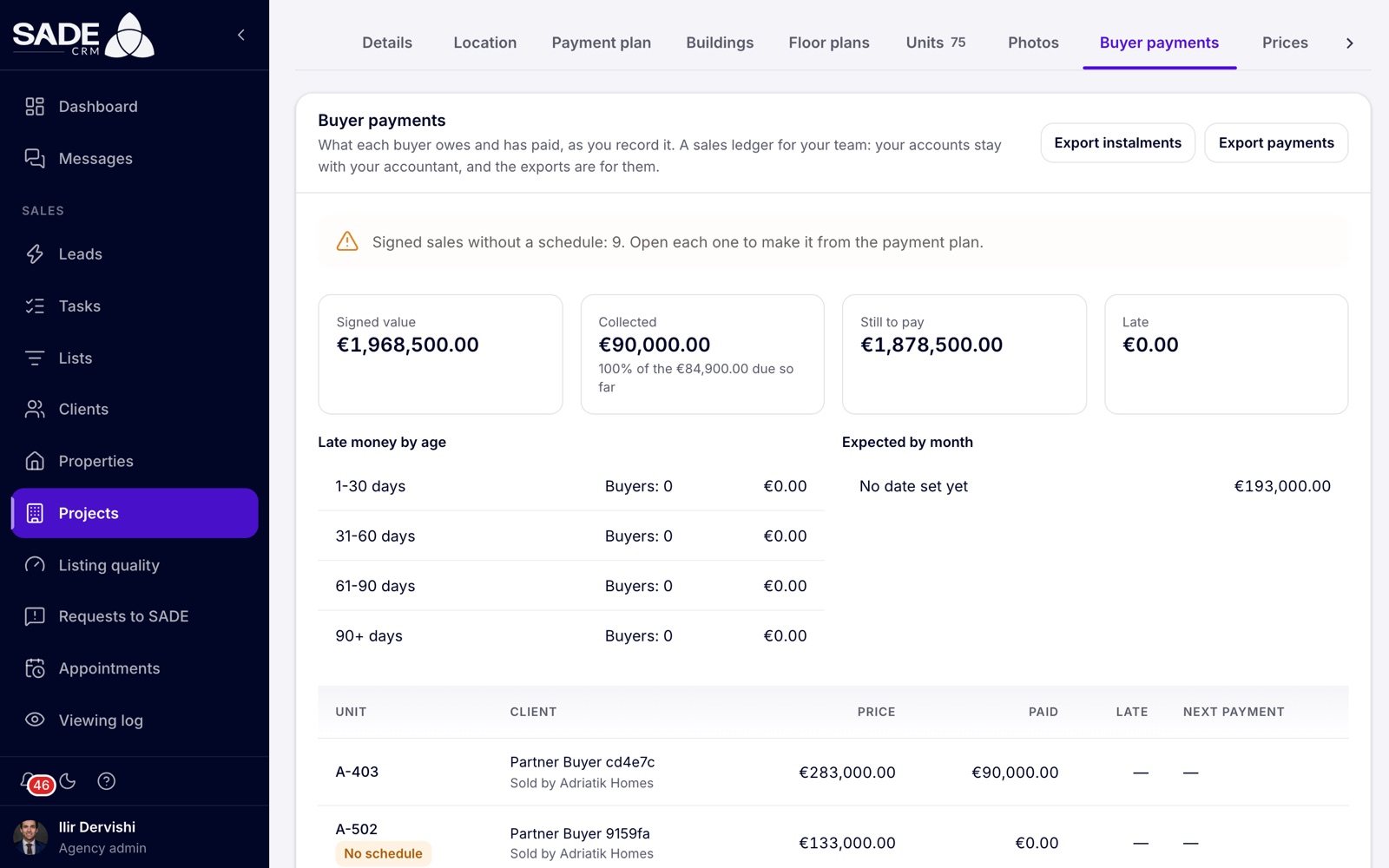
The Buyer payments tab of Rezidenca Liqeni. A partner’s sales show “Sold by” the partner.
Who sees it
| Admin | Agent | Partner agency | |
|---|---|---|---|
| The tab and every sale | Yes | Only their own sales | No, not even the sales it brought |
| Record payments, change schedules, milestones and reminders | Yes | No | No |
| Exports | Yes | No | No |
Buyer payments are on the web only.
The overview
Open the project and click the Buyer payments tab. For each currency, it shows:
- Signed value: the price of every signed sale;
- Collected: what buyers have paid, with the share of what has fallen due so far, for example “96% of the €412,500.00 due so far”;
- Still to pay: what is left on the signed sales;
- Late: what has fallen due and is unpaid.
Late money by age splits the late money into 1-30, 31-60, 61-90 and 90+ days late, with the number of buyers in each.
Expected by month shows what falls due in each of the next 12 months. Instalments that wait for a construction milestone with a planned date are added as “plus” an amount “if milestones keep to plan”. Below the months come “Waiting for milestones with no date” and “No date set yet”. With nothing due, it reads “Nothing is due in the next 12 months.”
The table lists every sale with its Unit, Client (with the agent, or “Sold by” the partner), Price, Paid, Late and Next payment. Chips mark cancelled sales and sales with No schedule. Click a sale to open it.
How a schedule is made
When a sale reaches Contract signed (or goes straight to Sale completed), the CRM makes its schedule from the project’s payment plan: one instalment per step, the price split by each step’s share, any leftover cents on the last one.
Each instalment falls due according to its step’s Falls due:
| Falls due | The instalment is due |
|---|---|
| At the contract | On the contract day. |
| On a date | On that date. |
| At a milestone | When you mark the milestone reached. Until then its state is Waiting. |
| In words only | The first step on the contract day. The later ones have No date until an admin gives them one. |
A project with no payment plan gets one instalment: the whole price, on the contract day.
Before the contract there is no schedule yet. A deposit recorded at that point pays the first instalments once the schedule is made.
A sale signed before buyer payments existed in the CRM has no schedule. Open it and click Make from the payment plan. The overview counts these sales for you: “Signed sales without a schedule: 3. Open each one to make it from the payment plan.”
Open a sale
Open a sale from the table, or click Payments on its unit on the building board. The top shows Paid, Still to pay, how many days late, and the Next payment.
The Schedule lists each Instalment, when it Falls due, its Amount, what is Paid and its State:
| State | Meaning |
|---|---|
| Paid | Paid in full. |
| Part paid | Some of it is paid. |
| Late | Its day has passed and it isn’t fully paid. It shows the days late. |
| Due today | It falls due today. |
| Upcoming | It falls due later. |
| Waiting | It waits for a construction milestone. |
| No date | Nobody has dated it yet. |
Record a payment
-
Open the sale and click Record payment. The dialog is Record a payment.
-
Fill in the fields:
Field What to enter Amount What the buyer paid, as on your bank statement or receipt. Date paid The day it was paid. Not in the future. Method Bank transfer (the default), Cash, Card, Cheque or Other. Reference The bank’s reference, if any. Note Anything your team should know. Add receipt A photo or PDF, up to 10 MB. Kept private. -
Click Record. You see “Payment recorded.”
A payment pays the earliest instalments first. A payment larger than one instalment carries on to the next.
The Payments list shows each entry with its Date paid, Entry (Payment, Refund or Reversal), Amount and Method, and a Receipt link when there is one.
Record a refund
For money you give back to the buyer, click Record payment and switch to Refund. A refund can’t be more than the buyer has paid. On a cancelled sale, only refunds can be recorded.
Reverse a payment entered by mistake
- Click Reverse on the payment.
- Write Why. It is required.
- Confirm. You see “Reversed.”
The payment stays on the record, marked Reversed, with the reversal next to it, so the books always show what happened. A payment can be reversed once, and a reversal can’t be reversed: record the payment again instead. If a refund was recorded after the payment, reverse the refund first.
Change a schedule
When a buyer agrees different terms, an admin can change their schedule.
- Open the sale and click Change schedule.
- Change the lines. Each has an Instalment name, an Amount, and Falls due: At the contract, On a date, At a milestone or Not set yet, with its Date or Milestone.
- Use Add instalment and Remove instalment as needed. The line at the bottom says whether it “Adds up to the price”, or how much it is short or over.
- Save.
A schedule has 1 to 60 instalments, each more than 0 with at most two decimals, and they must add up to the sale’s price. Payments already made pay the first instalments first. The old schedule stays in the history.
Construction milestones
A milestone is a point in the build, such as “Structure complete”, that instalments can wait for. Marking it reached makes those instalments due for every buyer at once.
- Under Construction milestones, click Add milestone.
- Fill in the Name and, if you know it, the Planned date. The forecast uses the planned date until the milestone is reached.
- Save.
To use a milestone, choose At a milestone on a step of the payment plan, or on a line of a buyer’s schedule.
When the build gets there:
- Click Mark reached on the milestone.
- Read the preview: how many instalments fall due, for how many buyers, and how much is still to pay on them.
- Set Reached on: today, or an earlier day.
- Confirm.
Important: marking a milestone reached can’t be undone. The waiting instalments become due on that day, and late after it.
A project can have up to 50 milestones. A milestone can be removed only while nothing uses it and it hasn’t been reached.
Payment reminders
Turn on Email buyers about their payments to have the CRM email buyers, in your agency’s name, a week before each instalment, on the day, and a week and a month late. It is off by default.
The reminders go out each morning. A buyer who is already late gets only the latest reminder, not every earlier one. They are never sent for an instalment that fell due before its schedule was made or before you turned the reminders on.
Whether the switch is on or off, the sale’s agent is told in the CRM from the day an instalment falls due, for example “Mirela Gjoka · Rezidenca Liqeni A-405: At the frame is 7 days late”. For a partner’s sale, your admins are told instead.
When a buyer with a phone number is late, the sale has Remind on WhatsApp. It opens WhatsApp with a polite message already written, naming the project, the unit, the amount and the date, for the agent to send.
Export for your accountant
Admins have two buttons at the top of the tab:
- Export instalments: one row per instalment;
- Export payments: one row per payment, refund and reversal.
Both download a CSV file named after the project and the day, ready for your accountant’s spreadsheet.
History
Each sale keeps a history of everything that happened to its payments: “Schedule made”, “Schedule changed”, “Payment recorded”, “Refund recorded”, “Payment reversed”, “Milestone reached” and “Reminder sent”.
An example
Rezidenca Liqeni’s payment plan is 30% on signing, 50% at the frame and 20% at handover. Ilir first adds two milestones under Buyer payments → Construction milestones: “Frame complete”, planned for 31 March 2027, and “Handover”, planned for 30 June 2028. Then, on the Payment plan tab, he sets the steps’ Falls due: At the contract, At a milestone “Frame complete”, and At a milestone “Handover”.
On 16 November 2026 the contract for A-302 is signed at €165,000. The Memas’ schedule is made at once: €49,500.00 due that day, then €82,500.00 and €33,000.00 Waiting. In Expected by month, the €82,500.00 is counted in March 2027, in the line “plus … if milestones keep to plan”.
The Memas pay €49,500 by bank transfer on 20 November. Ilir clicks Record payment, enters the amount, the date and the bank’s reference, adds the receipt PDF and clicks Record. The first instalment turns Paid.
On 2 April 2027 the site engineer confirms the frame is up. Ilir clicks Mark reached on “Frame complete”. The preview shows the instalments of every signed buyer that now fall due, with the total. He confirms. The Memas’ €82,500.00 is now due, dated 2 April, and turns Late if it isn’t paid. Besnik, the agent of the sale, is told in the CRM.
Something unclear or missing? Write to [email protected] or call +355 69 808 0118.