When a developer, or an agency selling for one, invites your agency to sell its project, you become its partner. You see the building and what is available, you hold and reserve units for your own clients, and you earn the commission the developer agreed with you. Your clients stay yours: the developer sees a buyer’s details only when you reserve a unit for them.
Everything a partner does is on the Partner projects page in the menu. Your admins and agents both use it, on the web.
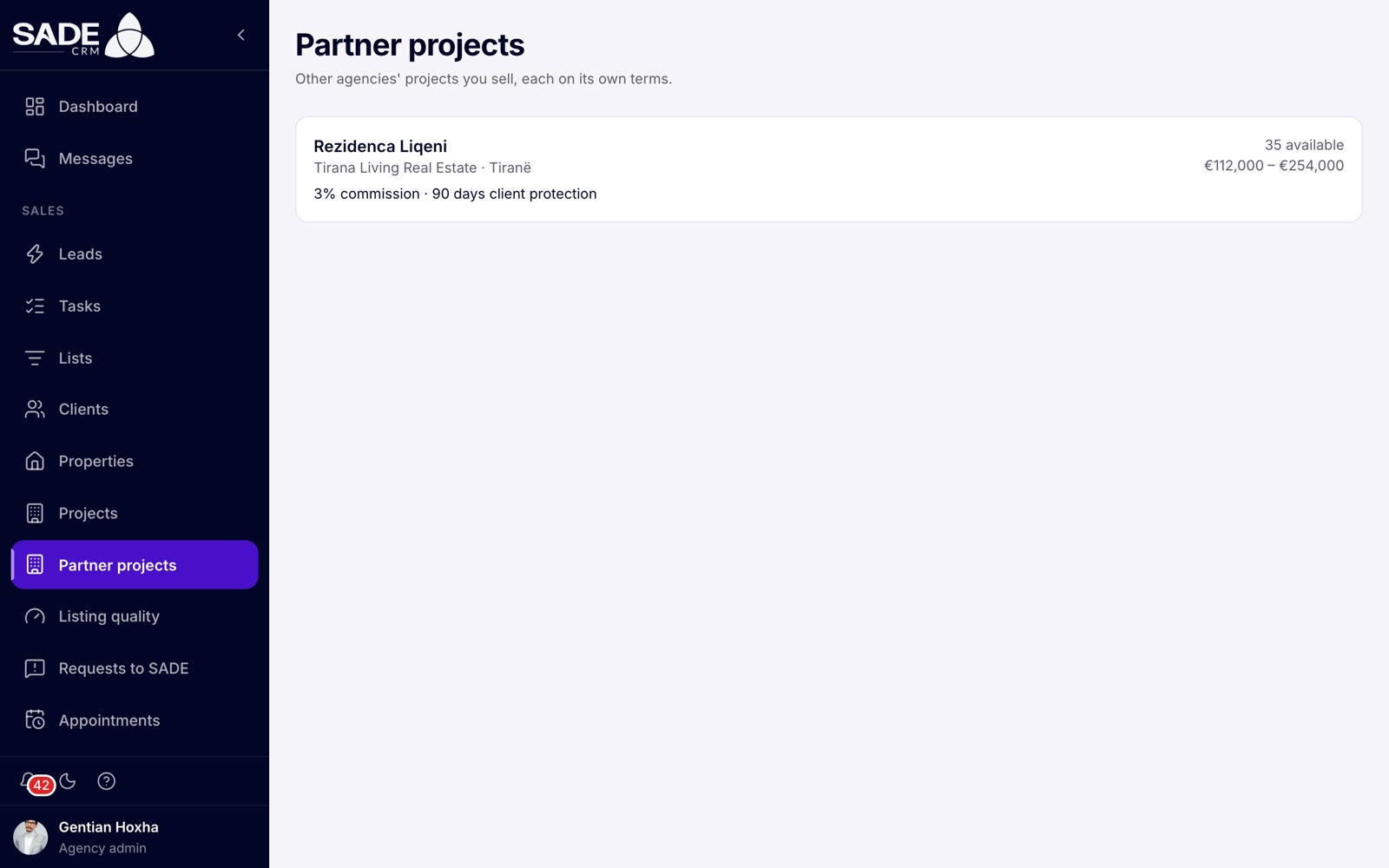
Partner projects, as Adriatik Homes sees it. Each card shows the project and your terms.
Accept an invitation
The invitation comes by email, with a link to an invitation page. The page shows who invites you, the project, and the terms, for example “3% commission · 90 days client protection”. You don’t need to sign in to read it.
- Open the link from the email.
- If you are signed out, click Sign in and sign in with your agency’s admin account. If your agency isn’t on SADE yet, click Create an agency to sign up. Your agency then starts on a free trial of Pro, so it can accept the invitation. The browser remembers the invitation for 24 hours and brings you back to it.
- Click Accept invitation. You see “Invitation accepted”, and the project opens.
The developer is told that you accepted.
Only an agency admin can accept. An agent who opens the link reads “Your agency’s admin needs to accept this. Send them the link.” Not now leaves the invitation for later; the link works for 30 days.
Important: your agency needs projects on its plan to accept: the Pro plan (a Pro trial counts), or an Enterprise organization. An agency that signs up from the invitation’s link starts on a Pro trial, so it has them. On another plan the CRM says “Partner projects come with Pro. Move to Pro, then accept the invitation.” See Plans and billing.
If the page reads “This invitation isn’t valid”, the link has expired or has been used. Ask the developer for a new one.
Your partner projects
Partner projects appears in the menu once your agency sells at least one partner project. It lists them as cards, each with the developer, the city, how many units are available, the price range and your terms.
Open a card to work on the project. It has three tabs: Units, Clients and Commission.
Units
The Units tab is the same building board the developer uses, with less on it:
- you see only the units the developer lets you sell;
- the lenses are Status and Price per m²;
- units held or sold by the developer or by other partners appear as the public sees them: a held unit reads Reserved, with no client or agent;
- there are no enquiry counts and no waiting lists.
Click a unit to see its panel and the buttons you can use:
| The unit is | You can |
|---|---|
| Available | Reserve, Hold |
| On hold by your agency | Reserve, Release hold. An agent sees them on their own holds; an admin on all the agency’s. |
| Reserved by your agency | Cancel sale, on the same terms. |
The contract, the completion and the buyer’s payments are the developer’s.
Register a client
Registering a client claims them on this project. The first agency to register a client keeps them for the protection days in your terms.
- Open the Clients tab and click Register client.
- Pick one of your agency’s clients. They need a phone number or an email.
- Click Register client. You see “Client registered”.
The table shows each client with the date Registered, Protected until and their Status: Protected, Reserved or Expired. Agents see the clients they registered; admins see all of the agency’s.
If the client is already taken, you see “This client is already registered on this project.” That happens when another partner registered the same phone number or email first, or when the developer already has the person on this project, for example from an enquiry or a viewing.
Hold a unit
- Pick an available unit and click Hold.
- The dialog reminds you: “The first agency to register a client keeps them for 90 days.” (with your own number of days).
- Pick the client and click Hold. You see “Unit on hold”.
Holding a unit registers the client too, if they weren’t already. The hold lasts the project’s hold time, set by the developer: 48 hours on Rezidenca Liqeni. When it ends, the unit is available again. To end it sooner, click Release hold.
Reserve a unit
- Pick an available unit, or one your agency holds, and click Reserve.
- The dialog shows the price, for example “Price: €233,000”. A partner reserves at the listed price; the price can’t be changed here. Talk to the developer if the buyer has agreed a different price.
- Pick the client.
- Read the line “Reserving shares the client’s name and contact details with” the developer, and click Reserve. You see “Unit reserved”.
The unit turns Reserved. The developer is told, and the buyer’s name, phone and email are added to the developer’s clients, marked as coming from your agency. From here the developer records the contract and the payments.
Cancel a reservation
If your buyer pulls out, click Cancel sale on the unit and confirm with Cancel reservation. You see “Reservation cancelled”, and the unit becomes available again.
- You can cancel only a reservation one of your agents made.
- Once the developer has recorded a payment on the sale, you can’t cancel it: “The developer has recorded payments on this sale. Ask them to cancel it.”
When a sale of yours is cancelled, by you or by the developer, your admins get a notification. Your registration of the client comes back, with the time the reservation stood added to its protection.
Your clients stay yours
- The developer sees how many clients you have registered, never who they are, until you reserve a unit for one.
- Other partners never see your clients, your holds’ clients, your terms or your commissions.
- You never see the developer’s clients, leads or buyers’ payments, or other partners’ clients.
Your commission
The Commission tab lists your commissions on the project, with the Unit, Price, Commission and Status:
| Status | Meaning |
|---|---|
| Due | The developer recorded it when your sale reached the contract. |
| Paid | The developer has marked it paid. |
| Cancelled | The sale was cancelled before payment, or the developer disputed it. A disputed commission shows the developer’s reason, and your admins get a notification. |
A commission is the agreed price times the percentage in force on the day you reserved. If the developer changes your terms later, your admins are told, and sales already reserved keep the old percentage.
Click Statement to download a PDF of your commissions on the project. It is in Albanian when your agency’s CRM language is Albanian, and in English otherwise.
When the partnership ends
If the developer ends the partnership, you lose access to the units and clients at once, and your holds are released. Your sales and commissions stay on record, and the Commission tab stays open so you can still see what you are owed and download your statement.
Limits
- Your agency can register up to 50 clients a day.
- Your agency can keep up to 10 units on hold at once: “Your agency has a lot of units on hold. Release one or reserve it first.”
- Partner projects are on the web only, not on the phone app.
An example
Gentian Hoxha, the admin of Adriatik Homes, gets an email: “Tirana Living Real Estate invites you to sell Rezidenca Liqeni”. He opens the link, signs in and clicks Accept invitation. Adriatik Homes is on Pro, so the project opens straight away, with 3% commission and 90 days of client protection.
His agent Elsa Marku has a buyer, Arben Kola, looking for a large flat by the lake. She opens Partner projects → Rezidenca Liqeni → Units, picks B-301, a 3+1 at €233,000, and clicks Hold. Arben is registered and protected for 90 days, and the unit is held for 48 hours.
The next day Arben says yes. Elsa clicks Reserve, checks “Price: €233,000” and confirms. Tirana Living is told and records the contract the following week. On the Commission tab Gentian now sees €6,990.00 Due.
Something unclear or missing? Write to [email protected] or call +355 69 808 0118.