Following up is where leads become clients. The CRM doesn’t place calls or send messages itself. Its Call, WhatsApp and Email buttons open your own phone, WhatsApp or email app with the person’s details filled in, so replies come back to you. When you return, the CRM asks how it went and writes the answer on the client’s timeline. That record stops the lead’s clock, moves the stage on and tells your action plans whether to keep going.
Agents and agency admins can follow up with any client they can open.
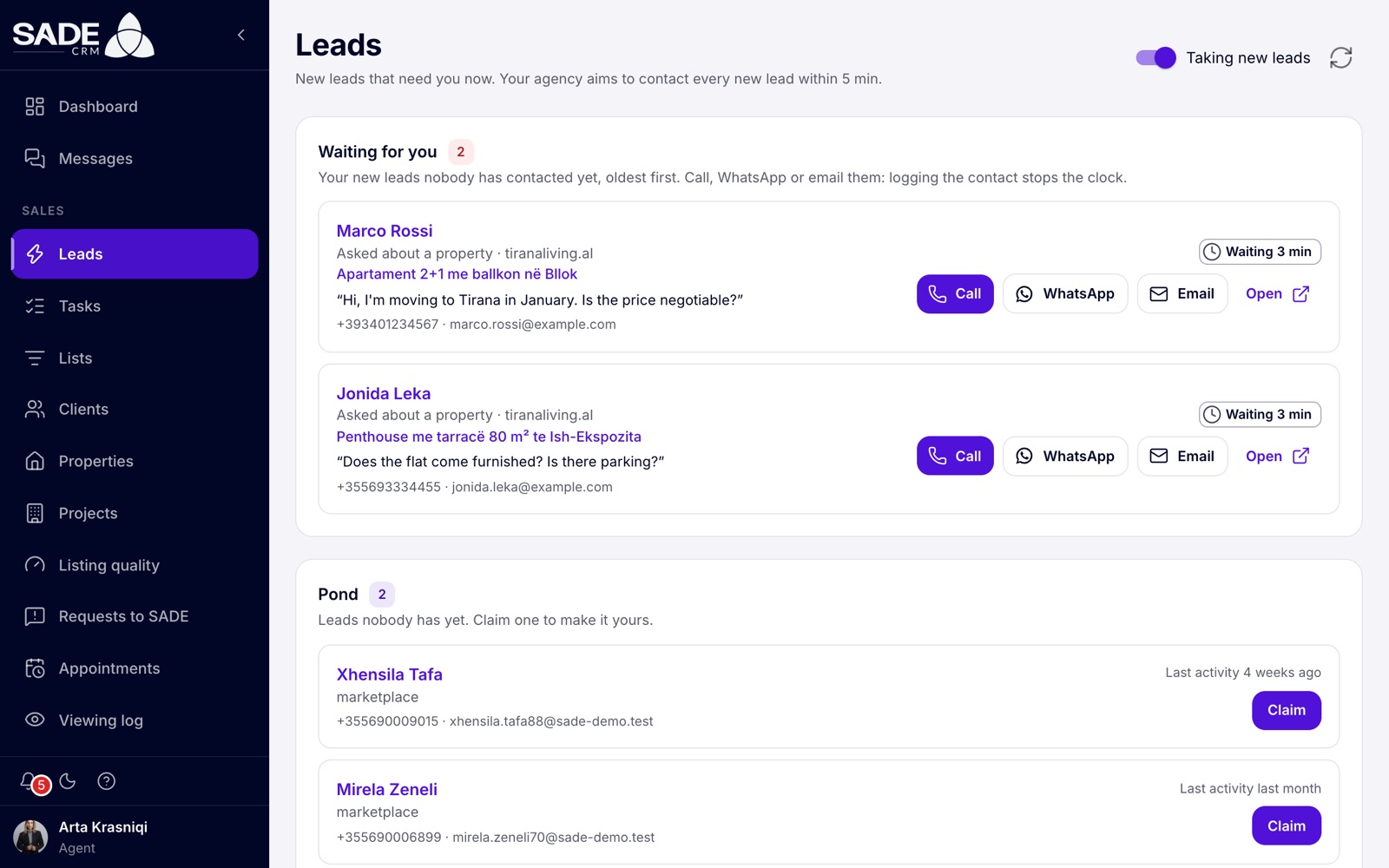
Arta’s Leads page: two leads from the agency’s website, each waiting 3 minutes.
Where the contact buttons are
| Where | Buttons |
|---|---|
| Leads, on each card under Waiting for you | Call, WhatsApp, Email |
| The client page, at the top | Call, WhatsApp, Email, Send a template |
| Lists, on each person’s row | Call, WhatsApp and Email icons |
| Tasks, on a call or message task | Call, Send WhatsApp, Send email or Send SMS |
A button is greyed out when the client has no phone number (“No phone number for this client”) or no email address (“No email address for this client”).
Logging a call, WhatsApp, email or SMS
- Click Call, WhatsApp or Email. Your phone app, WhatsApp (in a new tab) or email app opens with the person’s number or address.
- Make the call or send the message.
- Back in the CRM, the How did it go? dialog is waiting, for example “Your call with Marco Rossi”.
- Choose what happened. This is optional.
- Add a Note (optional): what was said, what they are looking for, when to follow up. Up to 4,000 characters.
- If you started from a task, leave Mark the task done ticked to close the task as well.
- Click Log contact. The CRM says “Contact logged”.
If you didn’t actually get in touch, click Don’t log and nothing is recorded. Clicking outside the dialog doesn’t close it, so you can’t skip it by accident.
SMS is logged the same way. You send an SMS from a task or with Send a template (see below).
The outcomes
| Channel | Outcomes you can choose |
|---|---|
| Call | Reached them, No answer, Left a message, Wrong number |
| WhatsApp and SMS | They replied, Sent, no reply yet, Wrong number |
| They replied, Sent, no reply yet |
Reached them and They replied mean you reached the person. If you log without choosing an outcome, the CRM also counts it as reached. The other outcomes mean you didn’t reach them.
Tip: save phone numbers with the country code, for example +355 69 123 4567. That way the WhatsApp button always opens the right chat.
What logging a contact does
Any logged contact, whatever the outcome, stops the lead’s response clock and counts as contacted in the answer rate and in Reports. A call logged as No answer still stops the clock, so the clock measures how fast your team acts, not whether the client picks up. The full rule is on Leads.
What else happens depends on whether you reached the person:
| Reached | Not reached | |
|---|---|---|
| Stage | Moves up to Spoke with Customer, if earlier. | Lead becomes Attempted Contact. Later stages stay as they are. |
| Action plans | Plans set to stop when the person is reached stop, and their open tasks are removed. | Plans keep running. |
| Marketplace | If the client has a SADE marketplace account with the same email, you become their agent there for 30 days from your last contact. | Nothing changes. |
When you become a client’s agent on the marketplace, they are told by email and can end it. While it lasts, the Marketplace card on their client page shows it, and their new enquiries come straight to you.
Sending a template
Templates are messages your admin has written once, which the CRM fills in with the person’s name, your name, the listing and a link.
- Open the client and click Send a template.
- Choose the channel: WhatsApp, Email or SMS.
- Pick the Template. If there is only one for that channel, it is already chosen.
- Read the Preview, which shows the message filled in for this client.
- Click Open in WhatsApp, Open in email or Open in Messages. The message opens in your own app, ready to send. Check it and send it from there.
- Back in the CRM, the How did it go? dialog opens. Log the contact as above.
The listing in the message is the last one the person asked about. If they haven’t asked about one, the listing title and link are left empty, so choose a template that reads well without them.
If no template exists for the channel, the dialog says so: “No WhatsApp templates yet. An admin can add them in Settings, under Templates.”
Tasks made by an action plan can carry a template too. Their Send WhatsApp, Send email or Send SMS button opens the filled-in message directly.
Assigning and reassigning
Every client is either assigned to one agent, or unassigned. Only agency admins can change it; agents see the name of the assigned agent as text.
- Open the client.
- On the Lead card on the right, open Assigned to.
- Pick an agent, or Unassigned.
When you reassign a client:
- the change is written on the timeline, for example “From Arta Krasniqi to Besnik Leka”;
- if the lead’s clock is still running, it moves to the new agent;
- open tasks created by action plans move to the new agent. Tasks someone created by hand stay with whoever had them.
Choosing Unassigned puts the client in the pond, where any agent can claim them. The CRM says “No longer assigned to anyone”. Assigning an agent to a pond client takes them out of the pond.
Note: you can pick any active agent or agency admin of your agency.
Notes on the timeline
Notes are for anything that isn’t a contact: what you learnt at a viewing, a change in budget, a reminder for your colleague.
- Open the client. The Timeline tab opens first.
- Type in the box “Add a note about a call, a meeting or what they’re looking for”. Up to 10,000 characters.
- Click Add note.
The note appears at the top of the timeline with your name and the time. The timeline shows the newest first; click Load older at the bottom to see more.
To delete a note, click its delete button, then Delete note to confirm. Only the person who wrote it, or an agency admin, can delete a note, and it is removed for everyone.
Example
Jonida Leka asked on tiranaliving.al whether the penthouse in Ish-Ekspozita comes furnished. She is Arta’s lead. By 17:05 she has been waiting 6 minutes, and her timer has turned amber.
Arta clicks Call on Jonida’s card. Her phone dials, but Jonida doesn’t pick up. Back in the CRM, Arta chooses No answer and clicks Log contact. The clock stops at 6 minutes, just outside the agency’s 5-minute target, so Jonida counts as contacted but not in time. Jonida’s stage moves from Lead to Attempted Contact, and because she wasn’t reached the “New buyer enquiry” action plan keeps running.
Arta then opens Jonida’s client page, clicks Send a template, picks WhatsApp and the template “First reply (WhatsApp)”. The preview reads “Hi Jonida, this is Arta Krasniqi from Tirana Living Real Estate. Thanks for asking about Penthouse me tarracë 80 m² te Ish-Ekspozita…” with the listing link. She clicks Open in WhatsApp, sends it, and logs Sent, no reply yet.
Twenty minutes later Jonida replies on WhatsApp. Arta answers her, then clicks WhatsApp on the client page to log it: They replied, with the note “Furnished, one parking space. Wants to see it Tuesday morning.” Jonida moves to Spoke with Customer, and the action plan stops and removes its open tasks.
Something unclear or missing? Write to [email protected] or call +355 69 808 0118.