Everyone in your agency has one of two roles: Agency admin or Agent. The agency admin runs the agency’s CRM and manages the team from the Agents page. Agents work on their own leads, clients, listings and deals.
The person who signed the agency up is its agency admin. Everyone the admin adds from the Agents page is an agent.
What each role can see and do
| Area | Agency admin | Agent |
|---|---|---|
| Leads | Every lead in the agency, including Everyone’s uncontacted leads. | Their own leads, leads offered to them, and the shared pond. |
| Clients | Every client of the agency. | Clients assigned to them or that they added, and clients linked to their listings, viewings or deals. |
| Properties | Every listing of the agency. | Listings assigned to them. |
| Appointments and Viewing log | Everyone’s. | Their own. |
| Deals | Every deal. | Deals where they are the agent. |
| Tasks | Everyone’s. Can give tasks to agents. | Their own. |
| Lists | Can share a list with the whole agency. | Their own lists. On a shared list, they see only their own people and the pond. |
| Projects | Creates and edits projects. | Sees every project and works with its units (holds and sales), but can’t create or edit a project. |
| Promotions | Buys and pays. | Sees the page, can’t buy. |
| Market prices | Yes. | Yes. |
| Agents and Reports | Yes. | No. |
| Settings (lead routing, action plans, templates, agency, plan and billing, verification, SADE access, integrations, imports) | Yes. | No. The whole Settings menu is hidden. |
The details of each area are on its own page, for example Leads, Clients and Deals.
Note: an Organization admin is a third role, only on the Enterprise tier. It belongs to an organization above several agencies, not to an agency. See Organizations.
The Agents page
Open Team, then Agents. Only agency admins see it.
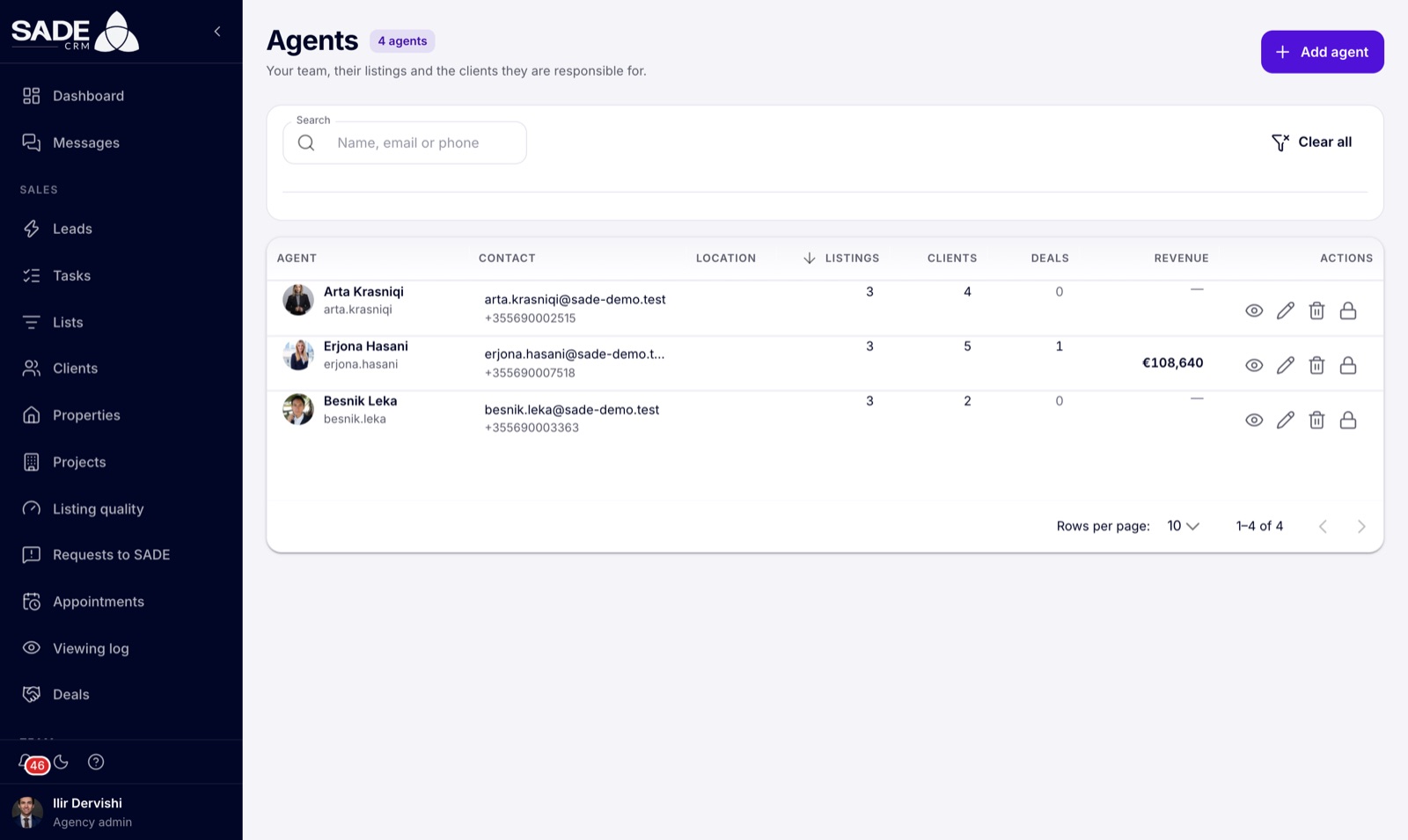
The Agents page. Search by name, email or phone.
Each row shows the Agent, their Contact details, Location, and their numbers of Listings, Clients and Deals, with their Revenue from completed deals. The icons at the end of the row let you view the agent’s profile, edit them, delete them, or change their password.
The page lists active agents only. Agency admins, including you, are not on it.
Add an agent
- On the Agents page, click Add agent.
- Fill in the New agent form (see the table).
- Click Save. The CRM shows “Agent added.”
- Tell the agent their username or email and the password you chose.
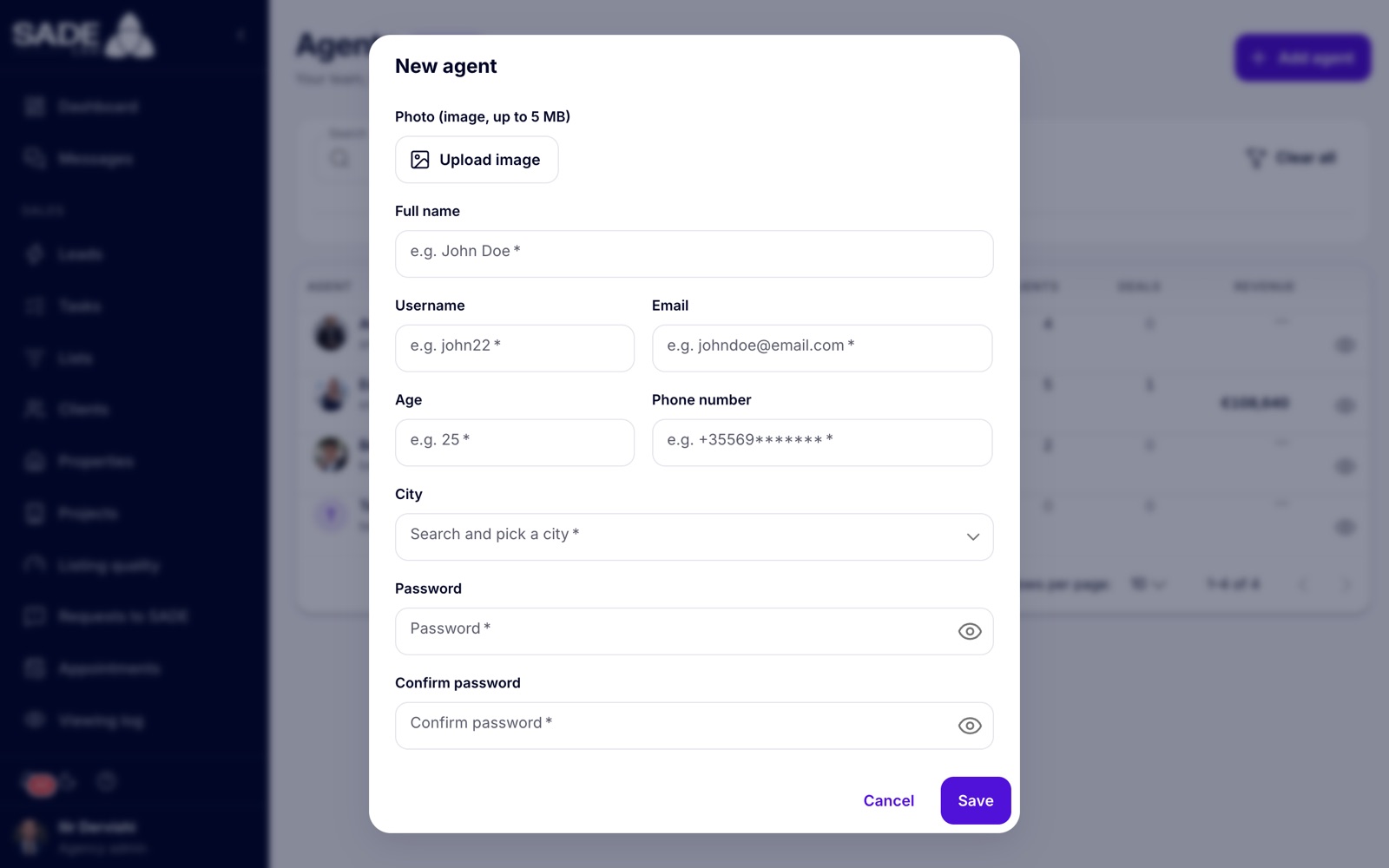
| Field | What to enter |
|---|---|
| Photo (image, up to 5 MB) | A photo of the agent. Required. It appears on their listings. |
| Full name | The agent’s name, as buyers will see it. |
| Username | A short name for signing in, unique in SADE CRM. Spaces become underscores. |
| The agent’s own email. It must not already have an account. | |
| Age | The agent’s age. |
| Phone number | The agent’s work number, 7 to 15 digits. It must not already be used by another account. |
| City | Search and pick the city they work in. |
| Password and Confirm password | The agent’s first password: at least 8 characters, with upper and lower case letters, a number and a symbol. |
Important: the CRM doesn’t email the new agent. You choose their first password, so give it to them yourself, and ask them to change it from their profile after the first sign-in (see Signing in).
A new account is always an agent. Agents don’t need to confirm their email: they can sign in straight away.
Edit an agent
Click the pencil icon on the agent’s row. The form “Edit” followed by the agent’s name lets you change the photo, Full name, Username, Email, Age, Phone number and City. Click Save changes. The CRM shows “Agent updated.”
This is also where you change an agent’s sign-in email.
Reset an agent’s password
If an agent forgets their password, they can reset it themselves with Forgot password? on the sign-in card. You can also set a new one for them:
- Click the lock icon on the agent’s row.
- Enter the New password and type it again in Confirm password.
- Click Save. The CRM shows “Password changed.”
The agent is signed out on all their devices and gets an email that their password was changed. Your own session is not affected.
An agent’s profile
Click the eye icon on an agent’s row to open their profile.
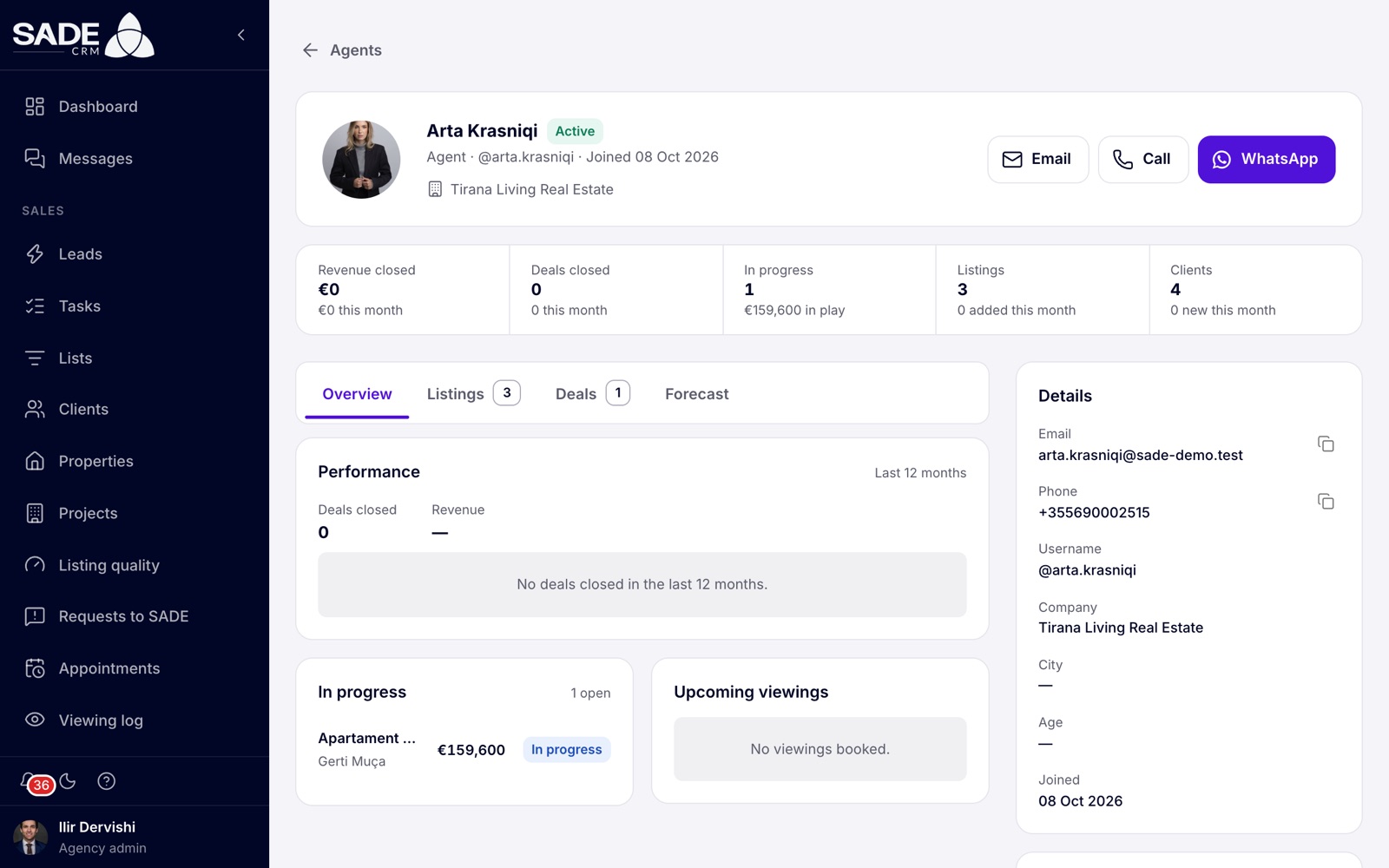
An agent’s profile, as the agency admin sees it.
The top shows whether the agent is Active, when they joined, and buttons to email, call or WhatsApp them. Under it are their numbers, then four tabs:
| Tab | What it shows |
|---|---|
| Overview | Performance over the last 12 months, deals In progress and Upcoming viewings. |
| Listings | The listings assigned to them. |
| Deals | Their deals, filtered by in progress, closed, or rejected and cancelled. |
| Forecast | What the agent is likely to close this month, compared with their usual month. |
Only agency admins can open agent profiles on the web. See Dashboard and reports for the agency’s numbers as a whole.
Seat limits
Your plan sets how many agents your agency can have. The limits of each plan are on the pricing page.
- Only active agents take a seat. Agency admins don’t count.
- An agent you delete frees their seat at once.
- When every seat is taken, Add agent is refused with “Agent limit reached.” Delete an agent, or move to a larger plan in Plans and billing.
- Your plan’s listing limit works the same way: at the limit, a new listing is refused with “Property limit reached.”
- Plan & billing shows how many agents and listings you use, against your plan’s limits.
An agency inside an Enterprise organization counts against the organization’s contract instead. See Organizations.
Remove an agent
When an agent leaves the agency:
- Give their work to someone else first: reassign their listings, clients and leads to other agents.
- On the Agents page, click the bin icon on their row.
- Confirm “Delete this agent?”. The CRM warns: “They can no longer sign in. This can’t be undone.”
What happens:
- Their account is closed and taken out of your agency. Their sessions are ended and they can no longer sign in.
- They get an email that their account was removed.
- Their seat is free for someone new.
- Their listings, clients and deals stay in your agency. They are not moved to anyone else by this step, which is why you reassign them first.
You can’t bring a removed agent back yourself. If someone returns, contact SADE: only SADE can reopen a removed account.
A second agency admin
The Agents page adds agents only. If your agency needs a second agency admin, contact SADE. In an Enterprise organization, the organization’s admins can add agency admins themselves.
On the phone app
Agency admins can see the Agents list and each agent’s profile in the phone app, under More. Adding, editing and removing agents, and resetting their passwords, are done on the web.
Tirana Living hires a fourth agent, Dritan Shehu, who will cover Kombinat and Don Bosko. Ilir opens Agents, clicks Add agent, uploads Dritan’s photo, and enters his name, the username “dritan.shehu”, his email, his age, his mobile number and Tiranë as his city. He types a first password and clicks Save. Then he tells Dritan the password in person, and Dritan changes it after his first sign-in.
Six months later Besnik Leka leaves. Ilir reassigns Besnik’s three listings to Arta and his client to Erjona, then deletes Besnik from the Agents page. Besnik can no longer sign in, and his seat is free for the next hire. The deals Besnik closed stay in the agency’s records.
Something unclear or missing? Write to [email protected] or call +355 69 808 0118.