Everyone in an agency signs in at crm.sadegre.com with their email and password: agency admins, agents and organization admins alike. This page covers signing in and out, passwords, and the things each person sets for themselves: their profile, their language and light or dark mode.
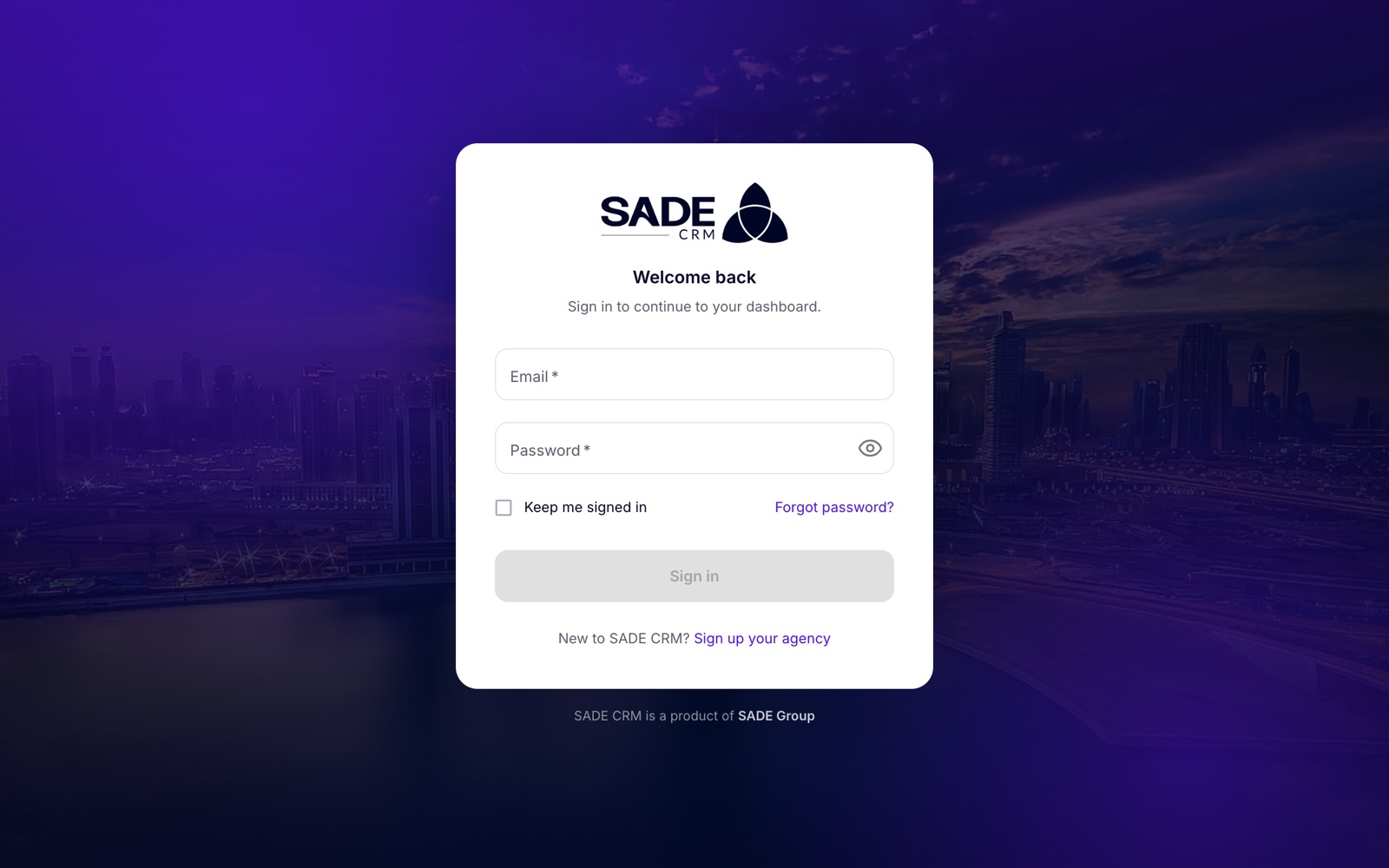
The sign-in card. New agencies sign up from the link at the bottom.
Sign in
- Go to crm.sadegre.com.
- Enter your Email and Password. The eye icon shows the password as you type.
- Tick Keep me signed in if this is your own computer.
- Click Sign in. The CRM shows “Signed in.” and opens your dashboard.
If you signed your agency up yourself, you must confirm your email before the first sign-in. Agents added by their agency admin don’t need to confirm anything: they sign in with the details the admin gives them.
How long you stay signed in
| Choice | How long it lasts |
|---|---|
| Keep me signed in ticked | 7 days, even if you close the browser. |
| Keep me signed in not ticked | Until you close the browser, and at most 12 hours. |
While you work, the CRM renews your access in the background, so you are not interrupted mid-task. If you have the CRM open in several tabs, signing out in one signs you out in all of them.
Sign out
- Click your name at the bottom of the menu.
- Click Log out.
This ends your session on this device and in the browser’s other tabs. Other devices stay signed in until their own session ends, or until you change your password.
When sign-in fails
| Message | What it means |
|---|---|
| “Invalid email or password” | The email or password is wrong, or the account has been removed from the agency. |
| “Confirm your email first: open the link we sent when you signed up.” | You signed up but haven’t confirmed your email yet. Click Send the link again for a new link. |
| “Account locked after too many failed attempts. Try again later.” | Five wrong passwords in a row lock the account for 5 minutes. Wait, or reset your password. |
| “Too many attempts. Please try again after 5 minutes.” | Too many sign-in attempts came from your network. Wait 5 minutes. |
| “Can’t reach the server. Check your connection and try again.” | Your device is offline. |
Forgotten password
- On the sign-in card, click Forgot password?.
- Enter your email and click Send reset link.
- Open the email “Reset your password” and click its link. The link works for one day.
- On “Set a new password”, type the new password in New password and again in Confirm new password. The same rules apply as at sign-up: at least 8 characters, with an uppercase letter, a lowercase letter, a number and a symbol.
- Click Update password. The sign-in card shows “Password updated. Sign in with your new password.”
The CRM always answers “If that address belongs to an account, a reset link is on its way.”, whether or not the address has an account. If nothing arrives, check your spam folder before you ask for another link.
Resetting your password signs you out on every device, clears any lock on the account, and sends you an email “Your password was reset”. If you get that email and didn’t reset your password, tell your agency admin at once.
Note: if the page says “This reset link is no longer valid. Request a new one.”, the link has expired or a newer one replaced it. Ask for a new link.
Change your password
When you know your current password:
- Click your name at the bottom of the menu, then Profile.
- Click Change password.
- Fill in Current password, New password and Confirm new password.
- Click Change password.
You are signed out on every device, including this one (“Password changed. Sign in again with your new password.”), and you get an email confirming the change. Sign in again with the new password.
An agency admin can also set a new password for an agent from the Agents page. See Team and roles.
Your profile
Click your name at the bottom of the menu, then Profile. The page shows your photo, name, username, email and role, an Overview card with your account details, and a Subscription card with your agency’s plan.
To change your details, click Edit profile:
| Field | What to enter |
|---|---|
| Photo | Shown on your listings and your agency’s page. PNG, JPG or WebP, up to 5 MB. It saves as soon as you upload it. |
| Full name | Your name as buyers see it. 2 to 120 characters. |
| Phone | Your work number. Buyers who ask for it see it. |
| Greyed out: you sign in with this address. If you are an agent, your agency admin can change it on the Agents page. |
Click Save. The CRM shows “Profile saved.” A new name or photo also appears on your listings on the marketplace.
Language
The CRM speaks 11 languages: English, Shqip, Italiano, Español, Português, Français, Deutsch, Ελληνικά, Български, Slovenščina and Română.
- Click your name at the bottom of the menu.
- Click Language and pick one.
The choice is kept in this browser. On another computer, or until you pick one, the CRM opens in your agency’s CRM language, which the agency admin sets in Agency settings. In the phone app, change the language from the More screen.
Note: SADE’s emails and bell notifications are in Albanian or English: Albanian when your agency’s CRM language is Albanian, English otherwise, whatever language you choose. That includes the password emails. Viewing emails are written in all 11 languages.
Light and dark mode
Click the moon icon at the bottom of the menu to switch to dark mode, and the sun icon to switch back.
The guided tour
The first time you open the dashboard in a browser, the CRM offers a short guided tour of the dashboard. Click Start tour, or Skip for now. To see it again later, click the ? icon at the bottom of the menu.
Erjona Hasani is an agent at Tirana Living Real Estate. She signs in on her own laptop with Keep me signed in ticked, so she stays signed in all week.
On Thursday she shows a flat in Komuna e Parisit from the office computer and signs in there without ticking the box. When she closes the browser that evening, that session ends.
On Saturday she wants to check her leads from the family computer at home, but she can’t remember her password. She clicks Forgot password?, sets a new one from the email, and signs in with it. Her laptop is signed out too, so on Monday she signs in there with the new password. While she is in the CRM, she opens Profile, then Edit profile, and adds a photo so it shows on her listings.
Something unclear or missing? Write to [email protected] or call +355 69 808 0118.