A unit is every apartment, shop or parking space you sell in a project. Admins add the units. After that, a unit’s status is never set by hand: it follows what the team does with it. An agent holds a unit for a client, reserves it, and moves the sale on to the contract and completion. If the client walks away, the unit becomes available again and the first client on its waiting list is next.
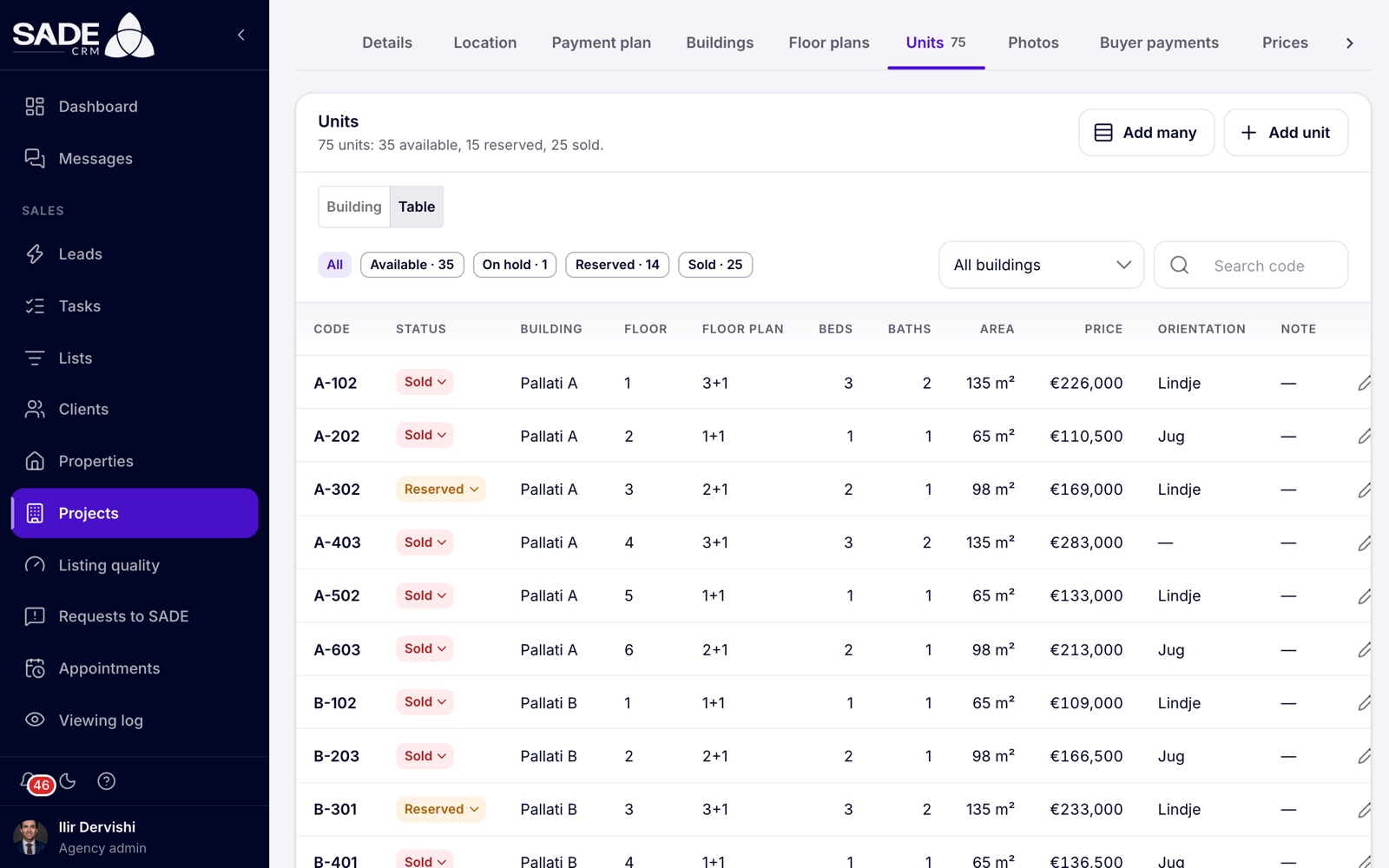
The table view of the units, with a status chip on each row. Click a chip to act on the unit.
Add units
Open the project’s Units tab. Admins have two buttons at the top: Add unit for one unit, and Add many to paste a spreadsheet or generate a building floor by floor.
Tip: add the project’s buildings and floor plans first. Units are matched to them by name, and a unit with a floor plan takes its rooms and area from it.
One unit
Click Add unit, fill in the fields and save.
| Field | What to enter |
|---|---|
| Code | Required, up to 50 characters, and different from every other unit in the project. Write it as the building, the floor and a two-digit place, such as A-102, so it lands on the right shape of a traced plan. |
| Building | One of the project’s buildings, or No building. |
| Floor | A whole number from -10 to 300. |
| Floor plan | One of the project’s floor plans, or No floor plan. |
| Bedrooms, Bathrooms | 0 to 50. Leave them empty to take them from the floor plan. |
| Area | In m², up to 100,000. Leave it empty to take it from the floor plan. |
| Price | Leave it empty for “price on request”: the unit shows On request. |
| Currency | The project’s currency, unless this unit is priced in another. |
| Status | Only for a new unit: Available (the default), or Reserved or Sold for a sale made before you used SADE. |
| Orientation | Pick North, South-east and so on, or type your own. |
| Note | For your agency only. Buyers never see it. |
When you edit a unit later, one more field appears: Place on the floor. It is filled from the code; change it only if the unit’s shape lands on the wrong unit.
Many units from a spreadsheet
- Click Add many and choose Paste from a spreadsheet.
- Copy the rows from Excel or Google Sheets and paste them in.
- Click Read rows.
If the first row has column names, the columns can be in any order. The names are recognised in English or Albanian, such as “Code” or “Kodi”, “Building” or “Kulla”, “Floor” or “Kati”, “Price” or “Cmimi”. Without names, use this order: Code · Building · Floor · Floor plan · Bedrooms · Bathrooms · Area · Price · Currency · Status · Orientation · Note.
The reader understands prices such as “149.000”, “€ 149 000” or “1.250.000,00”, currencies written as €, $, £, “lek” or a three-letter code, and statuses in English or Albanian, such as “sold”, “e shitur” or “rezervuar”. Buildings and floor plans are matched by their names.
Generate floor by floor
For a building with the same units on every floor:
- Click Add many and choose Generate floor by floor.
- Choose the Building. The Code prefix is suggested from its first letter, such as “A-”.
- Fill in the First number, From floor, To floor and Units per floor, and the Status.
- Choose a Floor plan, or Choose per row to set it on each row. A Price is optional; you can set each row’s price in the next step.
- Click Make rows. The line shows what you get, for example “40 units: A-101 to A-1004”.
The codes are the prefix, the floor and a two-digit number, which is exactly the form that places units on traced plans.
Check and add them
Both ways end in the same preview table, where you can correct any row.
- Rows with a problem turn red, with the reason, such as “The code is missing.” or “No building called “Pallati C”: choose one, or add it under Buildings first.” Correct them before adding.
- A row with the code of a unit already in the project replaces it and is marked Replaces. That unit keeps its status, which follows its sale.
- Click Add 40 units (the button gives the number). You see, for example, “Units saved: 40 added, 0 updated”.
You can add up to 2,000 units at once. If any row is wrong, nothing is saved, so a paste never goes in half done.
Edit or delete a unit
In the Table view, admins use the pencil to edit a unit and the bin to delete it. A unit that has a sale on record, even a cancelled one, cannot be deleted.
How a unit’s status works
| Status | Meaning | How it gets there |
|---|---|---|
| Available | On sale. | Added as available, or freed by a released hold or a cancelled sale. |
| On hold | Kept for one client for the project’s hold time. | Someone clicks Hold. |
| Reserved | A client has reserved it. | Someone clicks Reserve. |
| Sold | The contract is signed. | The sale moves to Contract signed or Sale completed. |
Behind a reserved or sold unit is a sale: a record with the client, the agent, the agreed price and the dates. It moves from Reserved to Contract signed to Completed, or it is cancelled. A sale never goes back a step: “This sale can’t go back. Cancel it and start again.”
You act on a unit from its panel on the building board, or from its status chip in the Table view.
Holds
A hold keeps a unit for one client while they decide. Nobody else can reserve it until the hold ends.
- Pick an available unit and click Hold.
- The dialog reads “The unit is kept for this client for 48 hours. Nobody else can reserve it until then.” (with the project’s own number of hours).
- Search for the client among the agency’s clients. An admin can also choose the Agent; it is Me by default.
- Click Hold. You see “Unit on hold”.
The panel then shows the client, “Held until” the date and time, and the agent.
- Hold time is set per project on the Details tab: from 1 to 720 hours, 48 by default.
- A unit can have only one hold. If two people try at the same moment, the second sees “This unit isn’t available any more.”
- When the hold time is over, the hold ends by itself and the unit is available again.
- To end a hold early, click Release hold and confirm. Only the agent who holds the unit, or an admin, can release it or reserve it. Anyone else sees “Another agent is holding this unit.”
The waiting list
When a unit is on hold, reserved or sold, anyone can queue a client for it.
- Pick the unit and click Add to waiting list.
- Choose the client and confirm. You see “Added to the waiting list”.
The list shows in the unit’s panel, numbered. A client can be on a unit’s list only once. The agent who added an entry, or an admin, removes it with the × beside the name.
When the unit frees up, because a hold ended, a sale was cancelled or an admin made it available, the first client on the list leaves it, and their agent is told twice:
- a notification in the CRM: “Rezidenca Liqeni · A-302 is available again”, with “Next on the list:” and the client’s name;
- an email with the same subject.
The unit is not held for them automatically. The agent holds or reserves it as usual.
Reserve a unit
-
Pick the unit and click Reserve.
-
Fill in the dialog:
Field What to enter Client The buyer. Filled in for you when you reserve your own hold. Agent Admins only, and not on a held unit: whose sale this is. Agreed price The unit’s price by default. Change it to the price agreed. It must be more than 0. Date Today by default. It can be earlier, but not in the future. Notes Anything the team should know, up to 1,000 characters. -
Click Reserve. You see “Unit reserved” and the unit turns Reserved.
When you reserve a held unit, the hold becomes the sale, and the unit’s history shows both.
If a partner agency has registered the client you choose, the dialog warns: “A partner has registered this client until” a date, “The sale will count as theirs.”
Move the sale on
The buttons in the unit’s panel follow the sale’s stage.
| Button | What happens |
|---|---|
| Contract signed | Asks for the Date. The unit shows as sold from now on. The buyer’s payment schedule is made from the payment plan, and a partner’s commission is recorded if a partner sold it. |
| Sale completed | The sale counts towards revenue, in its own currency, and towards its agent’s results on the dashboard and their profile. |
| Cancel sale | Asks for the Date and an optional Reason. The unit becomes available again, and the sale stays in its history. A completed sale is taken out of revenue again. |
Who can do what
| The unit is | An admin sees | An agent sees |
|---|---|---|
| Available | Reserve, Hold | Reserve, Hold |
| On hold | Reserve, Release hold, Add to waiting list | Reserve and Release hold on their own hold; Add to waiting list always |
| Reserved | Contract signed, Sale completed, Cancel sale, Add to waiting list | The same on their own sale; on another agent’s, only Add to waiting list |
| Contract signed | Sale completed, Cancel sale, Add to waiting list | Sale completed on their own sale; Add to waiting list |
| Completed | Cancel sale, Add to waiting list | Add to waiting list |
Every unit also has History. A unit with a sale also has Payments, for admins and the sale’s own agent.
Important: agents can cancel only a reservation. Once the contract is signed, only an admin can cancel the sale.
Units sold before SADE
A unit added as Reserved or Sold has no sale behind it. Admins see Make available on it, which puts it back on sale after a confirmation. If the unit has a real sale, cancel the sale instead.
History
Click History on any unit to see every change, newest first, with the date, the time and who made it:
- status changes, such as “Available → On hold”;
- price changes, such as “Price: €165,000 → €169,000”;
- “Added as Sold” for units added with a status.
The history can’t be edited.
Viewings of a project
Viewings of a new building go on the same calendar as any other viewing.
- Open Appointments and create a new appointment.
- Choose A project instead of A listing.
- Choose the Project, then the Unit, or The whole project. Sold units are not offered.
On the phone app, a unit’s sheet has Book a viewing. See Calendar and viewings.
What buyers see
The marketplace and your website widget show the units with their status, within minutes of a change. A unit on hold shows as Reserved, so buyers can’t tell a hold from a reservation. Sold units are listed without their price.
Note: on the phone app you can do all of this from a unit’s sheet. There, Reserve always uses today’s date and you as the agent, and a contract or completion is recorded on today’s date. See The mobile app.
An example
Ilir generates Pallati A floor by floor: prefix “A-”, floors 1 to 10, four units a floor. Make rows reads “40 units: A-101 to A-1004”. He sets the floor plans and prices on the rows and clicks Add 40 units. Pallati B’s 35 units come from the sales office’s spreadsheet: he pastes it with its column names, Read rows matches them, and he adds them too.
On Tuesday at 11:00 Besnik Leka shows A-302, a 2+1 of 98 m² at €169,000, to Dorian and Klea Mema. He clicks Hold and picks the Memas. The hold time is 48 hours, so the panel reads “Held until” Thursday at 11:00. Arta has another couple interested, so she clicks Add to waiting list for them.
On Wednesday the Memas agree €165,000. Besnik clicks Reserve: the client is already filled in from his hold, and he changes the Agreed price to 165000. A-302 turns orange on everyone’s board.
Two weeks later the contract is signed. Ilir clicks Contract signed and enters the date. A-302 turns red, and the Memas’ payment schedule is made from the payment plan: €49,500 on signing, €82,500 at the frame and €33,000 at handover.
Something unclear or missing? Write to [email protected] or call +355 69 808 0118.