Tasks is each person’s work queue: the calls, messages and to-dos they need to do, sorted by when they are due. You can add tasks by hand, and an action plan can add them for you. An action plan is a follow-up routine, such as “call now, WhatsApp in two hours, call again tomorrow”, that becomes a set of tasks for the agent as soon as a lead arrives, and stops once someone reaches the person.
Agents see and work their own tasks. Agency admins see their own, can look at any agent’s tasks, and are the only ones who make action plans. Open tasks from Sales → Tasks; action plans are under Settings → Action plans.
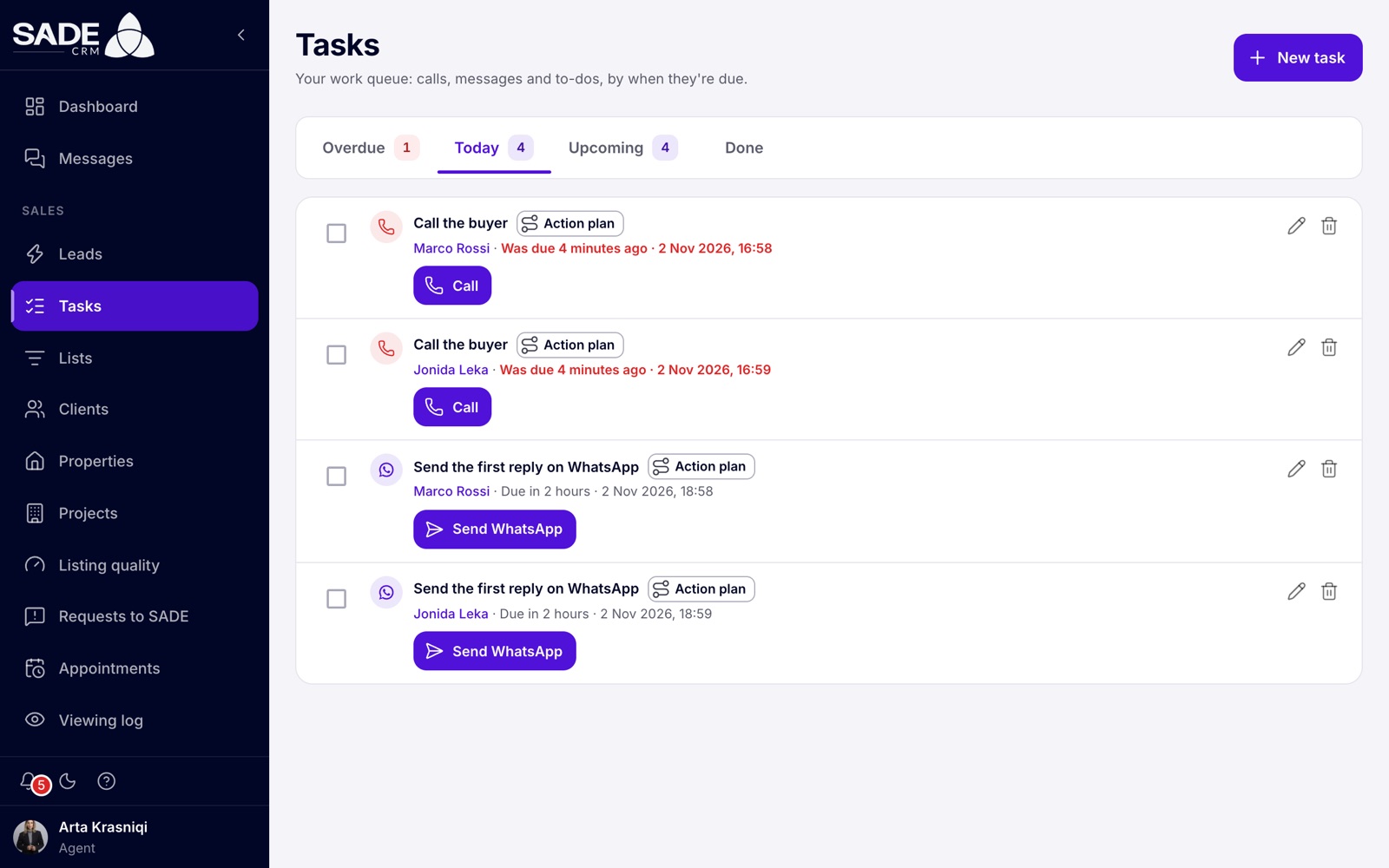
Arta’s tasks for today. The “New buyer enquiry” plan added a call and a WhatsApp message for each of her two new leads.
The Tasks page
The page has four tabs. The first three show how many tasks they hold.
| Tab | What’s in it |
|---|---|
| Overdue | Tasks due before today that aren’t done. |
| Today | Tasks due today. This tab opens first. |
| Upcoming | Tasks due from tomorrow on. |
| Done | Finished tasks, the 200 most recent. |
“Today” follows your agency’s time zone, set in Agency settings. A task whose time has passed turns red and shows when it was due, for example “Was due 4 minutes ago”. From the next day it moves to Overdue.
Each task shows its type, what to do, the client’s name (a link to the client page) and when it is due. Tasks added by an action plan have an Action plan chip.
Agency admins have a Whose tasks menu above the tabs. It shows Mine by default; pick an agent to see their tasks.
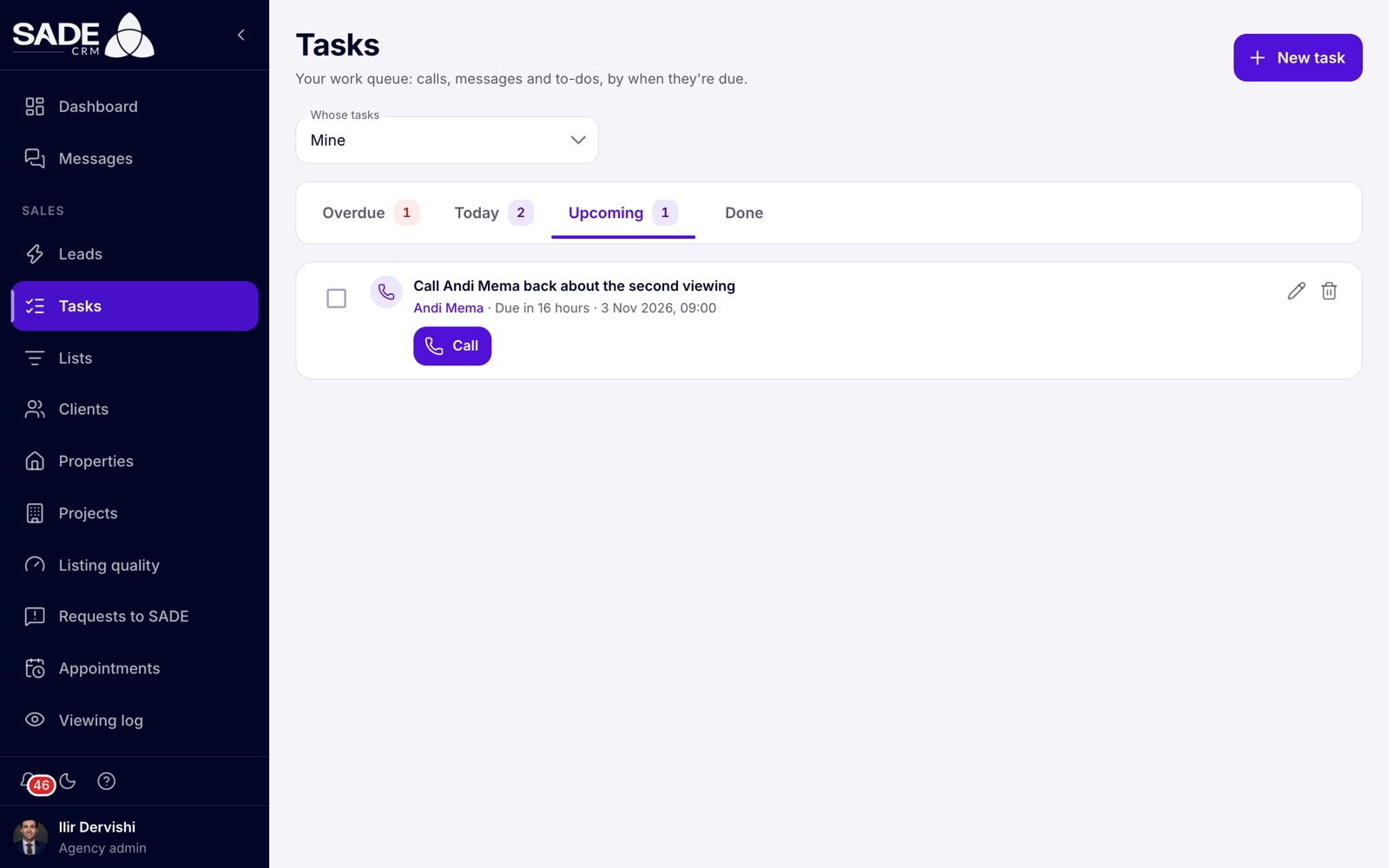
Ilir’s own tasks, on the Upcoming tab.
Note: tasks don’t send reminders or notifications when they come due. Check Today and Overdue at the start of the day. You can also see your tasks in the phone app.
Adding a task
- Click New task on the Tasks page, or Add task on the Tasks card of a client page.
- Fill in the New task dialog (see the table).
- Click Add task. The CRM says “Task added”.
| Field | What to enter |
|---|---|
| What to do | Required, up to 300 characters. For example “Call back about the 2+1 in Blloku”. |
| Type | Call, WhatsApp, Email, SMS or To-do. Call is chosen by default. |
| Due | The date and time. The next full hour is filled in for you. |
| Client | Optional for a to-do, but a call or a message needs a client. Type at least 2 letters to search. You can’t change the client later. |
| Message template | For WhatsApp, email and SMS: None, or one of your agency’s templates for that channel. It opens filled in for the client when you do the task. |
| Assigned to | Agency admins only: Me or one of the agents. Agents’ tasks are always their own. |
| Notes | Anything that helps. |
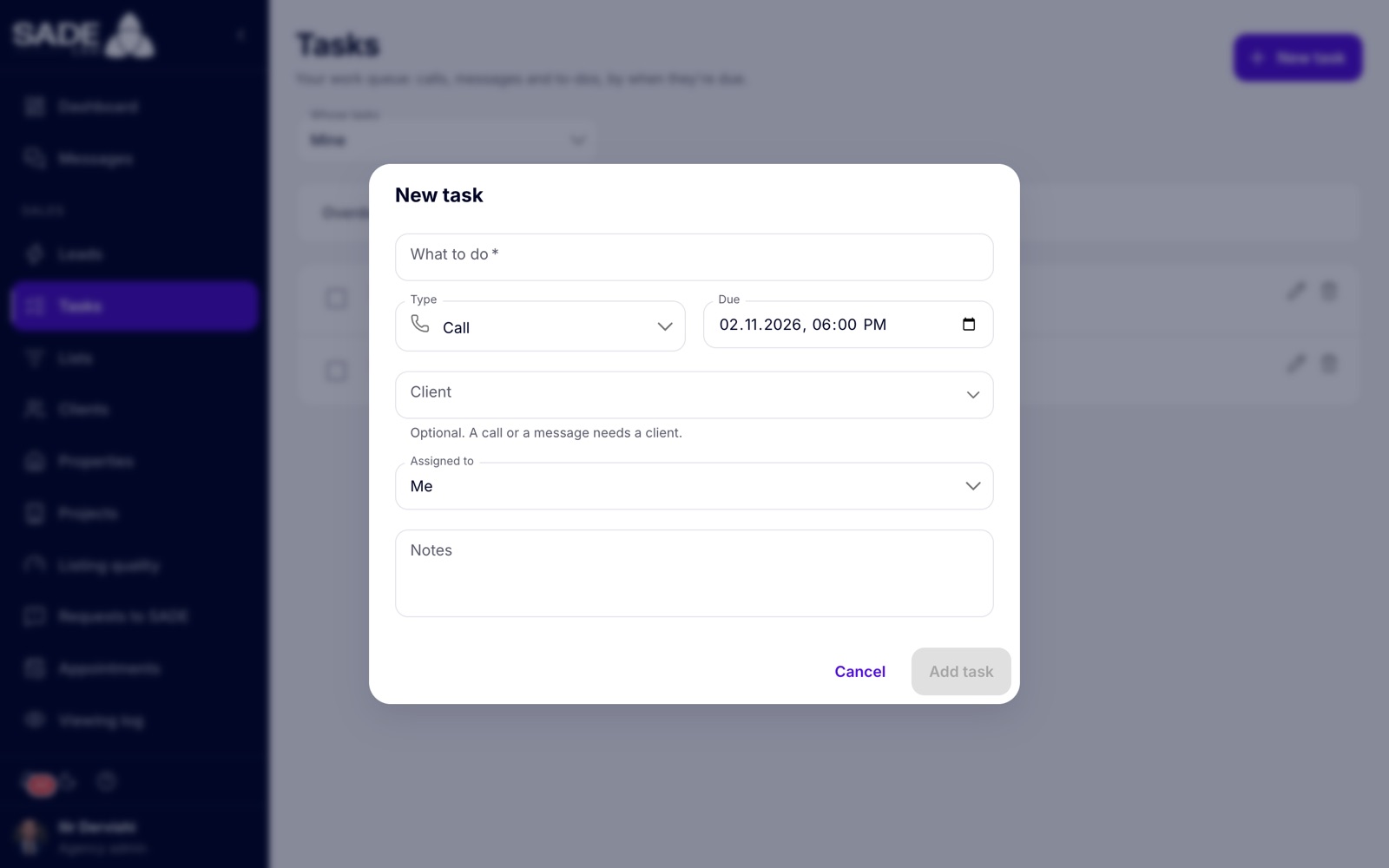
The New task dialog, as an agency admin sees it.
Working through your tasks
- Click the task’s button: Call, Send WhatsApp, Send email or Send SMS. Your own phone, WhatsApp, email or messages app opens. If the task has a template, the message is already written.
- Make the call or send the message.
- Back in the CRM, the How did it go? dialog opens with Mark the task done already ticked. Choose an outcome and click Log contact.
Logging the contact both records it on the client’s timeline and ticks off the task. How the outcome counts is explained in Following up.
For a to-do, or a task you did another way, tick the box at the start of the row to mark it done. Untick it to reopen it.
To change a task, click the pencil (Edit task). To delete it, click the bin (Delete task) and confirm; this can’t be undone.
| Who | What they can do |
|---|---|
| Agent | Add tasks for themselves; edit, complete and delete their own tasks. |
| Agency admin | Add tasks for anyone in the agency; edit, complete and delete any task in the agency. |
Action plans
An action plan is a list of steps. Each step becomes a task, due a set time after the plan starts. When a plan starts for a client, all its steps become tasks at once, for the client’s agent, and they appear under Today and Upcoming as they come due.
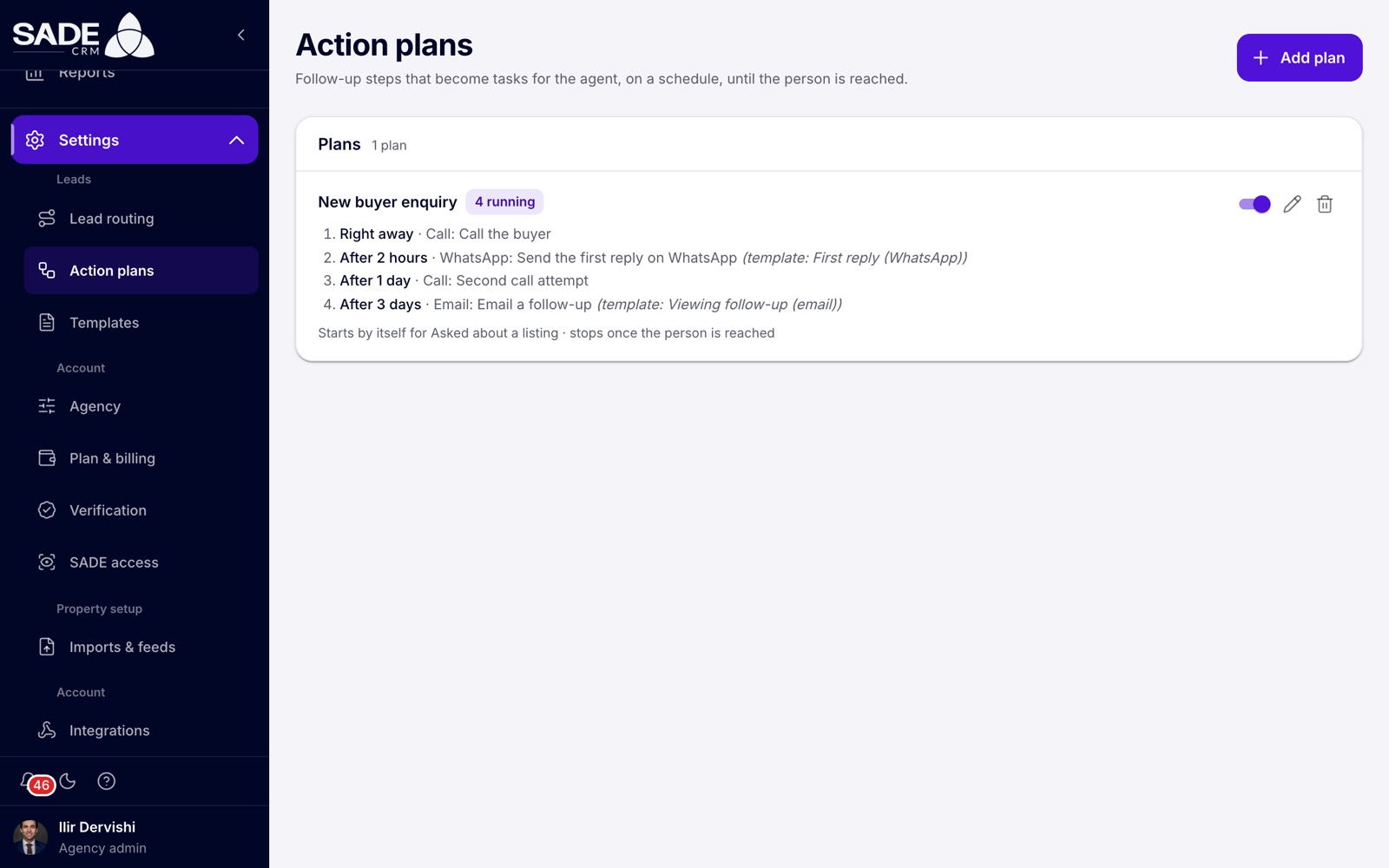
The “New buyer enquiry” plan, running for four people.
Creating a plan
Only agency admins can create, change or delete plans.
-
Go to Settings → Action plans and click Add plan.
-
Give the plan a Name, for example “New marketplace lead”. Leave On switched on.
-
Add the Steps. For each one:
- After: how long after the plan starts the task is due, as a number and a Unit (hours or days). 0 means right away.
- Type: Call, WhatsApp, Email, SMS or To-do.
- Task: what the agent sees, for example “Call to introduce yourself”.
- Template: for WhatsApp, email and SMS steps, the message the agent sends, filled in for the person.
Click Add step for another step, or Remove step to drop one.
-
Under Start by itself, choose which new leads start the plan by themselves: Sources, What they asked for, or both. Leave both empty if the plan should only be started by hand.
-
Leave Stop when the person is reached on if the plan should end once an agent reaches the person.
-
Click Add plan. The CRM says “Plan added”.
Rules for steps:
- A plan has 1 to 30 steps.
- A step can be due at most one year after the plan starts.
- Steps run in order of their time, whatever order you typed them in. A new step is set to one day after the last one.
The plan list shows each plan’s steps, which template each uses, when it starts (“Starts by itself for …” or “Started by hand from a client”), whether it “stops once the person is reached” or “runs to the end”, and how many people it is running for. Use the switch to turn a plan off without deleting it.
Note: changing a plan doesn’t change tasks it has already created. Deleting a plan stops it for everyone it is running for and removes their open tasks.
When a plan starts by itself
A plan starts by itself when a new lead is given to an agent the moment it arrives, or when an agent claims a lead from the pond or an offer. It starts only if the plan is on and the lead matches:
- if you filled in Sources, the lead’s source must be one of them;
- if you filled in What they asked for, the lead must be one of those kinds of enquiry;
- if you filled in both, both must match.
A lead that goes to the pond gets no plan until someone claims it. Clients added by hand with Add client never start a plan by themselves. A plan that is already running for a client isn’t started a second time.
Starting a plan by hand
Any agent or agency admin can start a plan for a client.
- Open the client and find the Action plans card.
- Click Start.
- Pick the Plan. Only plans that are on are offered. The dialog lists the tasks it will add, such as “Now: Call the buyer (Call)” and “After 2 hours: …”.
- Click Start plan. The CRM says “Plan started”.
When a plan stops
The Action plans card on the client page shows each plan that has run for them, marked Running, Stopped or Finished, with when it started or ended.
| Status | Why |
|---|---|
| Stopped, “they were reached” | An agent logged a contact that reached the person, or moved them to a stage after Attempted Contact. Only plans with Stop when the person is reached on. |
| Stopped, “moved to trash” | The client was moved to the Trash stage. This stops every plan. |
| Stopped, “stopped by hand” | Someone clicked Stop on the client’s Action plans card. |
| Stopped, “the plan was deleted” | An admin deleted the plan. |
| Finished | The last of its tasks was ticked off. |
When a plan stops, its open tasks are removed. Tasks already done stay in Done. If a client is reassigned, the plan’s open tasks move to the new agent.
Example
Tirana Living’s plan “New buyer enquiry” starts by itself for leads that Asked about a listing, and stops once the person is reached. Its steps:
- Right away: Call, “Call the buyer”.
- After 2 hours: WhatsApp, “Send the first reply on WhatsApp”, with the template “First reply (WhatsApp)”.
- After 1 day: Call, “Second call attempt”.
- After 3 days: Email, “Email a follow-up”, with the template “Viewing follow-up (email)”.
On 2 November at 16:58 Marco Rossi asks about a flat on tiranaliving.al, and the lead goes to Arta Krasniqi. The plan starts at once and adds four tasks to Arta’s list: the call due at 16:58, the WhatsApp at 18:58, the second call at 16:58 on 3 November, and the email at 16:58 on 5 November.
At 17:02 the first call shows in red on Today: “Was due 4 minutes ago”. Arta clicks Call, Marco doesn’t answer, and she logs No answer with Mark the task done ticked. The call task is done, and the other three stay, because Marco wasn’t reached.
At 18:58 Arta clicks Send WhatsApp. WhatsApp opens with the first reply already written for Marco. He answers within minutes, and Arta logs They replied. The plan stops (“they were reached”): the second call and the email are removed from her Upcoming tab.
Something unclear or missing? Write to [email protected] or call +355 69 808 0118.