An organization sits above several agencies: a franchise network, or a group with branches, possibly in more than one country. It has one contract with SADE that covers all its agencies, and its own admins, called Organization admins, who belong to no single agency.
Organization admins work in their own workspace. They see every agency’s numbers side by side, create agencies and invite their admins, and, if the contract allows it, open any agency’s CRM to work in it.
The first half of this page is for organization admins. The last section is for agencies inside an organization.
How an organization starts
Organizations are the Enterprise tier, sold by SADE. You can’t sign up for one online.
- SADE creates the organization and sets its contract and access policy.
- SADE invites the first organization admin. They get an email with a link to set their own password. The link works for one day, and SADE can send it again.
- The admin signs in at crm.sadegre.com and lands in the organization’s workspace.
Nobody types a password for anyone else: every person an organization invites sets their own from the email.
If your group already has agencies in SADE CRM, SADE moves them into the organization for you.
The contract
The contract is set by SADE. You see it on the Organization settings page.
| Part | What it means |
|---|---|
| Agencies, Agents, Listings | The most the organization can have, counted across all its agencies. A limit can also be “no limit”. |
| End date | When the contract ends, or “Renewed by SADE; no end date.” |
| Status | Active, Ended, Cancelled or Inactive. |
The contract is paid by invoice or bank transfer, outside the CRM. Agencies in an organization have no plan of their own to pay for, and they always have projects.
If the contract ends or is cancelled, the organization’s admins and everyone in its agencies can’t sign in until SADE restores it. Nothing is deleted.
To change the contract, click Write to SADE on the contract card, or write to [email protected].
Access policy
The access policy decides what organization admins may do inside the agencies. SADE sets it with you, as part of the contract.
| Policy | What your admins can do |
|---|---|
| Full access | “Your admins can open any of your agencies and work in its CRM as its admin.” |
| Read-only | “Your admins can open any of your agencies and look, but change nothing.” |
| Reports only | “Your admins see every agency’s numbers, agencies and accounts, but never open an agency’s CRM.” |
Your workspace
The menu of an organization admin has Overview, and under Organization: Agencies, Reports, People and Organization.
Overview shows your agencies side by side for the last 7, 30 or 90 days: agencies, agents, live listings, leads and how many were answered, viewings and deals won. The table Your agencies has one row per agency with its median response time and the value of its deals. Values are converted into your reporting currency at the day’s rates.
Agencies
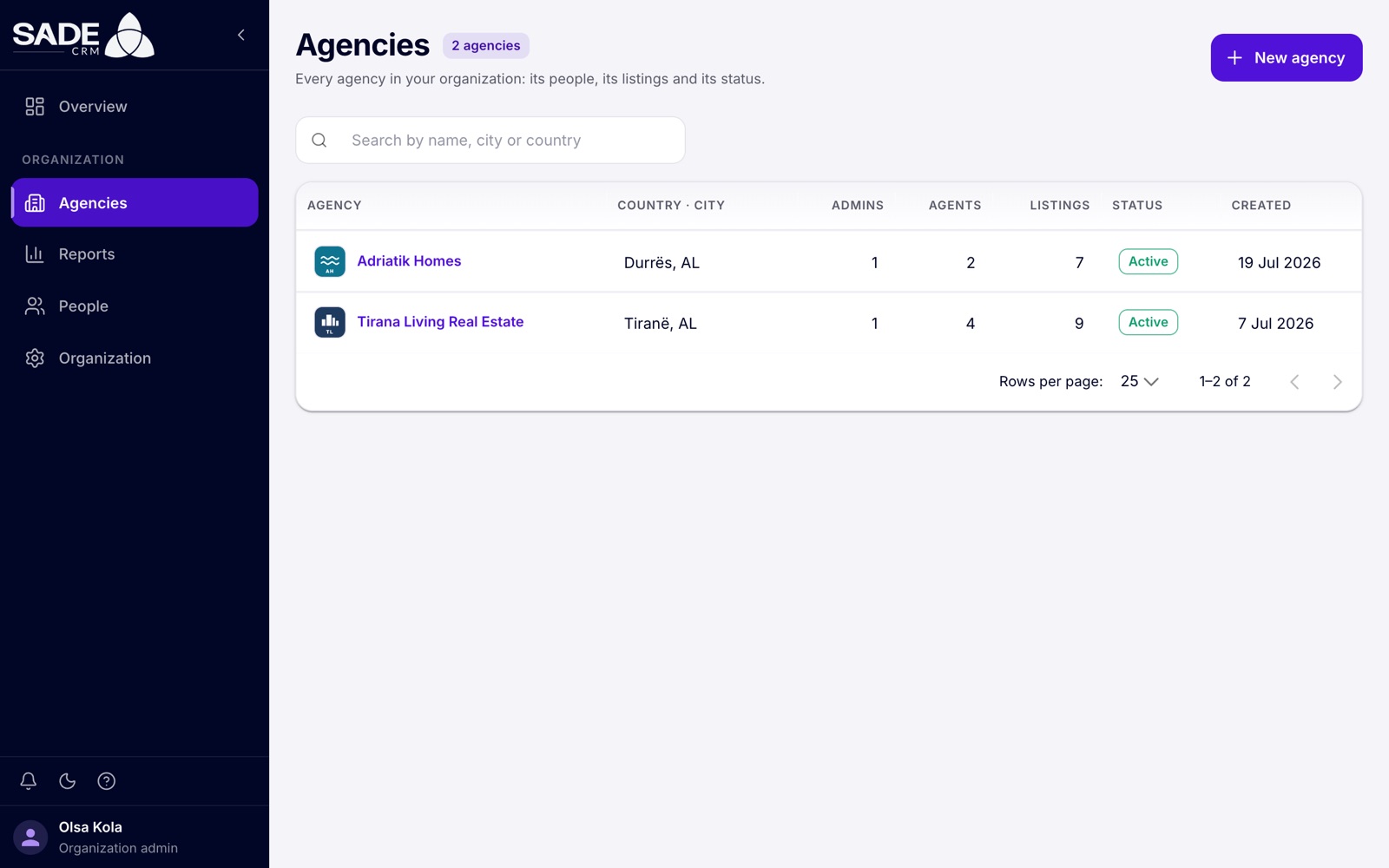
Every agency in the organization, with its admins, agents, listings and status.
Create an agency
- On Agencies, click New agency.
- Fill in the agency’s details: Name, Kind (Agency or Developer), Country, City, Email, Phone, Website, Address, Language and Currency. The country can’t be changed later.
- To give the agency its first admin now, tick Invite an admin now and enter their Full name, Email and Phone. You can also add admins later.
- Click Create agency.
The new agency starts verified through your organization, so it doesn’t send documents to SADE, and it runs on your contract. Its admin gets an email to set their password. If your contract’s agency limit is reached, the CRM says “Ask SADE to raise it.”
An agency’s page
Click an agency’s name to open its page:
- Details: country, city, contacts, language, currency and time zone. Edit details changes everything except the country and kind.
- The number of admins, agents and listings.
- Open CRM, to work inside the agency (see below).
- Status, with Deactivate or Activate. A deactivated agency can’t sign in and its listings leave the marketplace until you activate it again. Its data stays.
- Admins: the agency’s admins. Add admin invites one by email. Send the invitation again resends the email to someone who hasn’t set their password.
- Who opened this agency: every time someone from your organization opened its CRM.
The agency’s own admin adds its agents, as in any agency. See Team and roles. Every agency’s agents and listings count towards your contract’s totals.
Working inside an agency
With Full access or Read-only, you can open an agency’s CRM:
- On the agency’s page, click Open CRM.
- The CRM switches to that agency, and you see it as its admin does. A banner at the top says “You’re working in” and the agency’s name, until what time, and “read-only” if your policy is Read-only.
- When you are done, click Back to the organization.
| Rule | Detail |
|---|---|
| How long | Up to 12 hours. Opening another agency ends the previous one. |
| Read-only | With a Read-only policy, any change is refused: “This agency’s CRM is open to you read-only. Changes are made by the agency.” |
| Logged | Every opening is logged, with how many requests and changes were made. The agency sees each opening on its SADE access page, and you see them on People, under Access log. |
With Reports only, there is no Open CRM: “Your organization’s agreement with SADE doesn’t include opening an agency’s CRM: you see its numbers only.”
Reports
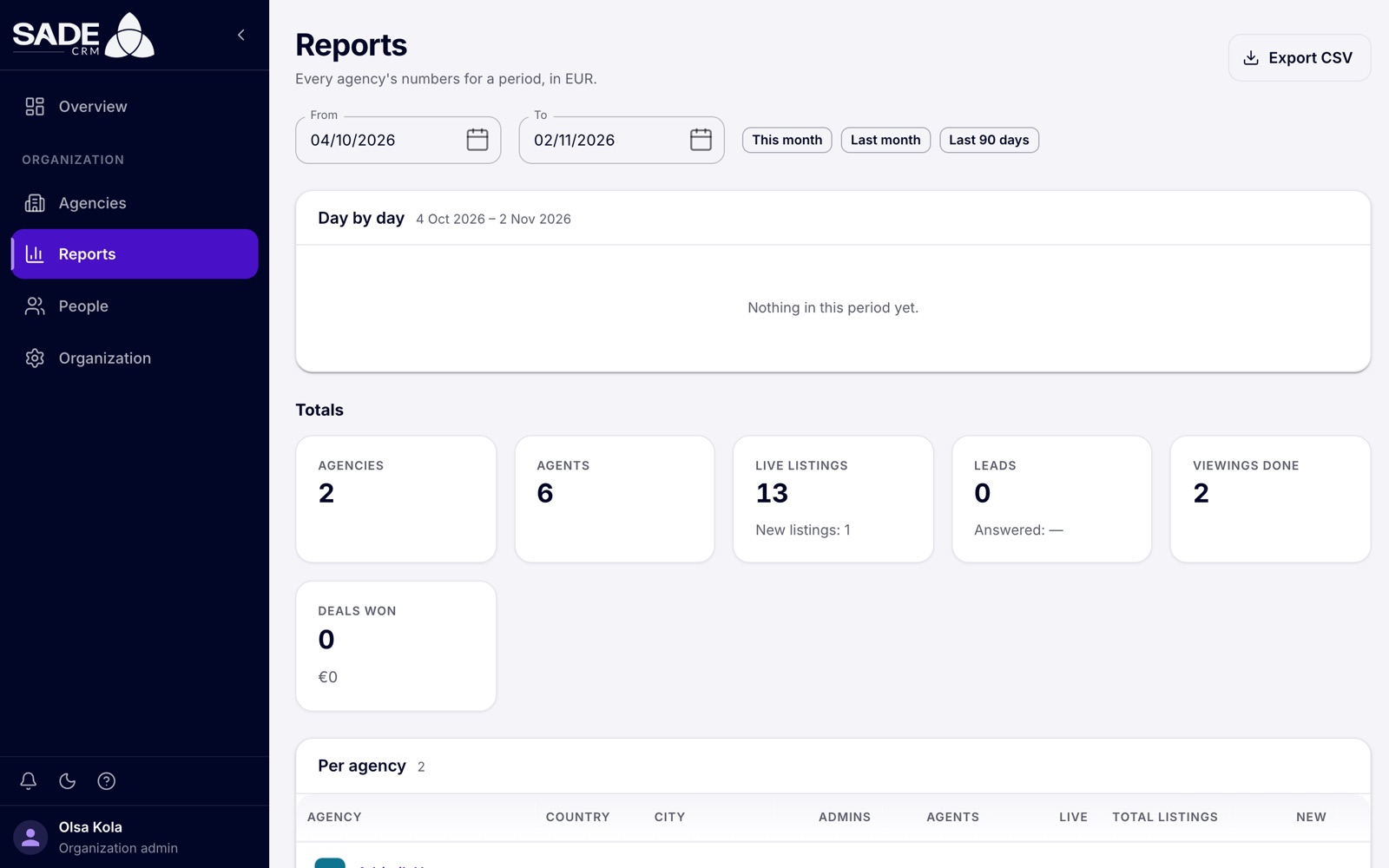
Reports for any period, in the organization’s reporting currency.
Reports shows every agency’s numbers for a period you choose with From and To, or with This month, Last month or Last 90 days. A period can be up to 400 days.
- Day by day: leads and deals won over the period.
- Totals: agencies, agents, live and new listings, leads and the share answered, viewings done and deals won.
- Per agency: one row per agency, with its listings, leads, how many were contacted and how many in time, its median response in minutes, unclaimed leads, viewings, deals won and their value, and open deals. “In time” uses each agency’s own response target.
Click Export CSV to download the figures.
People
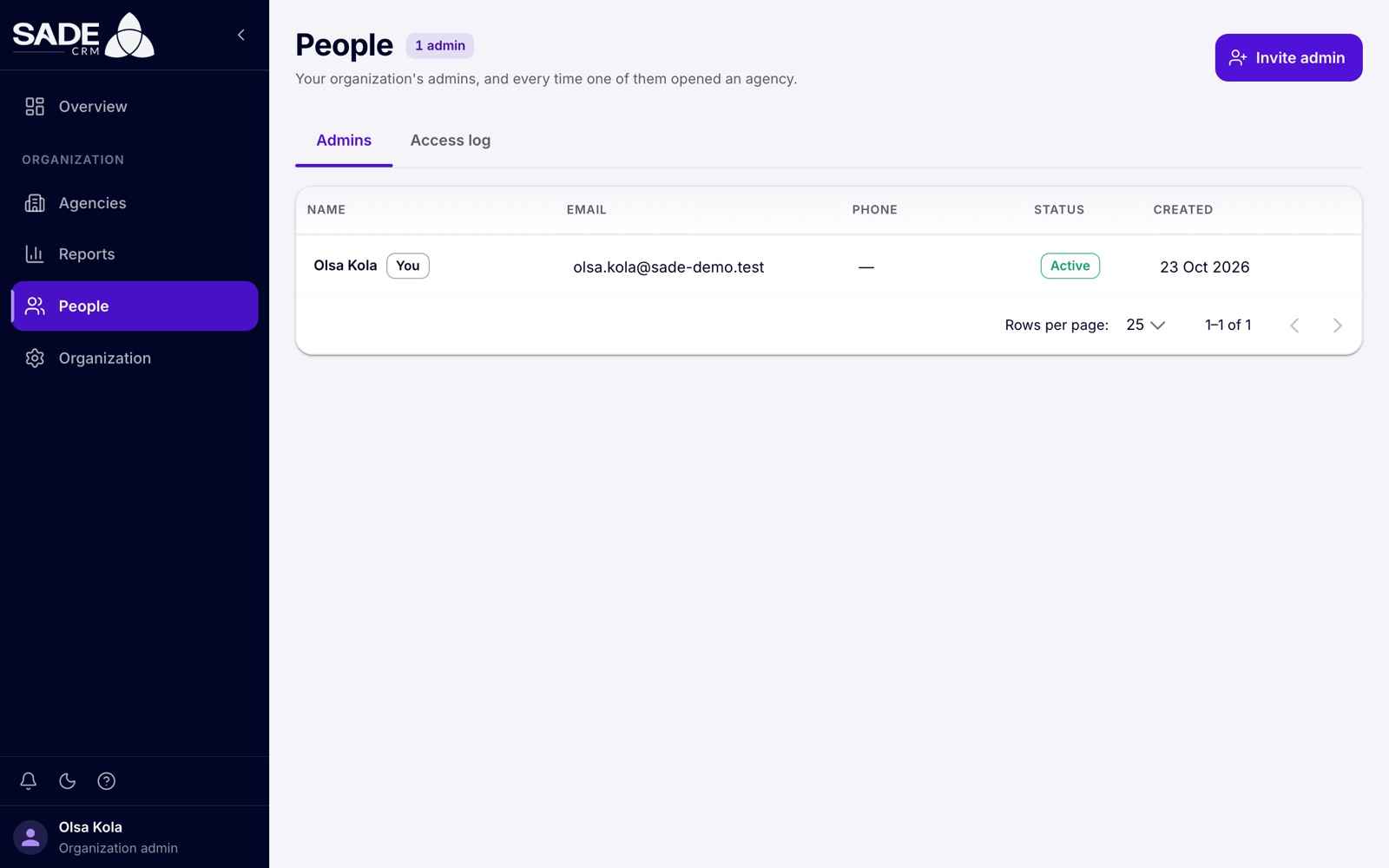
People lists your organization’s admins.
- Click Invite admin to add one. “They get the same workspace as you: every agency, its numbers and its accounts. They set their own password from the email.”
- Deactivate stops another admin from signing in until you Activate them again. You can’t deactivate yourself.
- The Access log tab lists every time an organization admin opened an agency: Who, Agency, When, Ended, Requests and Changes.
Organization settings
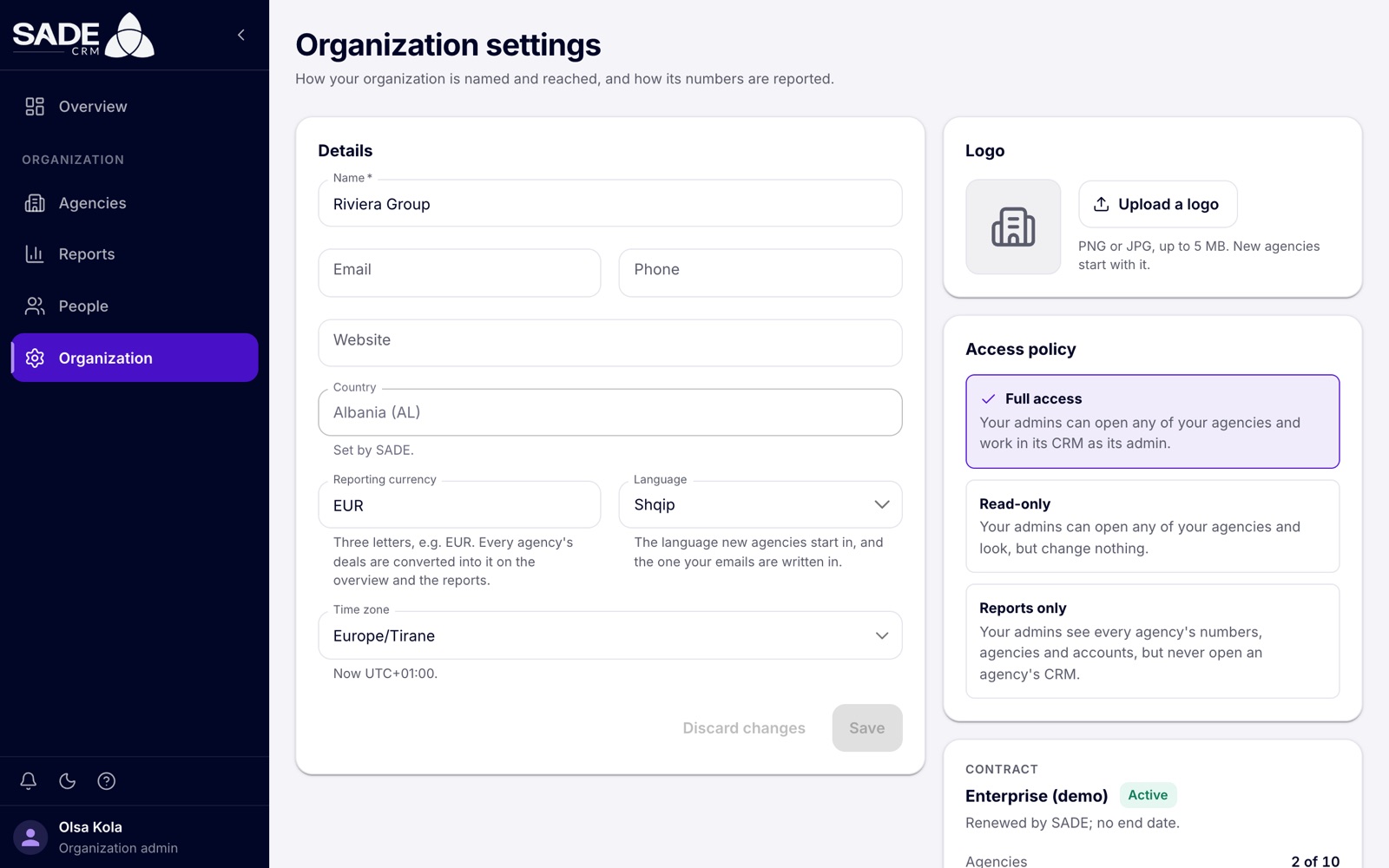
Open Organization in the menu.
| Field | What it does |
|---|---|
| Name, Email, Phone, Website | How your organization is named and reached. |
| Country | Set by SADE. |
| Reporting currency | Every agency’s deals are converted into it on the overview and the reports. |
| Language | The language new agencies start in, and the one your emails are written in. |
| Time zone | Your organization’s time zone. |
| Logo | PNG or JPG, up to 5 MB. New agencies start with it. |
The Access policy card shows your policy, and the contract card shows your limits and how much of each you use. Both are set by SADE.
For agencies inside an organization
If your agency belongs to an organization, it works like any other agency, with these differences:
- Billing: Plan & billing says “Billing is handled by” the organization. There is no plan to choose or pay for. See Plans and billing.
- Limits: your agents and listings count towards the organization’s contract.
- Projects: your agency always has them.
- Verification: an agency the organization created starts verified.
- Who can look in: depending on the policy, the organization’s admins can work in your CRM as your own admins do, look without changing anything, or see only your numbers. Your SADE access page shows a card “Part of” the organization with its policy, and the log “Openings by” the organization. See Agency settings.
- Admins: the organization’s admins can add admins to your agency.
On the phone app
Organization admins can use the SADE CRM phone app too. It opens on the organization’s workspace, with Overview, Agencies, Reports, People and More. Agencies can be created and edited there, and Open CRM opens an agency; a thin bar shows which agency you are working in, and Switch takes you back. See The mobile app.
Riviera Group runs two agencies in Albania: Adriatik Homes in Durrës and Tirana Living Real Estate in Tirana. Its contract allows 10 agencies, and its policy is Full access. Olsa Kola is its organization admin.
On Monday Olsa opens Reports, clicks Last month and compares the two agencies’ answer rates. Tirana Living’s median response is slower, so she clicks Open CRM on its page. The banner reads “You’re working in Tirana Living Real Estate”, and she checks the agency’s lead routing as its admin would. Then she clicks Back to the organization.
Ilir, Tirana Living’s admin, sees the opening on his SADE access page under “Openings by Riviera Group”, with the number of requests and changes Olsa made.
In March the group opens a branch in Vlorë. Olsa clicks New agency, enters “Riviera Vlorë”, picks Albania and Vlorë, ticks Invite an admin now and adds the branch manager. The branch starts verified and appears on Agencies as Active, the third of the contract’s 10.
Something unclear or missing? Write to [email protected] or call +355 69 808 0118.