Appointments is your agency’s calendar of viewings. Every appointment is a viewing: of a listing, of a project, or of one unit in a project. Agents and agency admins book them, change their status and record how they went.
The Viewing log is the same viewings as a table. It holds the outcome of each viewing and the client’s own confirmation that they saw the home with you. When a seller lists with several agencies, that record shows who showed the home first.
| Agent | Agency admin | |
|---|---|---|
| Sees on the calendar and in the Viewing log | Their own viewings | Every viewing in the agency |
| Books a viewing | Of listings assigned to them, and of projects | Of any listing in the agency, and of projects |
| Records an outcome or asks the client to confirm | Their own viewings | Any viewing |
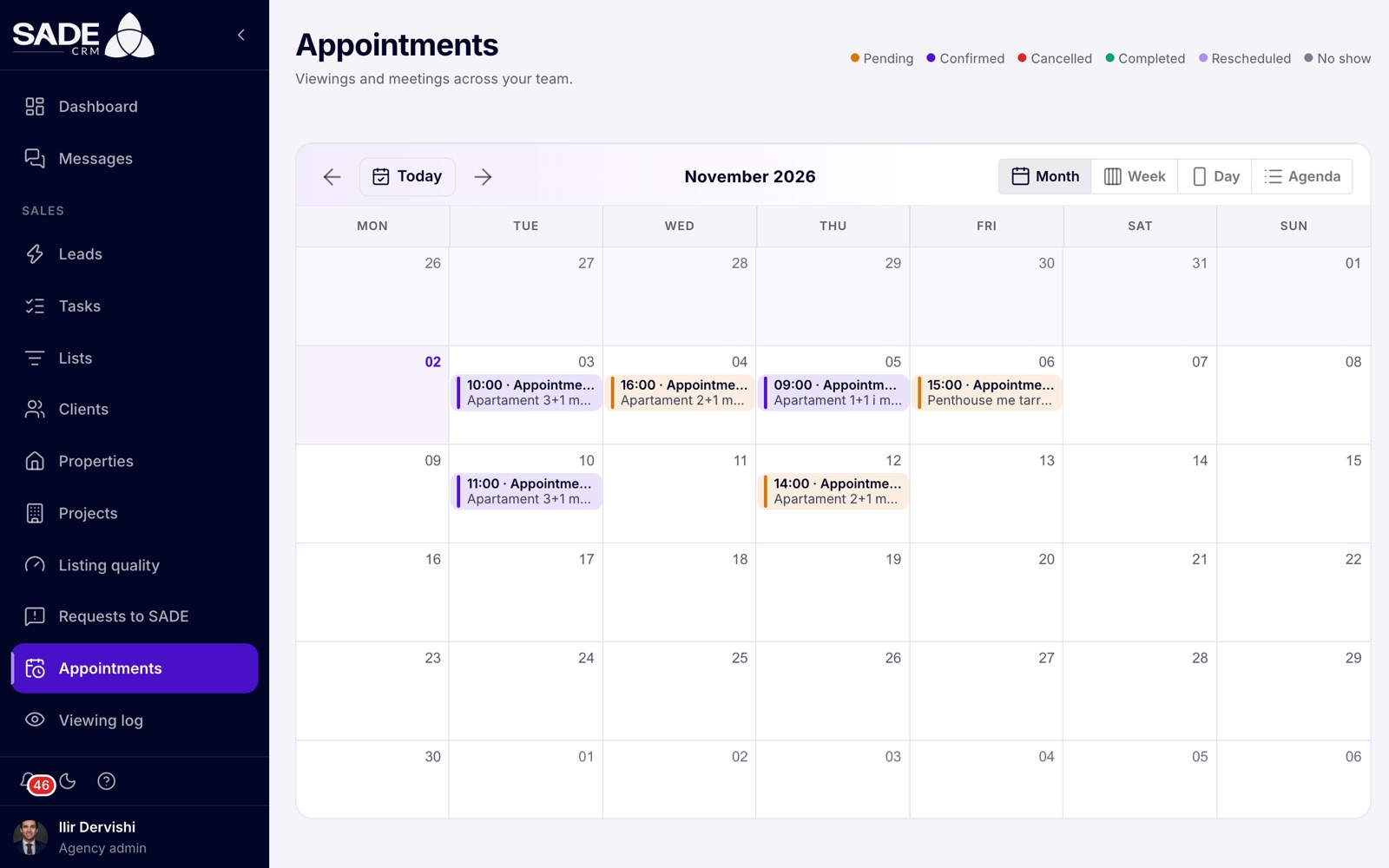
Month view. The coloured dots at the top explain the status colours.
The calendar
Open Appointments in the Sales part of the menu. The page opens in Month view.
- Switch between Month, Week, Day and Agenda with the buttons at the top right. Agenda lists the viewings one under another.
- Use the arrows (Previous and Next) to move to another month, week or day, and Today to come back to the current date. The calendar loads the viewings of whatever period it shows, past or future.
- Each viewing shows its start time, the client and the agent, and the property. Its colour is its status.
- A viewing is drawn one hour long. Viewings in the past are faded.
- When a day holds more viewings than fit, the month view shows “+2 more” (or however many); click it to see them all.
There is no filter by agent. An admin sees the whole team on one calendar.
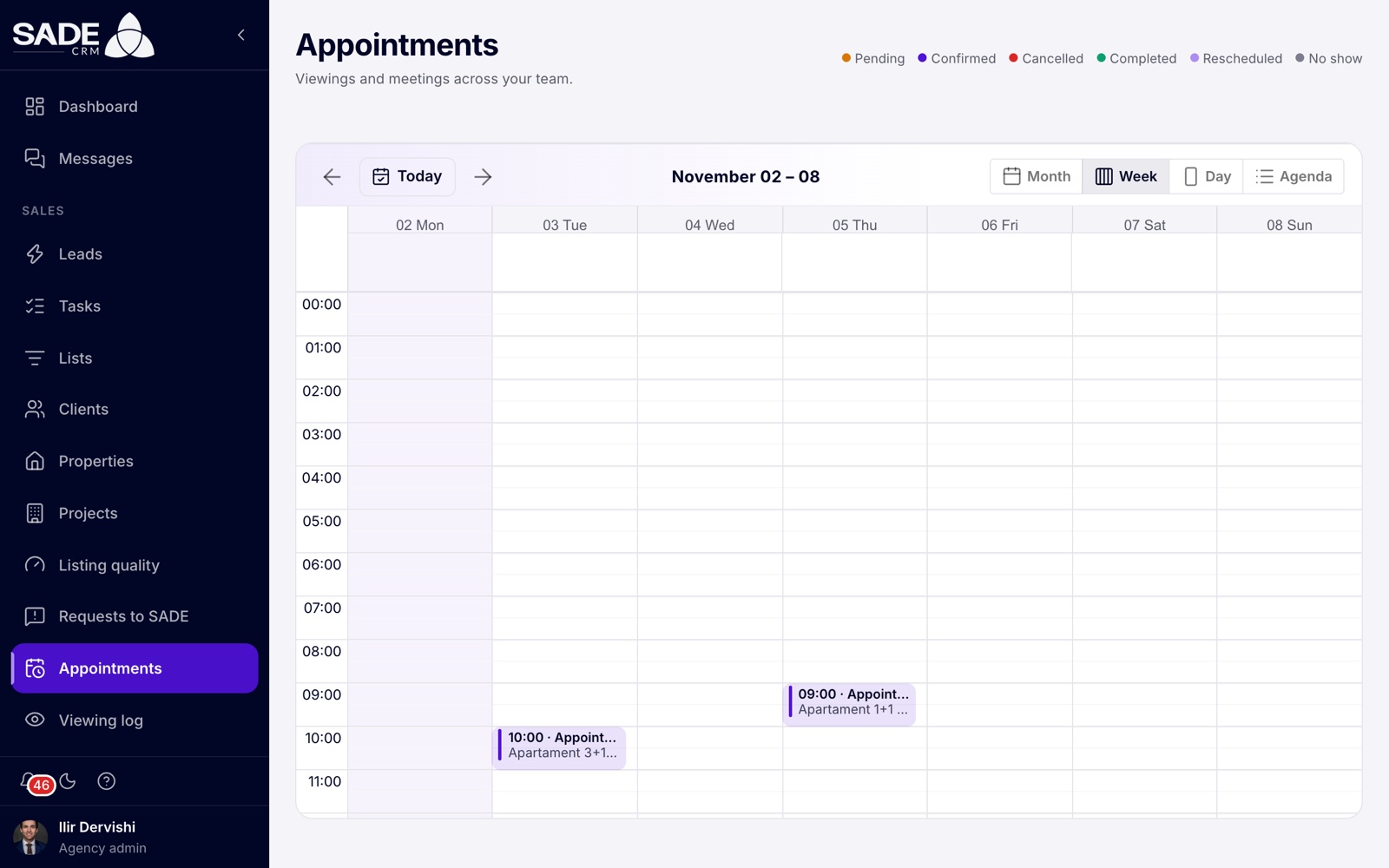
Week view, with the day split into hours.
Booking a viewing
- Open Appointments.
- Click a free day or time in the future. The New appointment dialog opens with that date and time filled in. You can’t click a day in the past: the CRM says “Appointments can’t be made in the past.”
- Choose what the viewing is of: A listing or A project.
- For a listing, type in Search property and pick it. The other fields open once a property is chosen. For a project, pick the Project, then pick a Unit or leave it on The whole project. Sold units are not offered.
- Type at least two letters in Search client and pick the client.
- Check Date and time.
- Leave Status on Pending, or choose another status.
- Add Notes if there is anything the agent should know.
- Click Create appointment.
| Field | What to enter |
|---|---|
| A listing / A project | What the client will see. |
| Search property | The listing. An agent finds only the listings assigned to them; an admin finds all of the agency’s listings. Sold and rented listings show “(Sold)” or “(Rented)” after the title. |
| Project and Unit | The project, and one of its units or The whole project. |
| Search client | The client, from at least two letters. For a listing, the listing’s owner is left out of the results. An agent finds only clients they work with. |
| Date and time | When the viewing starts. It can’t be in the past. |
| Status | Usually Pending. See statuses. |
| Notes | Optional. Anything about the viewing. |
Whose viewing it is
- When an agent books, the viewing is theirs.
- When an admin books a viewing of a listing, it goes to the listing’s assigned agent. If the listing has no agent, the dialog says “This property has no agent assigned. Assign an agent to the property first to create an appointment.” and won’t save.
- A viewing of a project always belongs to whoever booked it.
Rules
- An agent can’t have two viewings within an hour of each other. The CRM refuses with “You already have an appointment with these details scheduled for this time range.”
- Viewings of projects need a plan that includes projects. On other plans the CRM says your plan doesn’t include projects. See Plans and billing.
What happens when you book
- Every agency admin gets a notification in the bell.
- The agent gets an email naming the client, the property and the date.
- If the client has an email address, they get an email with the property, the date, the time and the agent’s name. This is only for a viewing that is Pending, Confirmed or Rescheduled: a viewing booked as Cancelled, Completed or No show sends the client nothing.
- The agent gets a reminder email before the viewing, naming the listing or project and the client. No reminder is sent for a viewing that is Cancelled, Completed or No show.
The wording follows the status. Only a Confirmed viewing is called confirmed: the client’s email reads “Your viewing is confirmed”. For any other status it reads “Viewing booked, waiting for confirmation” and says the agent will be in touch to confirm it.
These emails are written in all 11 CRM languages. The client gets theirs in their own language when the CRM knows it, for example from the language they used on the marketplace or your website form; otherwise in your agency’s CRM language. The agent’s emails are in the agency’s CRM language.
Changing a viewing’s status, moving it or deleting it sends no email.
Statuses
| Status | Use it when |
|---|---|
| Pending | The viewing is booked. This is the default. |
| Confirmed | The client has said they will come. |
| Rescheduled | The viewing has been moved to a new time. |
| Cancelled | The viewing won’t happen. |
| Completed | The viewing took place. |
| No show | The client didn’t come. |
To change the status, click the viewing on the calendar and pick a new Status in the dialog. It saves at once: “Appointment status updated”.
When you choose Completed, the CRM asks “Was the appointment successful?” and offers to open a deal for the property straight away. Click Create deal to go to Deals with the form filled in from the viewing, or Later (not recommended) to close it.
Note: deals are for listings. A unit in a project is sold from the project instead: see Holds and sales.
Opening, moving and deleting a viewing
Click a viewing to open it. The dialog shows when it starts and ends, its Status, the Property (or “Project · Unit”), the Notes, and the Viewing log card where you record the outcome and ask the client to confirm.
To move a viewing, drag it to a new day or time on the calendar. The CRM shows the current and new time and asks you to confirm with Reschedule. Only viewings in the future can be moved, and only to a time in the future. If the new time is taken, the CRM refuses with “Cannot update this appointment to the selected date and time because the hour is already taken.”
Moving a viewing doesn’t change its status and sends no email. Set the status to Rescheduled yourself if you want it to show.
To delete a viewing, open it and click Delete.
Important: on the web, Delete removes the viewing at once, without asking first. Its outcome and the client’s confirmation go with it.
The Viewing log
Open Viewing log in the Sales part of the menu. It lists every viewing you can see, newest first, 50 to a page.
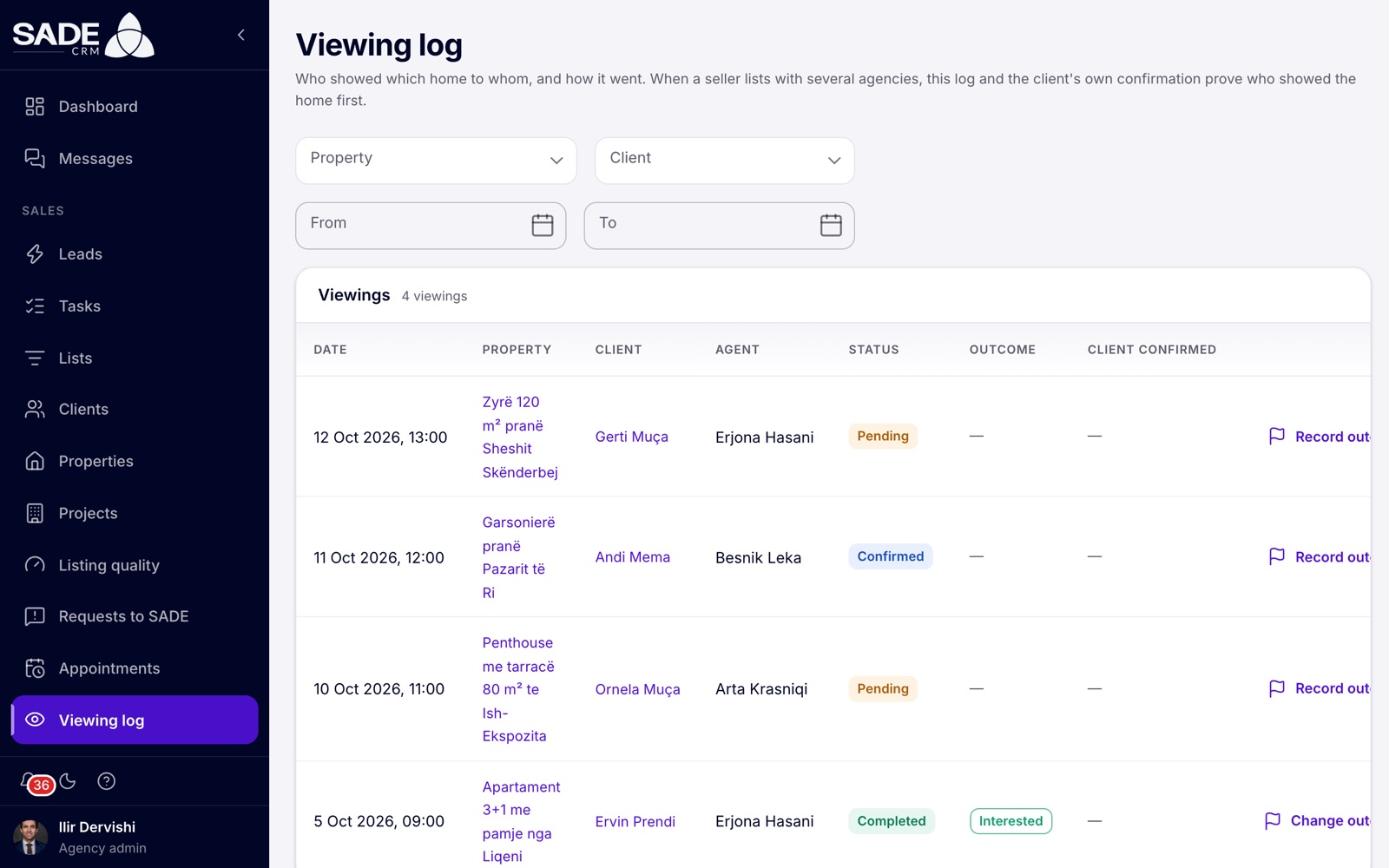
The Viewing log as an agency admin.
| Column | What it shows |
|---|---|
| Date | When the viewing was booked for. |
| Property | The listing, linked to its page, or “Project · Unit”. |
| Client | The client, linked to their page. |
| Agent | Whose viewing it is. |
| Status | The appointment’s status. |
| Outcome | How it went, once recorded. Hover over it to read the feedback. |
| Client confirmed | The date the client confirmed, with a green tick. Link sent means a confirmation link has been made but the client hasn’t confirmed yet. A dash means no link has been made. |
Filter the list by Property (type at least two letters), Client, and From and To dates. Clear filters shows everything again.
Recording the outcome
After the viewing, write down how it went. You can do it from the Viewing log or from the viewing on the calendar.
- Click Record outcome (it reads Change outcome once there is one).
- In “How did the viewing go?”, pick one outcome.
- Add Feedback if you like: what the client liked, what put them off, what comes next. Up to 4,000 characters.
- Click Save outcome.
| Outcome | What it does to the status |
|---|---|
| Interested | Sets the viewing to Completed. |
| Not interested | Sets the viewing to Completed. |
| Made an offer | Sets the viewing to Completed. |
| Didn’t show up | Sets the viewing to No show. |
A cancelled viewing stays Cancelled whatever outcome you record. When a viewing becomes Completed, the client’s lead stage moves up to Showing Homes if it was at an earlier stage.
Recording an outcome doesn’t offer to create a deal. To get that prompt, set the status to Completed in the viewing’s dialog.
Asking the client to confirm
The client can confirm, from their own phone, that they saw the home with you. The CRM keeps the first confirmation and its date as proof.
- Click Ask client to confirm, in the Viewing log or in the viewing’s dialog.
- Choose the Client’s language: Shqip or English.
- Share the link with the client:
- click Open WhatsApp to open a WhatsApp chat with the client and the message already written, then send it yourself; or
- click Copy message (or Copy link) and paste it into any app you use with the client.
If the client has no phone number on file, there is no WhatsApp button: copy the message instead.
SADE CRM doesn’t send the link for you. It makes the link; you share it. Asking again gives the same link.
The English message reads: “Hello Elton, thank you for viewing “Apartament 2+1 në Bllok”. Please confirm it here:” followed by the link.
What the client sees
The link opens a page on the SADE marketplace titled “Confirm your viewing”. It names the agent, the agency, the property, the city and the date, and has one button: Yes, I saw this home. After the client taps it, the page thanks them and shows the date.
- Only the first confirmation counts. Later taps change nothing.
- If the viewing is cancelled after the link was made, the link stops working and the client sees “This link isn’t valid”.
- Nobody in the CRM gets a notification when the client confirms. Check the Client confirmed column in the Viewing log, or open the viewing: it shows “Confirmed by the client” with the date and time.
On the phone app
The phone app has a Calendar tab with a month grid and the chosen day’s viewings below it.
- Book a viewing opens “New viewing”: Property, Client, Date & time and Notes. Viewings booked on the phone always start as Pending.
- A viewing of a project unit is booked from the unit itself, with Book a viewing.
- A viewing’s screen has Reschedule, Change status, Delete viewing (which asks first), and the “How it went” and “Client’s confirmation” sections.
- There is no Viewing log screen on the phone, and no drag and drop.
See The mobile app.
Example
On Monday 2 November, Ilir Dervishi, the admin of Tirana Living Real Estate, books a viewing for Thursday 5 November at 10:00. He clicks the slot, chooses A listing, picks “Apartament 2+1 në Bllok” and the client Elton Hoxha, and clicks Create appointment. The listing is assigned to Arta Krasniqi, so the viewing is Arta’s. Arta gets an email about it, and so does Elton.
On Thursday Elton likes the flat and offers €118,000 if the parking space is included. Arta opens the Viewing log, clicks Record outcome, picks Made an offer and writes “Offered 118,000, wants the parking included”. The viewing becomes Completed and Elton’s stage moves to Showing Homes.
She then clicks Ask client to confirm, picks English and clicks Open WhatsApp. Elton taps Yes, I saw this home that evening. The next morning Arta sees the date with a green tick in the Client confirmed column.
A week later another agency lists the same flat and claims it introduced Elton. Ilir opens the Viewing log, filters by the property, and has the viewing, the outcome and Elton’s own confirmation, all dated 5 November.
Something unclear or missing? Write to [email protected] or call +355 69 808 0118.